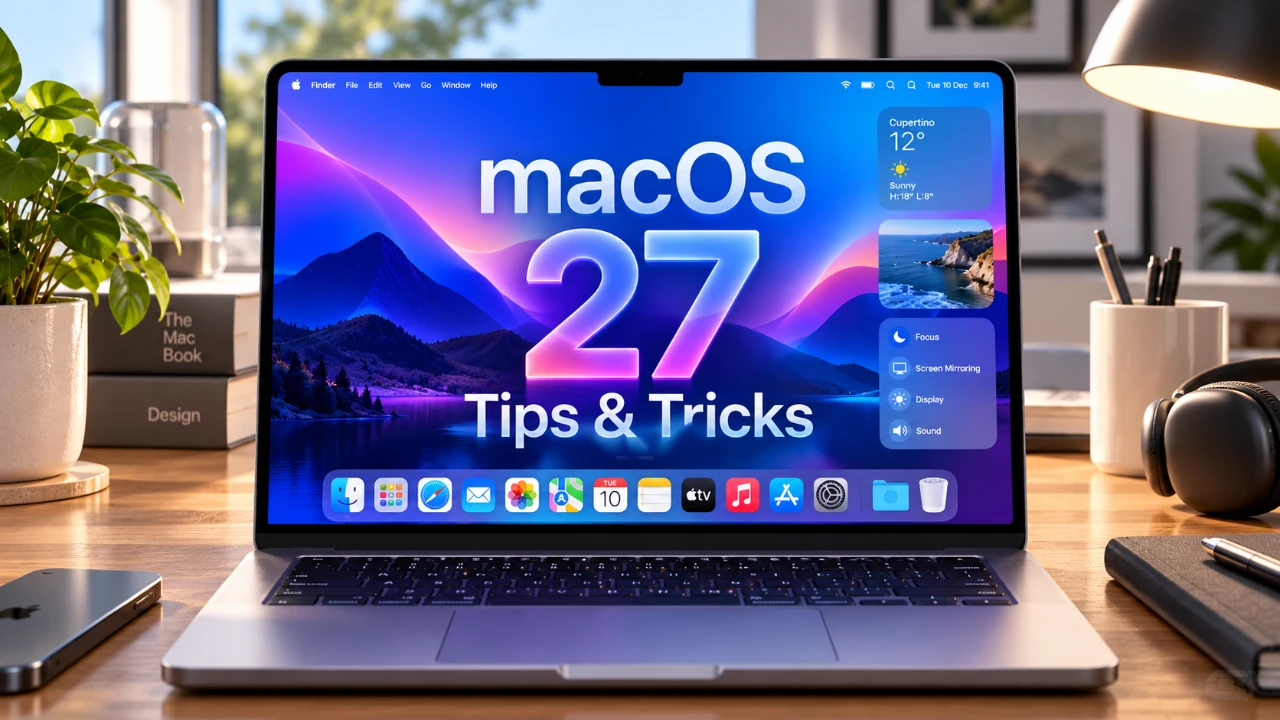
Maximizing productivity on macOS doesn’t require advanced technical expertise, just a few strategic adjustments and tools. Whether you’re a new Mac user or a seasoned pro, these tips will help you navigate your system more efficiently, personalize your workspace, and fully use the capabilities of macOS 27. By incorporating these strategies, you can elevate your Mac experience and work more effectively. The video below from AppleDesign gives us more details.

Optimize Finder for Effortless File Management
Finder serves as the cornerstone of file management on macOS, and customizing its features can significantly improve your workflow. Begin by enabling “Show Path Bar” and “Show Status Bar” from the View menu. These options provide a clear visual of your file hierarchy and available storage, making it easier to locate and organize files.
To further enhance Finder’s functionality:
- Enable “Calculate All Sizes” in the View Options menu to display folder sizes at a glance. This feature is particularly useful for managing storage and identifying large files or folders that may be taking up unnecessary space.
- Add the AirDrop icon to the Finder toolbar. This allows you to drag and drop files directly onto the icon for instant sharing with nearby Apple devices, eliminating the need to navigate through menus to access AirDrop.
- Customize Finder’s sidebar by adding frequently accessed folders or locations. This reduces the time spent searching for files and ensures your most-used directories are always within reach.
These simple yet effective adjustments can save time and make file management more intuitive, allowing you to focus on your tasks without unnecessary distractions.
Personalize Your Workspace for Better Organization
Customizing your Mac’s interface not only enhances its visual appeal but also improves organization and efficiency. Start by personalizing folder icons:
- Open a folder’s Info window (Command + I), then drag an image from Safari or your desktop into the icon section. This visual distinction makes it easier to identify folders at a glance and adds a personal touch to your workspace.
To maintain a clutter-free Dock, enable the “Minimize windows into application icon” option in System Settings. This consolidates minimized windows into their respective app icons, reducing visual clutter while preserving functionality. Additionally, consider rearranging your Dock to prioritize frequently used apps, making sure quick access to essential tools.
For a more streamlined desktop, use Stacks to automatically group files by type, date, or tags. This feature keeps your desktop organized and prevents it from becoming overwhelmed with scattered files.
Unlock the Power of Clipboard and Text Tools
macOS 27 introduces powerful tools to simplify text and clipboard management, making it easier to handle repetitive tasks and improve efficiency. Key features include:
- Clipboard Manager: Access your clipboard history by pressing Command + Space to open Spotlight, then using Command + 4 to view previously copied items. This tool is invaluable for projects requiring frequent copying and pasting, as it eliminates the need to repeatedly switch between applications.
- Text Extraction from Images: Use Quick Look’s text extraction feature to copy text directly from images. Simply preview an image, highlight the desired text and copy it without needing third-party apps. This is especially useful for extracting information from screenshots, scanned documents, or photos of text.
To further enhance text navigation, master keyboard shortcuts such as Command + Arrow Keys to jump to the beginning or end of a line, or Option + Arrow Keys to move between words. These shortcuts make editing and reviewing documents faster and more precise, saving valuable time during intensive writing or proofreading tasks.
Enhance Photos and Screenshots with Built-In Tools
macOS 27’s photo editing tools rival many third-party applications, offering professional-grade capabilities directly within the system. These tools allow you to refine images without needing additional software. Key features include:
- Cleanup: Remove unwanted objects from photos with precision, making sure a polished final result.
- Extend: Expand photo backgrounds to fill empty spaces or add context to your images.
- Reframe: Adjust angles and composition for a more balanced and visually appealing photo.
For screenshots, macOS offers advanced shortcuts to improve efficiency. Use Command + Shift + Control + 4 to capture a specific area and save it directly to your clipboard. This allows you to paste the screenshot into documents, emails, or messages without cluttering your desktop with saved files. Additionally, the built-in Markup tool lets you annotate screenshots with text, shapes, or highlights, making it easier to communicate ideas visually.
Streamline Your macOS Experience
Incorporating these tips into your daily routine can transform the way you use your Mac. From optimizing Finder and personalizing your workspace to using advanced text tools and photo editing features, macOS 27 offers a wide range of options to enhance productivity and simplify tasks. By mastering these features, you’ll not only save time but also unlock the full potential of your Mac, making sure every interaction is smoother, more efficient and tailored to your needs.
Expand your understanding of macOS 27 with additional resources from our extensive library of articles.
- New iOS 27 Beta 5 Release Arrives with a Big Shift Coming
- macOS 27 is Here: Apple Silicon Just Got Its Biggest Upgrade Yet
- Apple Releases macOS 27 RC: Everything New in the Update
- Apple Releases macOS 27.0.1 with New Changes Available Now
- The macOS 27 Beta 5 Release is Out: All the New Features
Source & Image Credit: AppleDsign
Disclosure: Some of our articles include affiliate links. If you buy something through one of these links, Geeky Gadgets may earn an affiliate commission. Learn about our Disclosure Policy.
