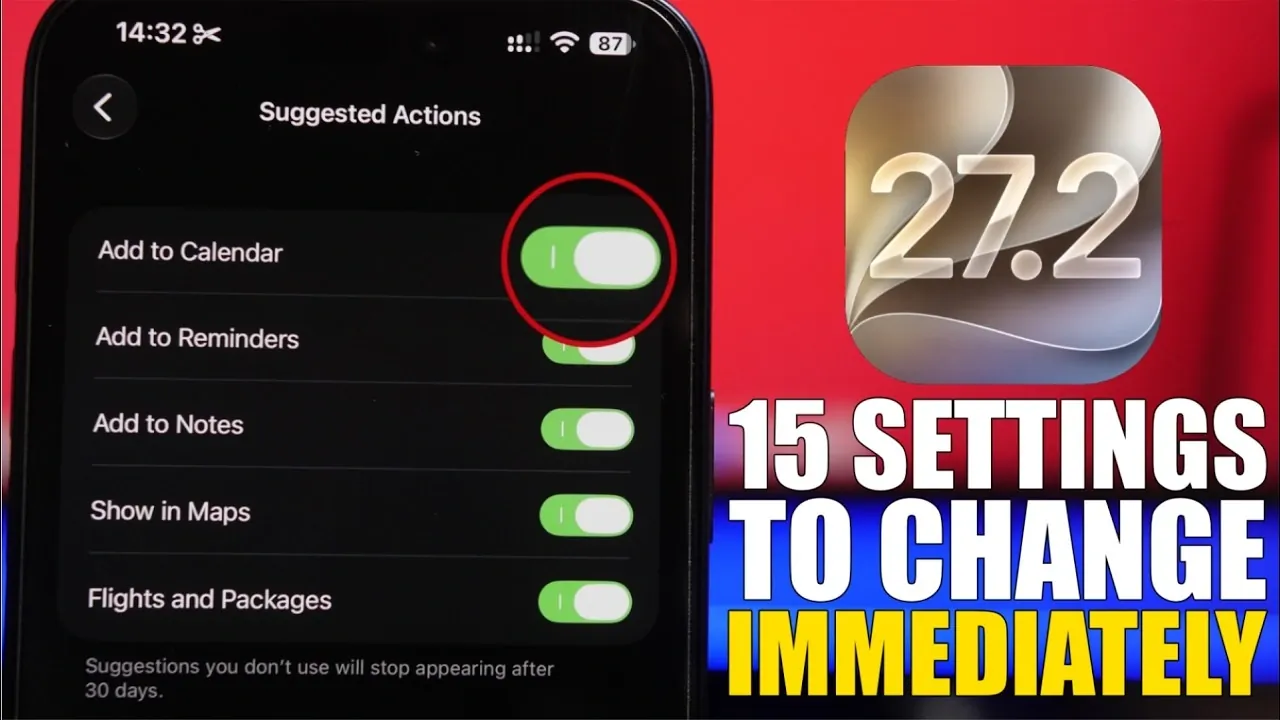
iOS 27.2 brings a host of new features and settings designed to enhance functionality, privacy, and overall user experience. By customizing these settings right after installing the update, you can ensure your device operates efficiently and aligns with your personal preferences. Below is a detailed video from iReview on the most important settings you should adjust without delay.

1. Messages App: Smarter Suggestions
The Messages app now includes intelligent suggestions to streamline communication. These suggestions allow you to add events to your Calendar, create reminders, or view shared locations directly from conversations. To customize these features:
- Go to Settings > Messages.
- Enable or disable specific options based on your preferences.
This customization ensures the app remains helpful without overwhelming you with unnecessary prompts, making your conversations more productive.
2. TV App: Accessibility and Personalization
The TV app now supports American and British Sign Language, a feature that is disabled by default. To enable it:
- Navigate to Settings > TV and activate sign language support.
Additionally, you can personalize your viewing experience by adjusting autoplay settings, recommendations and connected apps. For added security, set up a four-digit passcode to protect your personalized content and prevent unauthorized access.
3. Liquid Glass Slider: Aesthetic Customization
iOS 27.2 introduces the Liquid Glass Slider, a feature that allows you to adjust your device’s transparency for a unique visual effect. To modify this setting:
- Go to Settings > Appearance.
- Adjust the slider to match your aesthetic preferences.
This feature offers a subtle yet impactful way to personalize your device’s interface.
4. Siri: Enhanced Customization
Siri now provides greater control over how it interacts with you. Key options include:
- Choosing between spoken or silent responses.
- Managing conversation previews and history retention.
- Excluding specific apps from Siri suggestions.
These settings can be accessed under Settings > Siri & Search. By tailoring Siri’s behavior, you can ensure it aligns with your communication style and privacy needs.
5. Connectivity Assist: Optimized Network Performance
The new Connectivity Assist feature enhances wireless performance by allowing you to prioritize certain networks. This can improve both speed and battery efficiency. To configure this feature:
- Go to Settings > Wi-Fi.
- Adjust individual network preferences to prioritize your most-used connections.
This setting is particularly useful for users who frequently switch between multiple networks.
6. Volume Controls: Fine-Tuned Audio
iOS 27.2 introduces separate volume settings for the ringer, alarms, timers and system alerts. To access and adjust these options:
- Go to Settings > Sounds & Haptics.
- Customize each category to suit your needs.
This level of control ensures that your device’s audio settings are tailored to different scenarios.
7. Mail App: Smart Reply Personalization
The Mail app now supports customizable Smart Replies, allowing you to tailor automated responses to your communication style. To activate and adjust this feature:
- Navigate to Settings > Mail.
- Enable and personalize Smart Reply preferences.
This feature is particularly useful for users who rely on email for professional or frequent communication.
8. Photos App: Star Ratings for Better Organization
A new photo rating system lets you assign 1 to 5 stars to your images, making it easier to organize and locate your favorite photos. To enable this feature:
- Go to Settings > Photos.
- Turn on Show Rating Controls.
This addition simplifies photo management, especially for users with extensive libraries.
9. Camera App: Customizable Toggles
The Camera app now includes quick-access controls for frequently used settings such as flash, filters and aspect ratios. To configure these toggles:
- Open the Camera app and tap the top bar.
- Select the settings you want to display for easy access.
This feature enhances convenience, allowing you to capture photos and videos more efficiently.
10. Shortcuts App: Streamlined Editing
For users who frequently create custom shortcuts, the Shortcuts app now allows you to bypass the “Describe Shortcut” screen and jump directly into editing. To enable this:
- Go to Settings > Shortcuts.
- Turn on the default shortcut editor option.
This improvement saves time and simplifies the process of creating and managing shortcuts.
11. Privacy and Security: Take Control of Permissions
iOS 27.2 emphasizes privacy by allowing you to review and adjust permissions for various features, including:
- Location
- Photos
- Bluetooth
- Local network
- Camera and microphone access
Visit Settings > Privacy & Security to fine-tune these options and maintain control over your data. This ensures your personal information remains secure and accessible only to trusted apps.
12. Automatic Updates: Stay Current
To ensure your device remains up to date with the latest features, performance improvements and security patches, enable automatic updates for apps and software. To activate this:
- Go to Settings > General > Software Update.
- Turn on Automatic Updates.
This setting eliminates the need for manual updates, keeping your device running smoothly.
13. Focus Modes: Enhanced Productivity
Focus Modes in iOS 27.2 now offer more granular control, allowing you to customize notifications, app access and home screen layouts for different scenarios. To configure Focus Modes:
- Go to Settings > Focus.
- Create or edit modes to suit your work, personal, or relaxation needs.
This feature helps you stay organized and minimizes distractions throughout the day.
14. Safari: Improved Tab Management
Safari now includes enhanced tab management options, such as grouping tabs by category or activity. To organize your tabs:
- Open Safari and tap the tab overview button.
- Create and name tab groups for better organization.
This feature is ideal for users who frequently multitask or research across multiple websites.
15. Battery Health: Monitor and Optimize
The updated Battery Health section provides detailed insights into your device’s performance and offers recommendations for extending battery life. To access this feature:
- Go to Settings > Battery > Battery Health.
- Review suggestions and enable features like Optimized Battery Charging.
This ensures your device remains efficient and prolongs its overall lifespan.
By configuring these settings, you can fully use the capabilities of iOS 27.2, making sure a seamless, efficient and personalized user experience.
Deep dive into the latest in iOS 27.2 by exploring our other resources and articles.
- What’s Coming Next? Inside the New Tweaks Hitting iOS 27.2 Beta 3
- Apple Just Released iOS 27.2 Beta 3: All the New Changes
- The Best Features Coming to Your iPhone in iOS 27.2
- iOS 27.2 Beta 3 Is Here: What’s New, Changed, and Fixed
- Inside iOS 27.2 Beta 4: Surprising UI Tweaks and Last-Minute Changes
- New Features You Didn’t Know Were Coming in iOS 27.2
Source & Image Credit: iReviews
Disclosure: Some of our articles include affiliate links. If you buy something through one of these links, Geeky Gadgets may earn an affiliate commission. Learn about our Disclosure Policy.
