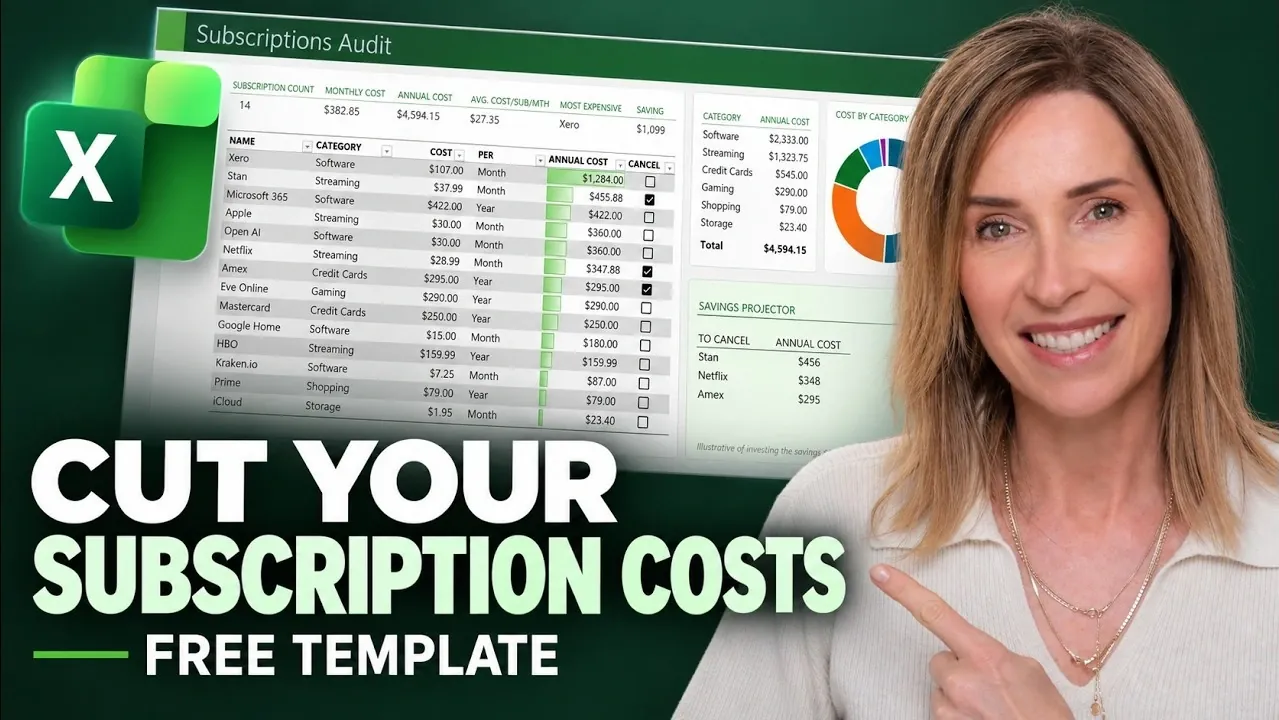
Managing subscriptions can often feel like a juggling act, with charges quietly adding up over time. My Online Training Hub demonstrates how to use Excel to create a structured system for auditing and optimizing your subscription expenses in just nine minutes. By organizing key details, such as subscription names, billing frequencies and annual costs, into a clear table, you can gain a comprehensive view of your spending. For instance, Excel formulas can automate the conversion of monthly charges into annual figures, making sure consistency and saving time during the analysis.
Dive into this guide to uncover actionable strategies for financial clarity. Learn how to use pivot tables to identify high-cost categories, calculate potential savings with interactive checkboxes and project long-term financial benefits using Excel’s built-in formulas. You’ll also explore ways to customize the free template to suit your unique needs, from adding renewal reminders to creating visual charts that highlight spending patterns. These steps provide a practical framework for taking control of your finances and making informed decisions about your subscriptions.
Excel Subscription Tracker 2026
TL;DR Key Takeaways :
- Use Excel to create a structured table for tracking subscriptions, including details like name, category, cost, billing frequency and annual cost, with automated formulas for accuracy.
- Analyze spending patterns using Excel tools like pivot tables to identify high-cost categories and areas for potential savings.
- Incorporate interactive checkboxes and formulas to calculate potential savings from canceling unnecessary subscriptions.
- Project long-term financial growth by reallocating savings, using Excel’s financial formulas to estimate returns based on investment scenarios.
- Enhance decision-making with data visualization tools like charts and conditional formatting and customize the template to suit individual financial needs.
1: Organize Your Subscriptions
Begin by setting up a structured table in Excel to catalog all your subscriptions. Include the following essential columns:
- Subscription Name: The name of the service or provider.
- Category: Group subscriptions by type, such as entertainment, utilities, or software.
- Cost: The amount you pay per billing cycle.
- Billing Frequency: Indicate whether the subscription is billed monthly, quarterly, or annually.
- Annual Cost: Standardize all costs to an annual figure for easier comparison.
To ensure accuracy, use Excel formulas to automate calculations. For example, apply an `IF` formula to convert monthly costs into annual amounts. This step not only saves time but also ensures consistency when analyzing your expenses.
2: Analyze Your Spending
Once your data is organized, use Excel’s analytical tools to uncover spending patterns. Features like pivot tables or the `GROUP BY` function can summarize costs by category, helping you identify which areas consume the largest portion of your budget.
For example, you might find that entertainment subscriptions account for 40% of your total expenses. Such insights allow you to pinpoint areas where you can reduce spending without compromising essential services.

Take a look at other insightful guides from our broad collection that might capture your interest in Excel.
- 19 Clickable Excel Tools Replace Tedious Worksheet Scrolling
- Build an Auto-Updating Performance Board in Excel 2026
- Convert Excel Spreadsheets Into No-Code Mobile Apps
- Microsoft’s Excel Copilot Adds a .Rules Custom Command Hub
- Excel iPad Quick Start Guide 2026: Setup, Tips, Widgets & Shortcuts
- Google Pixel 10 Pro XL Price Leaks: How Much Will it Cost?
- Microsoft Excel Beta Lets Single Cells Store Nested Arrays
- 15 Modern Excel Functions Worth Knowing in 2026 That Outclass Clunky Workflows
- Master Dynamic Excel Formulas with Dot Operator in 2025
- Build Finance Models in Minutes with Claude for Excel
3: Identify Potential Savings
To evaluate potential savings, add interactive checkboxes to your table to mark subscriptions you’re considering canceling. Use the `SUMIF` function to calculate the total savings from these selections.
For instance, if you mark three subscriptions costing $15, $20 and $30 per month, Excel will automatically calculate a potential monthly savings of $65. This feature provides a clear and immediate view of how much you could save by eliminating unnecessary services.
4: Project Long-Term Savings
Understanding the long-term impact of reallocating your savings is crucial. Use Excel’s financial formulas to project how much your savings could grow if invested. Assume a 7% annual return, compounded monthly, to calculate potential growth over time.
For example, canceling $65 in monthly subscriptions and reinvesting that amount could grow to over $111,000 in 30 years. Adjust the return rate and time horizon to explore different scenarios, such as 1, 5, or 10 years. This exercise highlights how small, consistent changes can lead to significant financial growth.
5: Visualize Your Data
Visualizing your data makes it easier to interpret and act upon. Use Excel’s conditional formatting to highlight high-cost subscriptions with color scales or data bars. Additionally, create charts, such as a donut chart, to illustrate the proportion of expenses by category.
For example, a chart might reveal that 50% of your spending goes to entertainment, while 25% is allocated to software. These visuals provide a quick snapshot of your spending patterns and help you identify areas for improvement.
6: Customize the Template
The provided template is designed to be flexible and adaptable to your unique needs. You can:
- Add columns to track additional details, such as renewal dates or subscription usage frequency.
- Modify formulas to accommodate specific billing structures or personal preferences.
- Incorporate reminders for upcoming subscription renewals to avoid unexpected charges.
This flexibility ensures that the tool remains relevant as your financial situation evolves, making it a valuable resource for ongoing expense management.
The Financial Impact of Subscription Audits
Auditing your subscriptions delivers more than just immediate savings. By canceling unnecessary services, you free up funds that can be redirected toward achieving your financial goals.
For instance, eliminating three subscriptions costing $1,100 annually might seem like a modest change. However, reinvesting this amount at a 7% annual return could grow to over $111,000 in 30 years. This demonstrates the power of small, consistent adjustments in creating substantial long-term financial benefits.
Take Control of Your Finances
This Excel-based subscription audit tool enables you to take charge of your financial health. By tracking, analyzing and optimizing your expenses, you can identify unnecessary costs, achieve immediate savings and unlock the long-term benefits of reinvesting those funds. With just nine minutes of setup time, this tool offers a practical and effective way to improve your financial well-being and make informed decisions about your spending.
Media Credit: MyOnlineTrainingHub
Disclosure: Some of our articles include affiliate links. If you buy something through one of these links, Geeky Gadgets may earn an affiliate commission. Learn about our Disclosure Policy.
