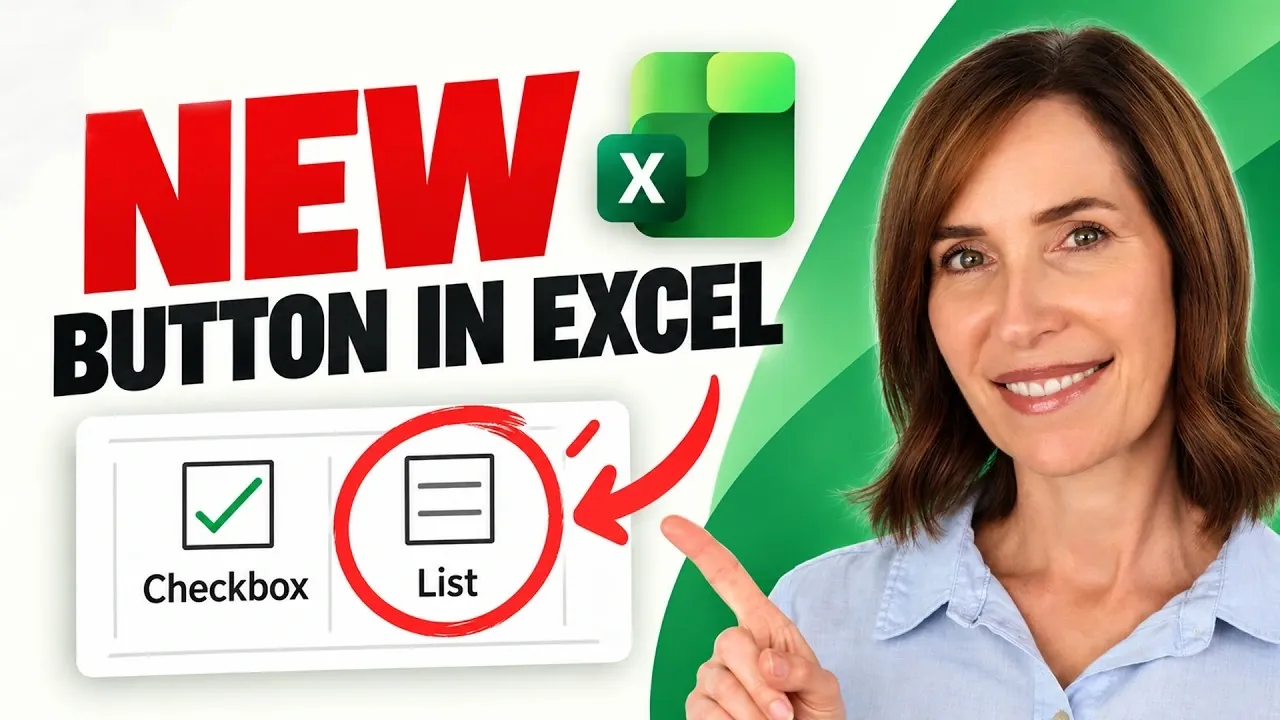
Microsoft Excel has taken a bold step forward with its latest feature, now allowing cells to store lists, arrays, and even nested arrays. This update, currently in beta for Microsoft 365 Insiders, moves beyond the traditional single-value-per-cell structure, offering a more compact and versatile way to manage data. My Online Training Hub explores how these new capabilities can simplify data organization and streamline workflows. For example, users can now store entire datasets from CSV files in a single cell, eliminating the need for sprawling layouts and making complex data more manageable.
Dive into this breakdown to understand how these features can enhance your Excel experience. You’ll gain insight into how functions like HAS ANY and FLATTEN simplify searching and manipulating data, while dynamic calculations such as `SORT` and `UNIQUE` reduce intermediate steps in analysis. Learn how to apply these updates to advanced scenarios, such as grouping data by categories or performing nested array calculations directly within cells. This guide provides a clear look at the possibilities and limitations of Excel’s latest evolution, helping you make the most of these new capabilities.
What’s New: Lists, Arrays and Nested Arrays
TL;DR Key Takeaways :
- Microsoft Excel now allows cells to store lists, arrays and nested arrays, breaking away from the traditional single-value-per-cell structure, allowing more compact and dynamic data management.
- New tools and functions, such as filtering, the FLATTEN function and dynamic calculations, enhance data handling and streamline workflows for complex datasets.
- Specialized functions like HAS, HAS ANY and HAS ALL simplify searching and validating data within lists, improving efficiency in data analysis.
- Advanced applications include importing entire CSV datasets into a single cell, grouping data by categories and performing nested array calculations directly within cells.
- Current limitations include partial support for features like conditional formatting, pivot tables and charts, but future updates are expected to address these gaps and expand compatibility.
The core of this update lies in the ability to store complex data structures directly within individual cells. These new capabilities include:
- Lists: A single cell can now hold multiple values, such as text, numbers, dates, or booleans, arranged in a column-like format. This eliminates the need to spread related data across multiple rows or columns, simplifying data organization.
- Arrays: Cells can store multi-dimensional data that spans rows and columns, making it easier to manage structured datasets or results from formulas.
- Nested Arrays: Arrays within arrays allow for even more intricate data structures, allowing advanced modeling and calculations directly within a single cell.
These features redefine how data is stored, offering a more compact and versatile approach to managing information in Excel.
Enhanced Tools for Data Manipulation
The introduction of lists and arrays is accompanied by new tools and functions designed to improve data handling and analysis. These tools enable users to work with complex data structures more efficiently:
- Filtering: Individual items within a list can be treated as separate values, allowing for more precise filtering of data points within larger datasets.
- Flatten Function: This function expands lists or arrays into separate cells or seamlessly integrates them into other functions, simplifying workflows involving complex data.
- Dynamic Calculations: Functions such as `COUNT`, `AVERAGE`, `UNIQUE`, and `SORT` can now be applied directly to lists and arrays, reducing the need for intermediate steps and improving calculation efficiency.
- Advanced Lookup: Tools like `XLOOKUP` and the new `FLATTEN` function enable users to retrieve and manipulate data from even the most intricate nested arrays with ease.
These enhancements provide users with greater flexibility and precision, making it easier to analyze and manipulate data in innovative ways.

Find more information on Microsoft Excel by browsing our extensive range of articles, guides and tutorials.
- 19 Clickable Excel Tools Replace Tedious Worksheet Scrolling
- Build an Auto-Updating Performance Board in Excel 2026
- 10 Powerful Excel Tips and Tricks for Complex Spreadsheets
- Convert Excel Spreadsheets Into No-Code Mobile Apps
- Build a 3-Section Excel Workbook to Paginate Large Datasets
- Apple Maps vs. Google Maps vs. Waze: Which CarPlay App Wins?
- Final Google Pixel 11 Leaks: Everything Rumored So Far
- How to create Excel dashboards with Claude 3 AI in minutes
- 17 New Excel Features for 2026 to Speed up Your Work
- How to convert Excel spreadsheets into interactive dashboard web apps with Taipy
New Functions for Lists
To complement the introduction of lists, Excel has rolled out specialized functions that simplify working with these new data types. These functions are particularly useful for searching and validating data within complex datasets:
- HAS: This function checks whether a list contains a specific value, streamlining the process of locating data points.
- HAS ANY: It verifies if a list contains any value from a specified set, making it easier to identify matches within large datasets.
- HAS ALL: This function confirms whether a list contains all specified values, providing a powerful tool for data validation and making sure completeness.
These functions enhance the usability of lists, allowing users to perform targeted searches and validations with minimal effort.
Advanced Applications of Lists and Arrays
The ability to store and manipulate lists and arrays within cells unlocks a range of advanced applications for data management and analysis. Some practical use cases include:
- Import CSV: Entire datasets from CSV files can now be stored in a single cell, allowing compact and efficient data handling without the need for extensive formatting.
- Group By: Summarize data by categories, creating unique lists that simplify analysis and reporting tasks.
- Nested Array Calculations: Perform complex operations, such as calculating order totals or aggregating data, directly within nested arrays, reducing the need for external tools or additional steps.
These applications demonstrate the potential of lists and arrays to streamline workflows and enable more sophisticated data modeling directly within Excel.
Integration Gaps and Current Limitations
While the introduction of lists and arrays represents a major advancement, certain integration gaps remain. Some Excel features currently offer limited support for these new data types, including:
- Conditional formatting
- Data validation
- Charts
- Pivot tables
- Power Query
- Find and replace
In these cases, users may need to temporarily expand data into separate cells to achieve the desired results. Additionally, as this feature is still in beta, further refinements and expanded compatibility are expected in future updates.
Key Benefits and Considerations
The ability to store lists, arrays and nested arrays within cells offers several key benefits for Excel users:
- Compact Design: Consolidate related data into single cells, reducing the need for sprawling layouts and improving spreadsheet readability.
- Improved Precision: Enhance the accuracy of filtering, calculations and data analysis by working directly with structured data within cells.
- Simplified Data Handling: Manage related information more efficiently, reducing complexity and streamlining workflows.
However, users should be aware of the current limitations and plan their workflows accordingly. As the feature evolves, it is expected to become even more versatile and widely supported across Excel’s ecosystem.
Microsoft Excel’s ability to store lists, arrays and nested arrays within cells marks a significant evolution in spreadsheet functionality. By allowing more dynamic and compact data management, this feature opens the door to advanced data analysis and modeling. While some integration gaps remain, the potential benefits far outweigh the limitations, making this a highly anticipated development for Excel users. As the feature evolves, it’s poised to become an indispensable tool for anyone working with complex datasets.
Media Credit: MyOnlineTrainingHub
Disclosure: Some of our articles include affiliate links. If you buy something through one of these links, Geeky Gadgets may earn an affiliate commission. Learn about our Disclosure Policy.
