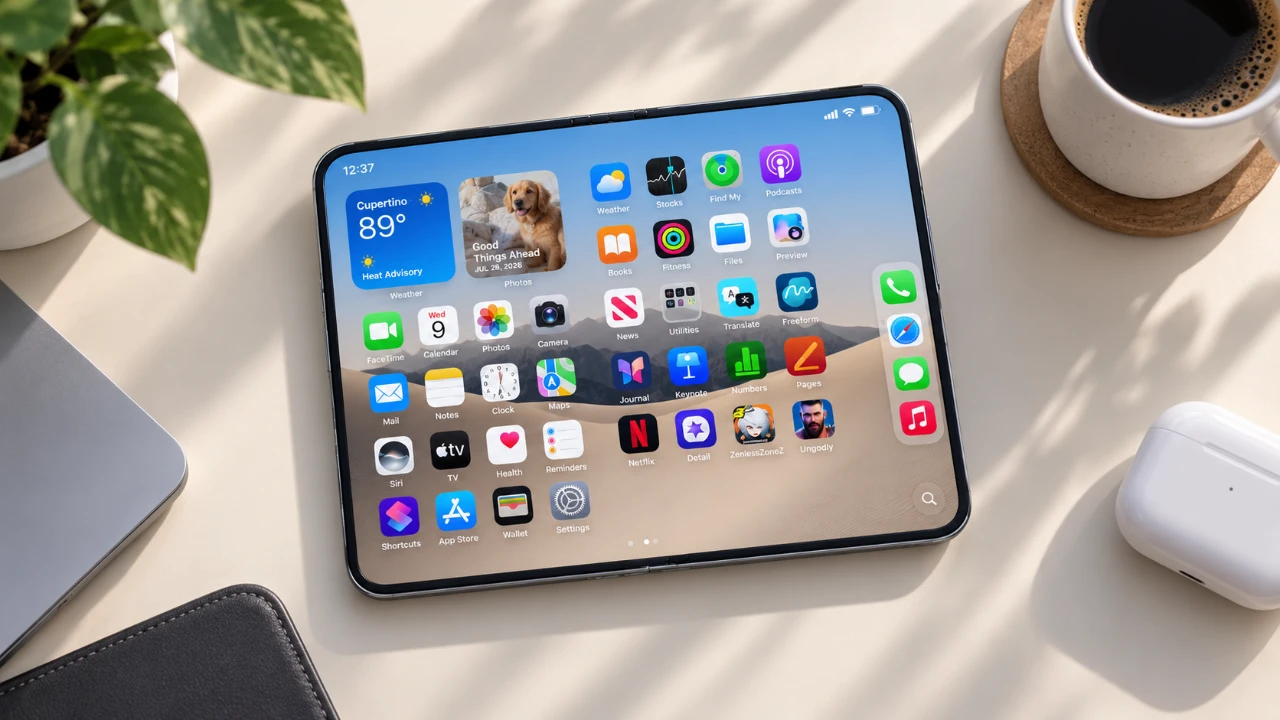
Unboxing your new iPhone Duo is an exciting experience, but proper setup is crucial to fully harness its capabilities. This guide outlines 20 essential settings to enhance performance, personalize your device, and ensure smooth operation. From managing battery health to customizing features, these steps will help you maximize the potential of your iPhone Duo. The video below from HotshotTek gives us more details.

1. Check and Monitor Battery Health
The battery is the backbone of your iPhone Duo’s performance. Navigate to Settings > Battery Health to view the battery’s maximum capacity and charge cycle count. If your device is refurbished, verify the manufacturing and first-use dates to ensure the battery meets your expectations. Regularly monitoring this section helps maintain optimal battery performance over time.
2. Set Up Location Sharing
The Find My app is a critical tool for security and convenience. Designate your iPhone Duo as the primary location-sharing device to enable real-time tracking. This feature is invaluable if your device is misplaced or stolen. Additionally, share your location with trusted contacts for added safety during travel or emergencies.
3. Activate and Customize Siri
Siri, Apple’s AI assistant, simplifies daily tasks through voice commands. Enable Siri in Settings > Siri & Search and customize preferences such as voice type and language. Use Siri to send messages, set reminders, or control smart home devices, making your interactions more intuitive and efficient.
4. Master Gesture Controls and Multitasking
Gesture controls are integral to navigating the iPhone Duo. Familiarize yourself with gestures like swiping to switch apps, accessing the home screen, or viewing notifications. For multitasking, activate the split-screen feature to use two apps simultaneously, such as browsing the web while taking notes. Linking apps for quick reopening in split-screen mode further enhances productivity.
5. Use the Status Bar for Quick Access
The status bar is more than a display, it’s a gateway to essential shortcuts. Tap it to open the Control Center, where you can adjust settings like Wi-Fi, Bluetooth and screen brightness. This feature streamlines your interactions and saves time during daily use.
6. Set Up Touch ID for Security
Biometric authentication offers both security and convenience. Register multiple fingerprints in Settings > Touch ID & Passcode for seamless access. Enable the Rest Finger to Open option in Accessibility settings to unlock your device without pressing the home button, making the process faster and more efficient.
7. Customize Volume Controls
Adjust the functionality of the volume buttons to suit your preferences. In Settings > Sounds & Haptics, configure the buttons to control media volume by default instead of the ringer. This small adjustment enhances usability, especially when switching between apps or media playback.
8. Use the Built-in Kickstand
The iPhone Duo’s built-in kickstand is ideal for hands-free use. Whether watching a movie, attending a video call, or displaying photos, the kickstand adds stability and convenience. When charging, enable features like a clock display or photo slideshow to transform your device into a functional desk accessory.
9. Enhance Your Camera Experience
The iPhone Duo’s camera offers advanced features to elevate your photography. Enable Duo Preview to use both front and rear cameras simultaneously, perfect for selfies or group shots. The Kids Cube feature displays playful animations to engage children during photo sessions, making it easier to capture memorable moments.
10. Optimize for Thick Cases
If you use a thick protective case, adjust your display settings to maintain responsiveness. Increase touch sensitivity in Settings > Accessibility > Touch to ensure smooth interactions. This adjustment ensures your device remains functional and user-friendly, even with added protection.
11. Personalize Your Display
Tailor your display settings for comfort and usability. Adjust brightness, enable True Tone, and activate Night Shift to reduce eye strain in varying lighting conditions. These features enhance your viewing experience while promoting long-term eye health.
12. Enable App Privacy Permissions
Safeguard your data by managing app permissions. In Settings > Privacy, control which apps can access sensitive information like your location, camera, or microphone. Regularly reviewing these settings ensures your privacy remains protected.
13. Set Up Emergency SOS
Prepare for emergencies by allowing Emergency SOS. This feature allows you to quickly call for help by pressing the side button multiple times. Add emergency contacts who will be notified if SOS is activated, providing an extra layer of safety.
14. Configure Notifications
Streamline your notifications to minimize distractions. In Settings > Notifications, customize how alerts appear for each app. Choose between banners, sounds, or badges, or disable notifications for non-essential apps to maintain focus throughout the day.
15. Enable Automatic Updates
Keep your iPhone Duo up to date by allowing automatic updates for iOS and apps. This ensures you always have access to the latest features, security patches and bug fixes without needing to check manually.
16. Set Up iCloud Backup
Protect your data by allowing iCloud Backup in Settings > iCloud > Backup. This feature automatically saves your photos, documents and app data to the cloud, making sure you can restore them if needed. Regular backups provide peace of mind in case of device loss or damage.
17. Customize the Control Center
Personalize the Control Center to include shortcuts you use most frequently. Add tools like a flashlight, calculator, or screen recording for quick access. This customization improves efficiency and makes your iPhone Duo more user-friendly.
18. Explore Accessibility Features
Apple’s Accessibility features enhance usability for all users. Options like VoiceOver, Magnifier, and AssistiveTouch can be tailored to meet your specific needs. These tools make the iPhone Duo more inclusive and adaptable to various preferences.
19. Secure Your Device with a Passcode
In addition to Touch ID, set up a strong passcode for added security. This ensures that even if your fingerprint isn’t recognized, your data remains protected from unauthorized access.
20. Organize Your Home Screen
Declutter your home screen by organizing apps into folders or using the App Library. This arrangement simplifies navigation and ensures your most-used apps are always within reach, improving overall efficiency.
Final Thoughts
By configuring these 20 essential settings, you’ll unlock the full potential of your iPhone Duo. From enhancing security and privacy to personalizing features and mastering multitasking, these steps provide a comprehensive foundation for an optimized user experience. Take the time to explore these settings and make your iPhone Duo truly your own.
Expand your understanding of iPhone Duo with additional resources from our extensive library of articles.
- Early iPhone Duo 2 Leaks Reveal Major Hardware Upgrades
- iPhone Duo: Key Details Apple Barely Mentioned on Stage
- Apple’s iPhone Duo 2 Just Leaked: Everything Changing With the Next Foldable
- iPhone Duo Buyer’s Guide: How to Choose Without Regrets
- iPhone Duo vs. Galaxy Z Fold 8: Did Apple Just Catch Samsung?
- iPhone Duo: 5 Features That Make It Worth the Price
Source & Image Credit: HotshotTek
Disclosure: Some of our articles include affiliate links. If you buy something through one of these links, Geeky Gadgets may earn an affiliate commission. Learn about our Disclosure Policy.
