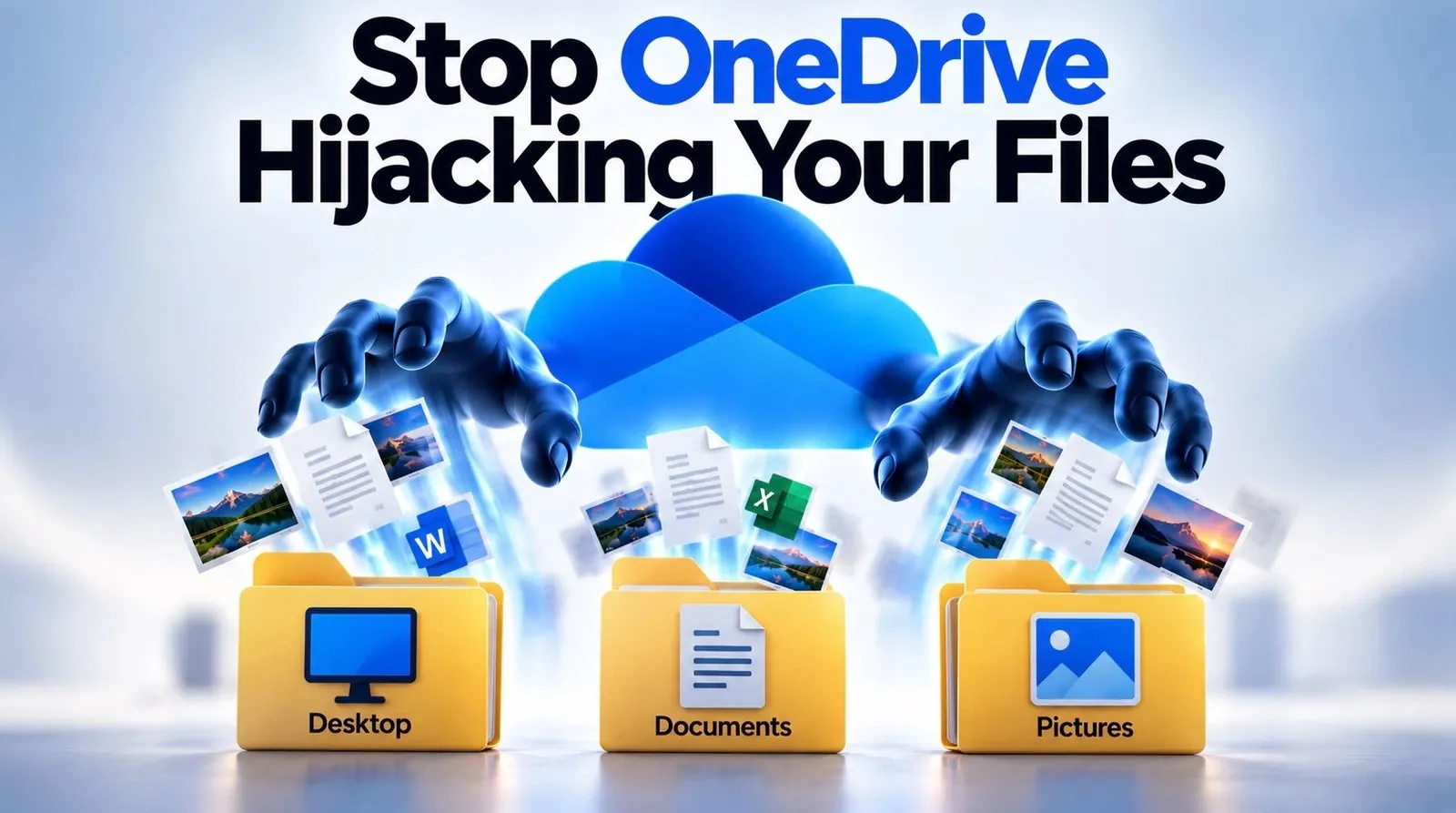
OneDrive’s automatic integration with your Desktop, Documents and Pictures folders can be a double-edged sword. While it aims to simplify file access across devices, it often results in files being stored online without clear consent, leaving users confused about where their data actually resides. Leila Gharani explores this issue, shedding light on how OneDrive’s file state indicators, such as the blue cloud for online-only files and the solid green circle for offline files, can help you understand the current location of your files. By recognizing these visual cues, you can better manage your storage and avoid unintended reliance on cloud syncing.
Gain insight into practical steps for regaining control over your files and preventing OneDrive from automatically managing key folders. You’ll learn how to disable folder backups, ensure files are stored locally and safeguard your data with alternative backup strategies like external drives or network-attached storage. This overview also highlights essential precautions, such as verifying local storage space and creating backups, to ensure a smooth transition without data loss.
Why OneDrive Automatically Integrates With Your Files
TL;DR Key Takeaways :
- Windows devices often link Desktop, Documents and Pictures folders to OneDrive by default, which can lead to files being stored online without explicit consent.
- OneDrive uses file state indicators (solid green, blue cloud, hollow green tick) to show whether files are stored locally, online, or temporarily offline.
- To stop OneDrive from managing specific folders, users can disable folder backups in the settings and ensure files are downloaded locally before making changes.
- Precautions like checking local storage, creating backups and closing open files are essential to avoid data loss when modifying OneDrive settings.
- Alternative backup strategies, such as external drives, NAS devices, or dedicated backup tools, offer more flexibility and control compared to relying solely on OneDrive’s limited free storage.
When setting up a Windows device, OneDrive is often pre-configured to back up your local files to the cloud. This integration is designed to make your files accessible across devices, but it can create confusion. Files that appear to be stored locally may actually reside online, requiring an internet connection to access them. Many users are unaware of this setup, as it often occurs without clear notification. OneDrive uses file state indicators to help you understand where your files are stored:
- Solid green circle: The file is fully downloaded and available offline.
- Blue cloud: The file is stored online-only and requires an internet connection to open.
- Hollow green tick: The file is temporarily stored locally but may be moved back to the cloud if storage space is low.
Understanding these indicators is essential for managing your files effectively and making sure they are stored in your preferred location.
How to Remove Files From OneDrive
If you want to stop OneDrive from managing your Desktop, Documents and Pictures folders, you can follow these steps to regain control:
- Locate the OneDrive cloud icon in your system tray and click on it to open the settings menu.
- Navigate to the “Manage Backup” section and toggle off folder backups for Desktop, Documents and Pictures.
- Before disabling the backup, ensure all files are downloaded locally. Right-click on the files or folders and select “Always keep on this device.”
- After confirming that your files are safely stored locally, select the “Only on my PC” option to prevent further syncing to OneDrive.
By following these steps, you can ensure that your files are stored locally and are no longer automatically synced to OneDrive.

Learn more about OneDrive with other articles and guides we have written below.
- Microsoft OneDrive For iOS Update Adds iPad Pro Features
- How to use new OneDrive Cloud storage features
- OneDrive Android App Now Supports Chromecast
- Apple Maps vs. Google Maps vs. Waze: Which CarPlay App Wins?
- 4 New Microsoft 365 OneDrive Copilot Features To Improve Productivity
- Microsoft OneDrive : The Beginners Guide to Organizing Your Digital Life
- Build an Auto-Updating Performance Board in Excel 2026
- OneDrive Guide 2026 : Setup, Syncing, Sharing Permissions and File Recovery
- Master OneDrive : Protect Folders, Sync Across Devices & Share Securely
- Samsung Galaxy Z Fold 8 Ultra: Is It Worth the $2,099 Price?
Precautions to Take Before Making Changes
Before making changes to your OneDrive settings, it’s important to take certain precautions to avoid data loss or other issues. Here are some key steps to follow:
- Check local storage space: Verify that your device has enough free storage to accommodate all files being downloaded from OneDrive.
- Create backups: Use external drives, network-attached storage (NAS), or dedicated backup software to safeguard critical data before making changes.
- Close open files: Ensure that no files are in use during the syncing process to prevent errors or incomplete transfers.
Taking these precautions will help you transition smoothly and minimize the risk of losing important data.
What to Do If Files Are Missing
If you discover that some files are missing after being moved to OneDrive, you can recover them by temporarily re-allowing the backup feature. Once the backup is active, locate the missing files and download them to your device by selecting “Always keep on this device.” After confirming that the files are stored locally, you can disable the backup again to prevent further syncing. This process ensures that you can recover any misplaced files and store them securely on your local device.
Better Backup Strategies
While OneDrive offers convenience, relying solely on it for file storage and backup may not be the best solution for everyone. Its limitations, such as the 5 GB free storage cap, can be restrictive. Here are some alternative backup strategies to consider:
- External drives: Portable hard drives or SSDs provide a simple and reliable offline backup solution.
- Network-attached storage (NAS): A NAS device allows for centralized, secure storage that is accessible within your local network.
- Dedicated backup tools: Software designed for automated backups can help you manage and protect your data across multiple devices.
These options offer greater flexibility, control and scalability for your data storage needs.
Microsoft’s Perspective on OneDrive Integration
Microsoft promotes OneDrive’s automatic integration as a feature that enhances convenience and protects against data loss. By syncing files to the cloud, users can access their data from multiple devices and recover it in case of hardware failure. However, the limited free storage often nudges users toward purchasing additional storage plans. For users who prefer local storage or alternative backup methods, this approach may feel restrictive.
Understanding Microsoft’s perspective can help you make an informed decision about whether to use OneDrive as your primary storage solution or explore other options.
Take Control of Your File Storage
You have the right to decide where and how your files are stored. By understanding how OneDrive works and taking proactive steps to manage your storage preferences, you can avoid unintended consequences and maintain full control over your data. Whether you choose to rely on OneDrive, local storage, or a combination of solutions, the key is to align your setup with your specific needs and priorities. Taking charge of your file storage ensures that your data remains secure, accessible and organized according to your preferences.
Media Credit: Leila Gharani
Disclosure: Some of our articles include affiliate links. If you buy something through one of these links, Geeky Gadgets may earn an affiliate commission. Learn about our Disclosure Policy.
