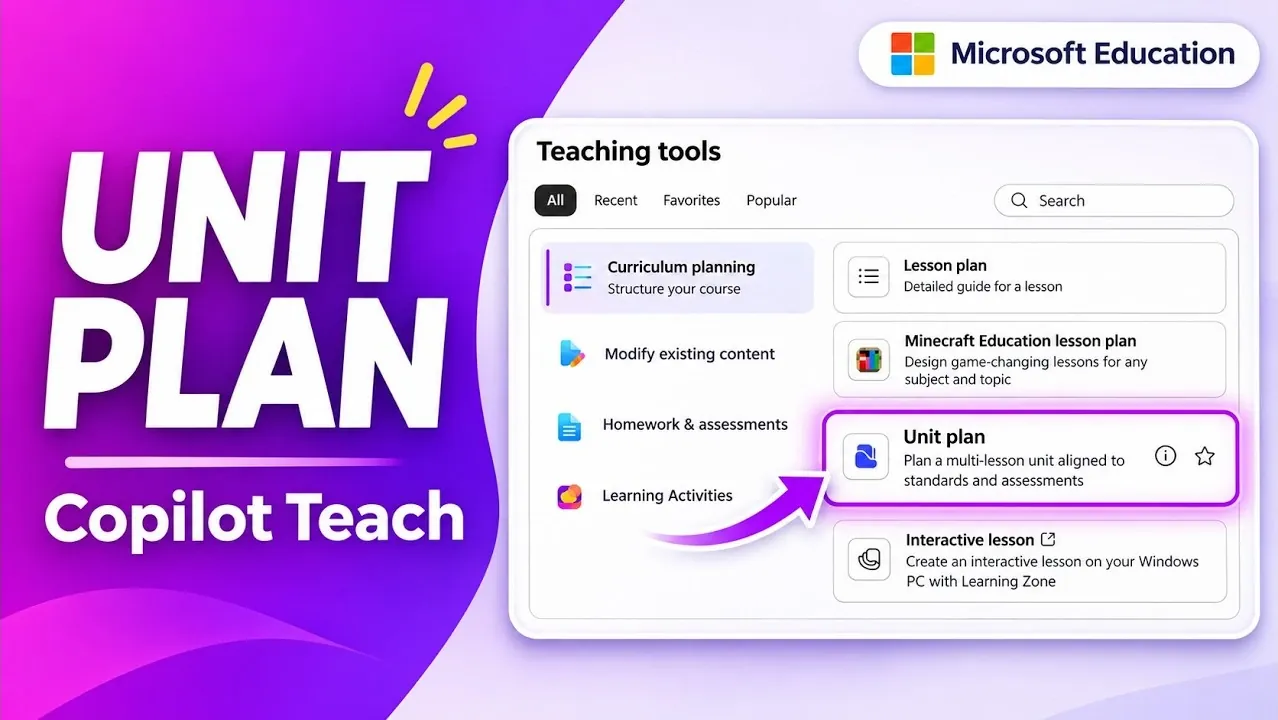
Unit Plans in Microsoft Copilot Teach lets you create a curriculum draft around the topic, schedule and standards you choose. It organizes suggested lessons and assessments by week, giving you a starting point you can edit and reorder. Mike Tholfsen shows how you can add supporting documents and choose an assessment strategy, then build lesson plans and quizzes for the saved unit. Find out how to set up a plan, adjust the draft and export it as a Word document.
Microsoft Copilot Teach Unit Plans
TL;DR Key Takeaways :
- Microsoft Copilot Teach’s Unit Plan option creates a curriculum draft from a topic, schedule, standards and assessment preferences. Educators can add supporting documents as context.
- Educators sign in at microsoft365.com with a staff account and choose Unit Plan under Curriculum Planning. Plans can span a few weeks, a semester or a trimester.
- K-12 standards selections cover 53 countries and all 50 U.S. states. Educators can also add essential questions and choose no assessments, assessments in every lesson or a custom strategy.
- The draft organizes lessons and assessments by week and includes objectives, vocabulary and selected standards. Educators can edit, reorder, copy or regenerate sections.
- After saving a unit plan, educators can create and attach lesson plans and quizzes to its lessons. The full unit plan can be exported as a Word document to OneDrive.
Microsoft Copilot Teach has a Unit Plan option that creates a draft curriculum from a topic, schedule, standards and assessment preferences. Once you generate and save a plan, you can create lesson plans and quizzes attached to its lessons.
You can provide supporting documents as context for the AI and build a plan lasting from a few weeks to an entire semester or trimester. The draft brings lessons and assessments together with your selected standards, ready for review and editing.
Set Up a Unit Plan
Sign in at microsoft365.com with an educator staff account, open Copilot Teach and choose Unit Plan under Curriculum Planning. The first-run experience explains how the feature works.
The setup form asks for a title and description. You can also attach grounding material, such as a Word document or PDF, to give the AI more context. For an American Revolutionary War unit, the description can focus on its political, economic and social causes.
Choose the unit duration, the number of lessons per week and the length of each lesson. Copilot Teach uses those choices to organize the draft. Duration options include a semester or trimester, and you can set the lesson count to suit the plan.
For K-12 standards, the tool offers selections covering 53 countries and all 50 U.S. states. Choose the applicable location, grade, subject and strand, then select standards for the unit. Copilot Teach generates the plan with those selections in mind.
Under More Options, you can add essential questions and choose an assessment strategy: no assessments, an assessment in every lesson or a custom strategy. A custom request can specify a knowledge check at the start, a quiz each week and a final assessment. Copilot Teach uses its quiz technology for that strategy.

Here is a selection of other guides from our extensive library of content you may find of interest on Microsoft Copilot education tools.
- 6 New Teacher Specific Copilot AI Tools Unlocked In Microsoft 365
- Automate Project Plans with 6 Microsoft 365 Copilot Upgrades
- New Microsoft Copilot Super App with Autopilot Assistant to Handle Your Work
- Save Hours of Work with These 10 Microsoft Copilot Prompts
- 6 Powerful Microsoft Copilot in Excel Use Cases & Workflow Examples
Review and Edit the Draft
The generated plan includes unit information, an overview, essential questions, vocabulary and the selected standards. It also lays out suggested lessons and assessments across the scheduled weeks, connecting them to the unit information and questions. It can place a requested knowledge check at the start and a quiz in the first week.
Each suggested lesson can include a duration, objectives, topics and assessments. The draft highlights the standards associated with its content, so you can see how the proposed lessons map to the standards selected during setup.
You can expand or collapse weeks to switch between detailed content and an overview of the schedule. You can also reorder and edit the draft, or copy individual pieces or the entire unit plan.
If a section needs a different approach, you can regenerate parts of the draft and request a simpler version. The regeneration controls also let you change assessment types or select from the available languages.
Save and Build Lesson Plans
Saving a unit plan adds a table of contents on the right. Select an entry to go to and highlight the corresponding section, making a longer plan easier to navigate.
The saved plan also places Create Lesson Plan and Create Quiz options next to lesson sections. Selecting Create Lesson Plan opens a form populated with the unit’s objectives and relevant standards. You can add more standards and change the lesson duration before generating the plan.
The resulting lesson plan contains materials, standards and objectives alongside the lesson content. You can edit or copy its sections and change the plan’s length or language. To attach it, generate the lesson plan, select Add to Unit Plan and save. The saved lesson plan is a Word document accessible from the unit plan.
Create and Attach Quizzes
The quiz copilot uses information from the unit plan to fill in the quiz description, objectives, topics and exit ticket. Standards selected earlier are preselected in the quiz form, and you can change the description before generating questions.
Quiz settings include a choice of five, 10 or 15 questions and a duration. Once the quiz is generated with the correct answers selected, you can edit it and change its settings and style before adding it to the unit plan. You can also create a knowledge check requested at the start of a unit as an AI-powered quiz.
You can create lesson plans and quizzes for any section of the broader unit plan and attach them to the relevant lesson. Created unit plans are stored in the Unit Plan area, and you can export the full plan as a Word document to OneDrive for later reference.
Access starts with an educator staff account at microsoft365.com. The standards selection described here is for K-12 users, and the unit plan is generated as a draft for review. A saved lesson plan is a Word document, while saving or exporting the broader unit plan gives you a document to reference later.
If you’re an educator looking to build a curriculum draft, Unit Plans in Microsoft Copilot Teach is worth a closer look. It gives you a starting point for organizing a unit around your schedule and teaching goals.
Media Credit: Mike Tholfsen
Disclosure: Some of our articles include affiliate links. If you buy something through one of these links, Geeky Gadgets may earn an affiliate commission. Learn about our Disclosure Policy.
