Creating a custom, debloated Windows 11 ISO can significantly enhance system performance by reducing unnecessary components and freeing up resources. Tiny11 Builder, developed by NTDL, provides a structured way to achieve this, offering three build modes: Tiny11, Tiny11 Core, and Custom. Each mode caters to different needs, from general use to virtual machines or fully tailored setups. This guide explores the process and evaluates its impact, as demonstrated by Sid The Geek.
Dive into the details of building your own lightweight Windows 11 ISO, including how to select and remove specific components like Microsoft Defender, legacy features, or promotional apps. You’ll also gain insight into the installation process using Rufus and the resulting performance improvements, such as increased RAM availability and smoother gaming benchmarks. This guide equips you with the knowledge to streamline your system without compromising essential functionality.
TL;DR Key Takeaways :
- Tiny11 Builder, developed by NTDL, allows users to create a lightweight, debloated Windows 11 ISO by removing unnecessary components, improving performance, and reducing system resource usage.
- The tool offers three build modes: Tiny11 (standard removals with Windows Update functionality), Tiny11 Core (optimized for virtual machines), and Custom (maximum control over component removal).
- In testing, a custom ISO was created with extensive removals, resulting in a file size of 5.5 GB (down from the original 8.9 GB) and improved system performance, including 1 GB of additional RAM freed up compared to a previously debloated system.
- Gaming benchmarks on Tiny11 showed an average of 37 FPS, with improved minimum frame rate stability and reduced stutter compared to the previously debloated system, which averaged only 24 FPS with severe stutters.
- Tiny11 is particularly suited for users with limited hardware resources or those prioritizing gaming and simplicity, though caution is advised when removing components like Microsoft Defender or updates for security reasons.
Building a Custom Debloated Windows 11 ISO with Tiny11 Builder
Tiny11 Builder, developed by NTDL, offers a practical way to create a lightweight, clutter-free version of Windows 11. This tool allows users to customize their ISO by removing unnecessary components, improving performance, and reducing system resource usage. Here’s how the process works and the performance outcomes of the resulting system.
Getting Started with Tiny11 Builder
First, download the latest version of Tiny11 Builder from its official GitHub repository. The current release is packaged as “Tiny 11 Builder Win x64.zip”. You’ll also need the official Windows 11 ISO, available from Microsoft’s website.
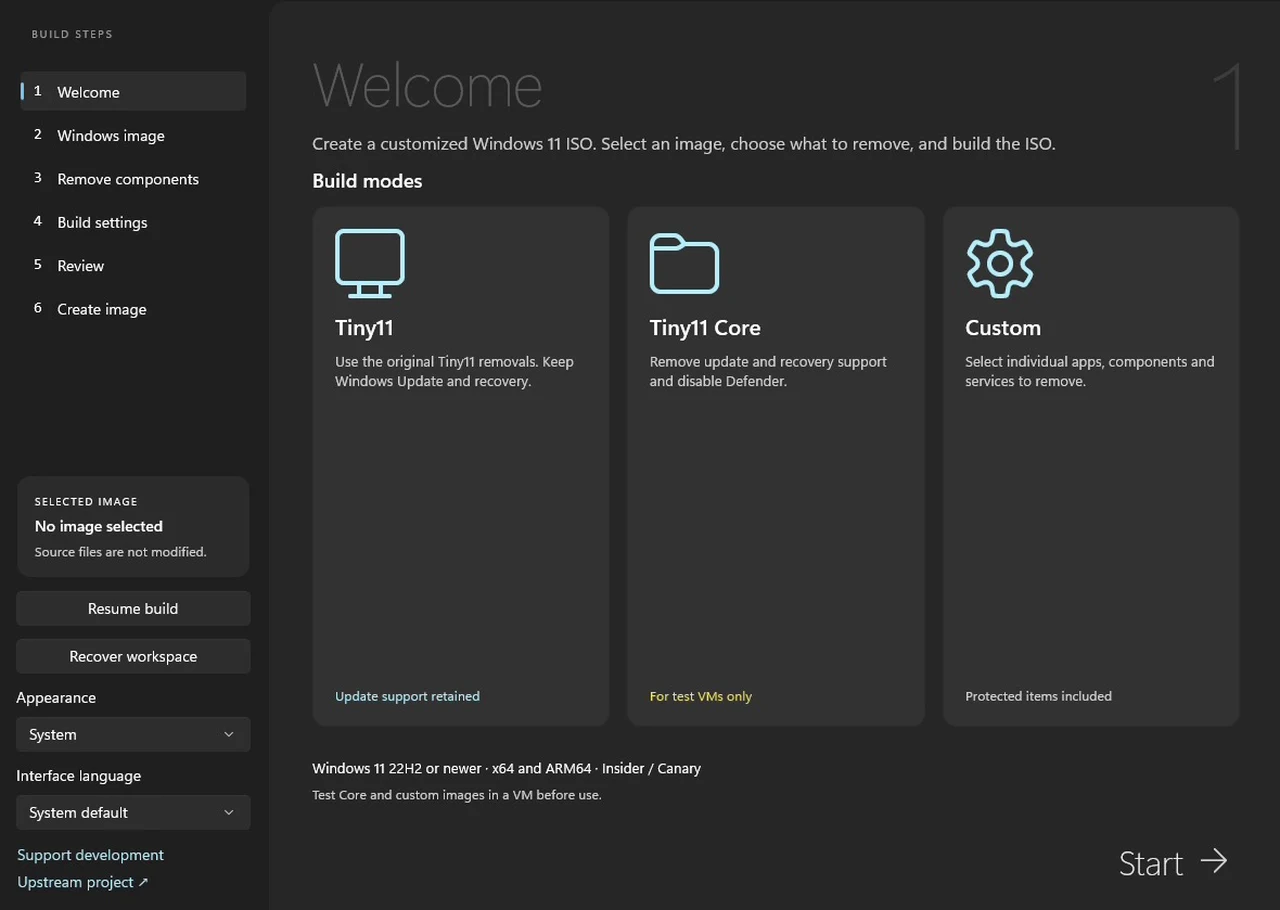
After downloading both files, extract the Tiny11 Builder zip file and launch the application. The interface provides three build modes: Tiny11, Tiny11 Core, and Custom. Tiny11 applies standard removals while keeping Windows Update functionality. Tiny11 Core is tailored for virtual machine testing. Custom mode offers maximum control, letting you choose specific apps, components, and services to remove.

Below are more guides on Windows 11 from our extensive range of articles.
- New Windows 11 26H2 Features to Improve Your Daily Workflows
- Affordable Lenovo 2026 LOQ 15 Laptop Scores 9,461 in 3DMark Time Spy
- New Windows 11 demo takes you through all its new features
- Bypass Windows 11 Microsoft Cloud Logins by Flashing a USB with Rufus
- New Gateway 23.8″ all-in-one Windows 11 PC
- Minimalist Windows 11 Setup in 7 mins: Boost Your Productivity Instantly
- How to Migrate Windows 11 From an Old SSD to a New NVMe SSD Without Reinstalling
- Small but Mighty : 8-Inch Window 11 Mini Laptop That Packs a Punch
- Steam Machine Benchmarks: Windows 11 Wins at 4K vs Steam OS
- Microsoft Official Releases Windows Lite an Unbloated Windows 11 for Pros
Customizing Your Windows 11 ISO
In Custom mode, Tiny11 Builder automatically selects Windows 11 Pro from the ISO file. From there, you can decide which components to keep or remove. Key options include:
- Removing Microsoft Defender and disabling updates (not recommended for security).
- Eliminating apps like Copilot, Bing apps, Microsoft 365 promotions, and Skype.
- Retaining gaming overlays, Media Player, and Windows Terminal.
- Removing legacy features such as Internet Explorer and XPS Printing.
- Enabling offline local account setup by bypassing the Microsoft account requirement.
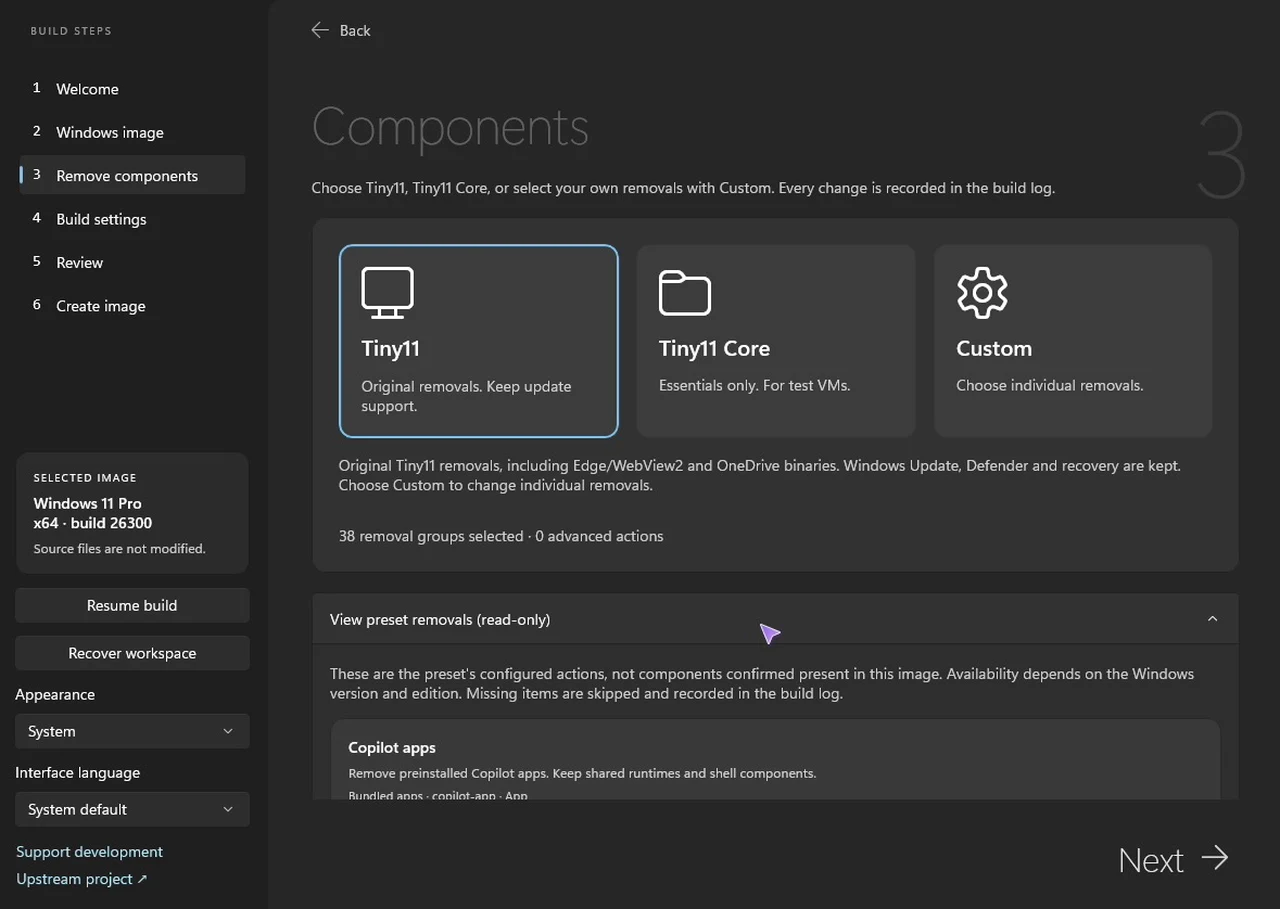
In testing, extensive removals were selected, including promotional apps, Edge browser, OneDrive, and diagnostic tools, while keeping features essential for gaming and media playback. Specific removals included “IME input method,” “Speech engines,” and “Reserve storage device encryption.” However, “32-bit application support” and “.NET framework” were retained for compatibility. The option to “remove servicing recovery and defender” was left unchecked to maintain system security and updates. “Bypass setup requirements” was also not selected, as no compatibility issues were encountered.
After confirming the “I accept the risks of these direct file removals” box, the build process took about 30 minutes, producing a custom ISO file of 5.5 GB, significantly smaller than the original 8.9 GB. The final ISO was saved in the workspace folder, which defaults to the Tiny11 folder.
Installing Tiny11
To install Tiny11, use Rufus to create a bootable USB drive from the custom ISO. The USB drive must be blank, as the process will erase all existing data. During Rufus setup, leave all popup options unchecked since Tiny11 Builder has already applied the necessary tweaks.
Before installation, disconnect any additional drives to avoid accidental data loss. Boot from the USB drive and follow the setup instructions. Tiny11 allows the creation of an offline local account, bypassing the need for a Microsoft account. The resulting desktop is clean and free of bloatware, with no Copilot, pre-installed web tools, or Microsoft Edge.
Performance Improvements
Tiny11’s lightweight design delivers noticeable performance gains. Compared to a previously debloated Windows 11 installation using the Chris Titus Tech Win util script, the following results were observed:
- 1 GB of additional RAM freed up compared to the previously debloated system.
- Gaming benchmarks showed an average FPS of 37 FPS, with the lowest 1% frame rate at 28 FPS and the lowest 0.1% at 23 FPS.
- The previously debloated system averaged only 24 FPS, with severe stutters dropping to 1 FPS in some cases.
The previously debloated system also experienced its worst stutter at 3 FPS, highlighting its struggles with consistent performance. Tiny11 significantly reduces the core OS footprint, improving minimum frame rate stability and reducing stutter. The difference in performance consistency was described as “night and day.”
Tiny11 Builder is a useful tool for those seeking a streamlined Windows 11 experience, especially users with limited hardware resources or a focus on gaming. The process is straightforward, and the resulting system is lighter, with improved performance and reduced clutter. However, careful consideration is needed when removing components, particularly if features like Microsoft Defender or regular updates are required. For users prioritizing performance and simplicity, Tiny11 offers a compelling solution.
Media Credit: Sid The Geek
Disclosure: Some of our articles include affiliate links. If you buy something through one of these links, Geeky Gadgets may earn an affiliate commission. Learn about our Disclosure Policy.
