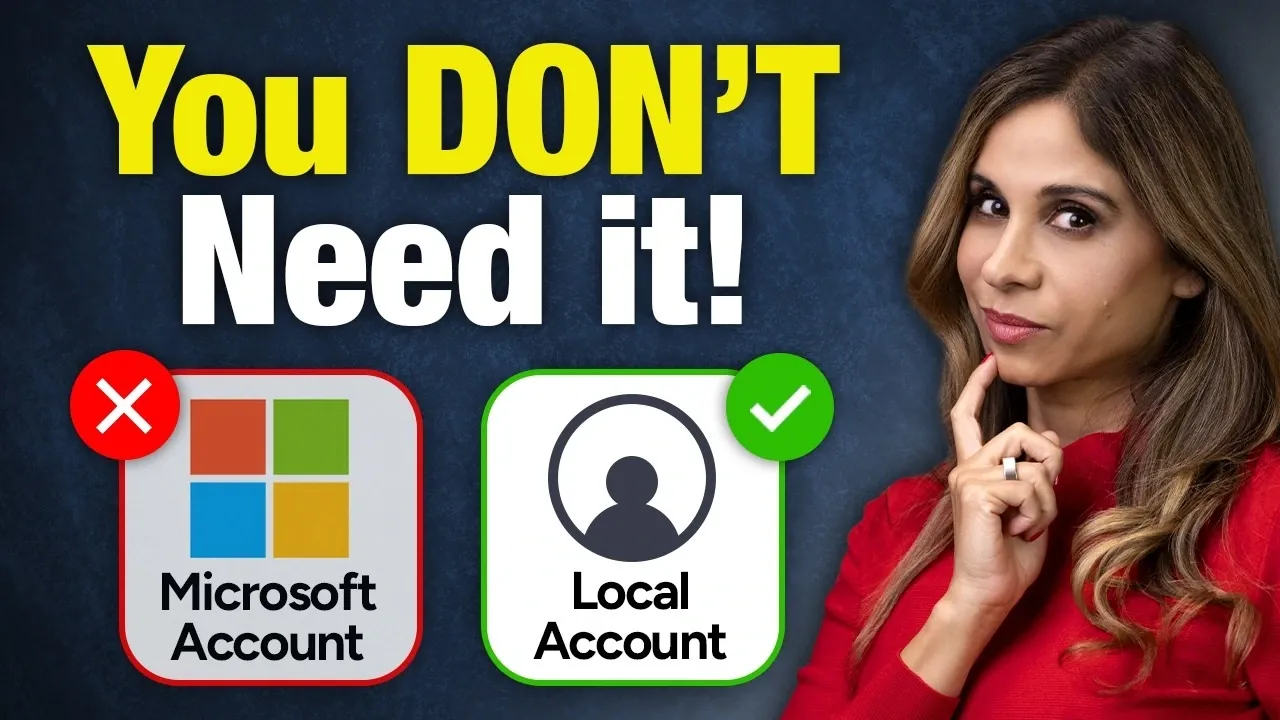
Microsoft has introduced stricter measures in Windows 11 that require users to sign in with a Microsoft account during the initial setup, removing the option to create a local account directly. This shift has left many users searching for alternatives, especially since methods like the BypassNRO workaround are no longer effective. In her breakdown, Leila Gharani explains practical ways to navigate this change, including how advanced users can use Rufus to bypass the Microsoft account requirement during installation.
Explore how to configure a new PC without linking it to a Microsoft account, the process for switching to a local account after setup and the functional differences between these account types. Gain insight into the privacy advantages of local accounts and the synchronization features tied to Microsoft accounts, helping you make informed decisions about your Windows setup.
Local Account vs Microsoft Account: Key Differences
TL;DR Key Takeaways :
- Windows 11 strongly encourages the use of a Microsoft account during setup, making it harder to create a local account, aligning with Microsoft’s focus on cloud integration and device connectivity.
- A local account offers enhanced privacy and offline management but lacks access to features like Windows Backup, Find My Device and seamless cloud integration provided by a Microsoft account.
- Switching between account types is possible: users can transition from a Microsoft account to a local account (or vice versa) through the settings menu.
- Advanced users can bypass the Microsoft account requirement during setup using tools like Rufus, though this involves additional steps and technical expertise.
- Choosing between a local or Microsoft account depends on user priorities: privacy and offline control favor local accounts, while convenience and cloud-based features favor Microsoft accounts.
A local account is a standalone user profile stored directly on your device, independent of Microsoft’s cloud services. This option is ideal for users who value privacy or prefer to keep their data separate from Microsoft’s ecosystem. However, it comes with certain limitations compared to a Microsoft account. In contrast, a Microsoft account offers seamless access to a range of features and services, including:
- OneDrive: Integrated cloud storage for your files and documents.
- Microsoft 365: Access to productivity tools such as Word, Excel and PowerPoint.
- Device Synchronization: Sync settings, preferences and apps across multiple devices for a unified experience.
While it is possible to use Microsoft services with a local account, doing so requires signing in to each service individually. A Microsoft account simplifies this process by providing automatic access and allowing additional features like Windows Backup and Find My Device.
How to Switch to a Local Account
If your device is already set up with a Microsoft account, you can switch to a local account through the settings menu. Follow these steps to make the transition:
- Open Settings and navigate to Accounts > Your Info.
- Select Sign in with a local account instead.
- Follow the on-screen instructions to create and switch to a local account.
Before proceeding, ensure that you have backed up your BitLocker recovery key. This step is crucial, as losing the key could result in being locked out of your encrypted data. Taking this precaution will help you avoid potential complications during the transition.

Setting Up a New PC Without a Microsoft Account
Windows 11 now requires an internet connection and a Microsoft account during the initial setup process. Previous workarounds, such as the BypassNRO method, are no longer effective. However, there are still ways to bypass this requirement if you prefer to set up your PC without a Microsoft account:
- Complete Setup with a Microsoft Account: Use a Microsoft account during the initial setup, then switch to a local account afterward through the settings menu.
- Use Rufus: Rufus, a bootable USB creation tool, allows you to create a Windows 11 installer with options to bypass the Microsoft account requirement. This method is particularly useful for advanced users who want greater control over the installation process.
While these methods provide flexibility, they involve additional steps compared to the straightforward local account setup available in earlier versions of Windows. Carefully consider your technical expertise and preferences before choosing a method.
Trade-offs of Using a Local Account
Opting for a local account offers enhanced privacy and offline management but comes with notable limitations. Key features tied to a Microsoft account will no longer be accessible, including:
- Windows Backup: The ability to back up settings, preferences and app data to the cloud is unavailable.
- Find My Device: This feature, which helps locate lost or stolen devices, is not supported without a Microsoft account.
- Password Recovery: Local accounts rely on password hints for recovery, which are less secure and less convenient than the online recovery options provided by a Microsoft account.
Despite these drawbacks, a local account ensures that your data remains confined to your device, offering a higher degree of privacy and control over your information.
Switching Back to a Microsoft Account
If you decide to return to a Microsoft account after using a local account, the process is straightforward. Navigate to Settings > Accounts > Your Info, and select Sign in with a Microsoft account instead. This flexibility allows you to experiment with both account types and choose the one that best aligns with your needs and preferences.
Which Option is Right for You?
Choosing between a local account and a Microsoft account ultimately depends on your priorities and how you use your device. Consider the following scenarios:
- Choose a Local Account: If you value privacy, prefer offline management, or want to separate work and personal data.
- Choose a Microsoft Account: If you prioritize convenience, use multiple devices, or rely on cloud-based features like OneDrive and Windows Backup.
By understanding the differences and trade-offs between these account types, you can make an informed decision that suits your specific needs. Whether you prioritize privacy or convenience, Windows 11 provides the flexibility to adapt to your preferences, making sure that your experience aligns with your goals and expectations.
Media Credit: Leila Gharani
Disclosure: Some of our articles include affiliate links. If you buy something through one of these links, Geeky Gadgets may earn an affiliate commission. Learn about our Disclosure Policy.
