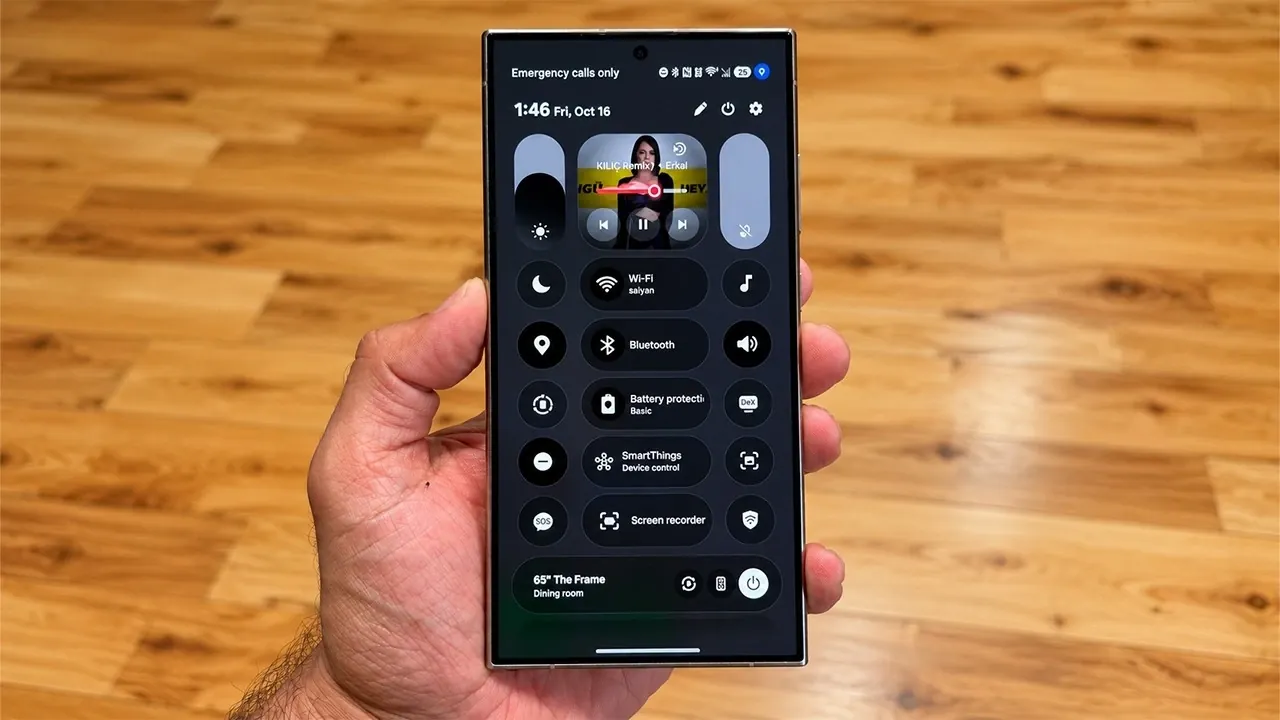
Samsung Galaxy smartphones equipped with One UI 9 provide an extensive range of customization options, allowing you to design a sleek and functional dark mode interface for your control panel. By using the Good Lock app and its Theme Park module, you can create a personalized experience that aligns with your aesthetic preferences and usability needs. This guide offers a detailed, step-by-step approach to help you craft a visually appealing and highly functional control panel. The video below from Sakitech gives us more details.

Essential Requirements for Customization
Before you begin customizing your device, ensure you meet the following prerequisites:
- One UI 9: Your Samsung Galaxy device must be running One UI 9 to access these advanced features.
- Good Lock App: Download the Good Lock app from the Samsung Galaxy Store. This app serves as the foundation for interface customization.
- Theme Park Module: Install the Theme Park module within Good Lock to unlock the ability to personalize your control panel.
Once these requirements are fulfilled, you’re ready to start customizing your device.
1: Organizing Your Control Panel Layout
The first step in creating a personalized dark mode design is organizing your control panel layout. A well-structured layout ensures ease of use and accessibility. Follow these steps:
- Swipe down from the top of your screen to open the control panel.
- Tap the “Edit” option to access the customization menu.
- Rearrange icons and toggles by dragging and dropping them into your preferred positions.
- Save your layout to apply the changes and finalize the arrangement.
This foundational setup ensures your control panel is both functional and ready for further customization.
2: Designing a Custom Dark Mode Theme
The Theme Park module within the Good Lock app is a powerful tool for creating a unique dark mode theme. Here’s how to use it effectively:
- Open the Good Lock app and navigate to the Theme Park module.
- Select the option to create a new theme.
- Focus on customizing the following key elements of your control panel:
- Quick Panel Themes: Apply a dark color palette to the notification area and quick settings panel for a cohesive look.
- Text Visibility: Adjust text colors to ensure they are easily readable against the dark background.
- Color Scheme Adjustments: Experiment with complementary colors for icons and toggles to enhance visual appeal and usability.
This step allows you to create a control panel that is both visually striking and easy to navigate, making sure a seamless user experience.
3: Synchronizing Dark Mode Across Your Device
To maintain a consistent dark mode experience, it’s important to align your device’s overall theme with your customized control panel. Follow these steps:
- Navigate to your device’s display settings and enable dark mode.
- Within the Theme Park module, refine text and icon colors to enhance visibility in low-light conditions.
By synchronizing your dark mode settings, you ensure a unified and polished appearance across your device.
4: Fine-Tuning Background Blur and Translucency
Background blur and translucency settings play a significant role in the overall aesthetic and functionality of your control panel. Adjust these settings to achieve the perfect balance between style and usability:
- In the Theme Park module, experiment with translucency levels to control how much of your wallpaper is visible through the control panel.
- Apply a subtle blur effect to add depth and focus to essential controls while maintaining a clean design.
These adjustments allow you to create a visually appealing interface that remains practical and easy to use.
5: Saving and Managing Your Custom Themes
Once you’ve completed your design, save your custom theme with a unique name. Apply it to your device to see the changes in action. Additionally, the Theme Park module offers flexibility for ongoing customization:
- Revisit the module to make further adjustments to your theme as needed.
- Create multiple themes to suit different scenarios, moods, or preferences.
This adaptability ensures that your device’s interface can evolve alongside your changing needs and tastes.
Elevating Your Samsung Galaxy Experience
Customizing the control panel on Samsung Galaxy devices running One UI 9 is a straightforward yet impactful way to enhance both the aesthetics and functionality of your smartphone. By using the Good Lock app and its Theme Park module, you gain the tools to design a personalized dark mode interface tailored to your preferences. From organizing your control panel layout to fine-tuning background effects and color schemes, these steps empower you to transform your device into a seamless and visually cohesive tool that reflects your unique style.
Here are additional guides from our expansive article library that you may find useful on One UI 9.
- Every New Feature in the Samsung One UI 9 WATCH Update
- Samsung’s One UI 9 Update Is Finally Here: And It’s a Total Fantastic option
- The Best One UI 9 Hidden Features Samsung Kept Quiet
- Samsung’s One UI 9.0 Update Lands on the Galaxy S26 Ultra: What’s New
- First Look at One UI 9.5: Samsung’s Sleekest Interface Redesign in Years
Source & Image Credit: sakitech
Disclosure: Some of our articles include affiliate links. If you buy something through one of these links, Geeky Gadgets may earn an affiliate commission. Learn about our Disclosure Policy.
