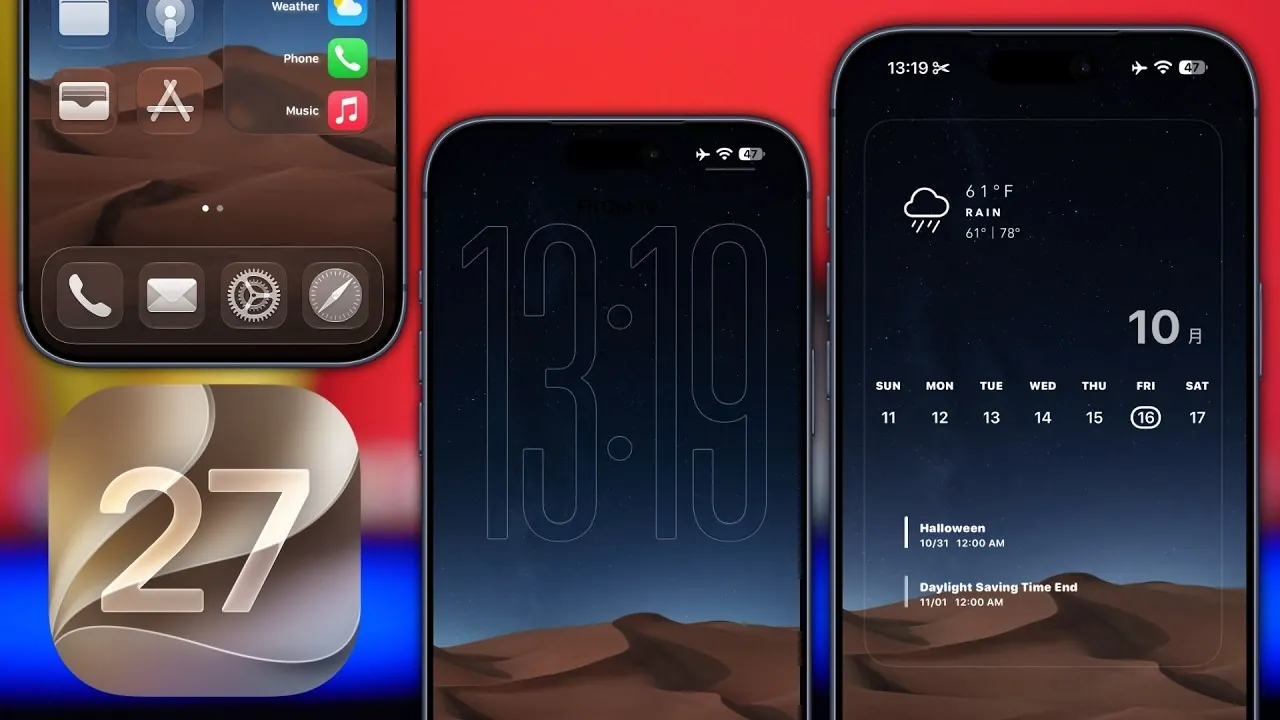
Apple’s iOS 27 introduces a comprehensive suite of customization features designed to help you achieve a clean, minimalistic aesthetic for your iPhone. With tools like larger widgets, advanced transparency settings and refined design options, this update enables you to personalize your device with precision and style. Whether you’re focusing on the home screen, lock screen, or control center, iOS 27 provides the flexibility to streamline your iPhone’s appearance while enhancing its functionality. Here’s how you can fully use these features to create a cohesive and visually appealing experience. The video below from iReviews gives us more details.

Home Screen: Simplify and Streamline
The home screen is the centerpiece of your iPhone experience, and iOS 27 offers several tools to elevate its design and usability:
- XL Widgets: These larger widgets allow you to consolidate essential information, such as weather updates, calendar events, and reminders, into a single, visually striking layout. By replacing multiple smaller widgets, you can reduce clutter and maintain a clean, organized design.
- Wallpaper Selection: Choose minimalistic wallpapers with soft gradients, muted tones, or solid colors to complement your layout. This ensures that your widgets and app icons remain the focal point of your home screen.
- Transparent App Icons: Remove text labels beneath app icons and opt for semi-transparent designs to create a seamless, distraction-free appearance. This feature aligns perfectly with a minimalistic theme, allowing your home screen to feel modern and uncluttered.
- Show Border Feature: Add subtle outlines around app icons and widgets to enhance visual clarity. This feature provides a polished, professional look while maintaining the simplicity of your design.
By thoughtfully combining these features, you can create a home screen that is both functional and aesthetically pleasing, reflecting your personal style.
Lock Screen: A Minimalist’s Canvas
The lock screen is another area where iOS 27 excels, offering tools to balance simplicity with practicality:
- Declutter Notifications: Streamline your lock screen by reducing unnecessary notifications and buttons, keeping the focus on essential elements like the clock and quick-access features.
- Customizable Clock: Use the “Show Border” feature to outline the clock for a refined appearance. You can also adjust the clock’s color, font, and transparency to harmonize with your chosen wallpaper.
- Wallpaper Integration: Select wallpapers that complement the semi-transparent clock and other lock screen elements. This creates a cohesive, modern aesthetic that enhances the overall design.
These customization options ensure your lock screen remains visually appealing while retaining its core functionality, making it a perfect blend of form and purpose.
Control Center: Enhanced Functionality Meets Design
The control center in iOS 27 has been redesigned to align with the minimalistic aesthetic, offering both improved usability and visual appeal:
- Show Border Option: Add subtle outlines to toggles and controls, making them easier to distinguish while maintaining a clean, organized look. This feature enhances usability without compromising the sleek design.
- Transparency Settings: Adjust the transparency of the control center background to blend seamlessly with your wallpaper and other UI elements. This creates a unified, intentional design that complements the rest of your device.
These enhancements not only improve the functionality of the control center but also contribute to a cohesive and visually pleasing interface.
Widgets: The Cornerstone of Customization
Widgets are central to iOS 27’s customization capabilities, offering new ways to integrate functionality and design into your iPhone experience:
- Customizable Widgets: Apps like Widget and Mojo allow you to tailor widgets to your preferences. For example, you can create a weather widget with a transparent background or a calendar widget with bold outlines to match your theme.
- XL Widgets: These larger widgets reduce the need for multiple smaller ones, streamlining your home screen while displaying more information at a glance. This feature is particularly useful for users who prioritize both functionality and aesthetics.
By using these options, you can ensure your widgets not only enhance your iPhone’s usability but also align seamlessly with your minimalistic design preferences.
Additional Tips for a Cohesive Design
To achieve a truly unified and polished look across your iPhone, consider these additional customization tips:
- Liquid Glass Settings: Adjust the transparency of various UI elements to create a sense of depth and harmony. For instance, combining liquid glass transparency with outlined UI elements can produce a striking yet understated effect that enhances the overall aesthetic.
- Consistency is Key: Ensure all elements, wallpapers, widgets, app icons, and Control Center settings adhere to your chosen minimalistic theme. Consistency across your device is essential for a professional and cohesive appearance.
- Focus on Functionality: While aesthetics are important, prioritize features that enhance usability. For example, choose widget layouts and app arrangements that make frequently used tools and information easily accessible.
By paying attention to these details, you can transform your iPhone into a device that reflects your personal style while remaining highly functional and efficient.
Deep dive into the latest in iOS 27 by exploring our other resources and articles.
- Apple Delaying iOS 27 Beta 5? Here’s When to Expect the Next Update
- New iOS 27 Beta 5 Release Arrives with a Big Shift Coming
- iOS 27 Beta 5 Is Late: What’s Holding Up Apple’s Next Release?
- The iOS 27 Beta 5 Release Imminent with More New Features
- Apple iOS 27 Beta 5 Preview: a Look at the Next Release
- iOS 27 is Finally Coming: Apple to Confirm Release Date Today
Source & Image Credit: iReviews
Disclosure: Some of our articles include affiliate links. If you buy something through one of these links, Geeky Gadgets may earn an affiliate commission. Learn about our Disclosure Policy.
