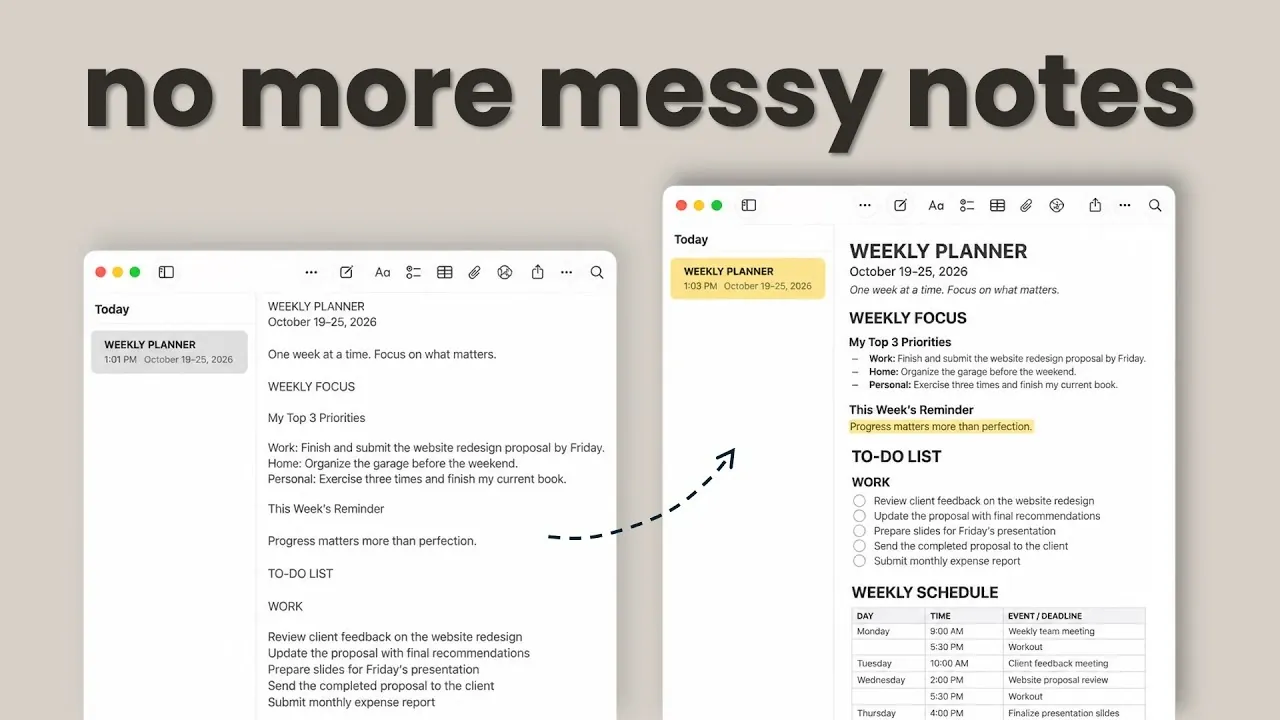
Apple Notes offers a range of formatting options that can make your notes more structured and visually clear. By applying text styles like title, heading, and subheading, you can create a logical hierarchy within your notes. For instance, a weekly planner might use the title style for the overall note, headings for sections like “Goals” or “Tasks,” and subheadings for smaller categories. These strategies help streamline organization, as demonstrated by The App Explainer.
Explore actionable ways to enhance your note-taking experience, from using collapsible sections to focus on specific content to leveraging checklists for task management. You’ll also learn how to combine list types for different priorities, format text for emphasis, and create tables to organize schedules or other structured data. These techniques ensure your notes remain both functional and easy to navigate.
TL;DR Key Takeaways :
- Apple Notes allows users to organize notes with text styles like title, heading, and subheading, creating a clear hierarchy for better readability and structure.
- Collapsible sections in Apple Notes enable users to hide and reopen content beneath headings, making it easier to focus on specific sections in longer notes.
- Apple Notes supports dashed lists, checklists, and numbered lists, which can be combined to connect broader priorities with actionable tasks and manage both short-term and long-term goals.
- The table feature in Apple Notes is effective for visual organization, such as creating weekly schedules, but it does not integrate with Apple Calendar or provide reminders, limiting its use for time-sensitive tasks.
- iCloud sync ensures seamless access and updates to Apple Notes across devices, making it a practical tool for users managing tasks and schedules on multiple Apple devices.
Organizing Apple Notes with Styles and Collapsible Sections
Apple Notes provides a variety of formatting tools to help structure and enhance the readability of your notes. By using text styles such as title, heading, and subheading, you can create a clear hierarchy. For instance, a weekly planner might designate the title style for the overall note, headings for main sections like “Weekly Focus” or “To-Do List,” and subheadings for smaller categories such as “Work,” “Home,” and “Personal.”
A particularly helpful feature is the ability to collapse sections. This allows you to hide the content beneath a heading and reopen it when needed. For longer notes, this functionality is especially useful, enabling you to concentrate on specific sections without being distracted by unrelated information.
Using Lists to Organize Priorities and Tasks
Apple Notes supports three types of lists: dashed lists, checklists, and numbered lists, each serving distinct purposes. Dashed lists are ideal for unordered items, such as weekly priorities that don’t follow a specific sequence. For example, you might list major goals for the week under categories like work, home, and personal.
Checklists are better suited for smaller, actionable tasks. If your goal is to complete a project, you could create a checklist with steps such as “review feedback,” “update proposal,” and “prepare presentation.” This approach links broader priorities to the specific actions required to achieve them.
Numbered lists are most effective for tasks that need to be completed in a particular order, such as instructions or plans for the following week. In a weekly planner, numbered lists can help you track sequential tasks or organize ideas for upcoming projects.
By combining different list types, Apple Notes allows you to organize information efficiently while connecting priorities to actionable steps. This flexibility supports both short-term and long-term goal management.

Here are more guides from our previous articles and guides related to Apple Notes that you may find helpful.
- New Apple Notes Features in macOS 27, iOS27 and iPadOS Guide 2026
- Apple Notes Templates Are the Fastest Way to Organize Your Schedule
- 6 Massive Upgrades Coming to Apple Notes in iOS 27
- How to Create Apple Notes Templates You Can Reuse to Save Hours
- Forever Notes Framework Review : A Smarter Way to Use Apple Notes
- How to Supercharge Apple Notes : 3 Free Tools Every Mac User Needs
- Apple Notes in macOS 27 Replaces Standalone Apps with AI
- Build the Perfect Apple Notes Organization System by Combining Folders and Keyword Tags
- Do You Still Need Notion? iOS 27 Gives Apple Notes a Huge Upgrade
- 10 Apple Notes Features to Organize Your Life More Effeciently
Creating Tables for Visual Organization
The table feature in Apple Notes starts with two columns and two rows, which can be expanded as needed. Tables are particularly effective for organizing schedules. For example, you could create a weekly schedule with columns for the day, time, and activity. This setup provides a clear overview of your week, making it easier to track meetings, workouts, or other planned events.
Tables in Apple Notes are well-suited for structuring detailed information, such as a weekly schedule. This approach helps you visualize your plans at a glance. However, tables are limited to static information and do not integrate with Apple Calendar or send reminders. As a result, they are best used for visual organization rather than time-sensitive tasks. For notifications or alerts, Apple Calendar or Reminders would be more appropriate.
Highlighting and Formatting for Emphasis
Apple Notes offers formatting options like bold, italics, underline, and highlighting to emphasize important details. For example, you might bold category names such as “Work” or “Personal” to make them stand out. Highlighting can also be used to differentiate types of information. Deadlines might be highlighted in orange, while personal reminders could use a softer color.
Highlighting is particularly effective for drawing attention to key details, such as deadlines or personal reminders. However, moderation is essential. Overusing highlights can make a note harder to read, as excessive emphasis reduces the impact of individual highlights.
The key to effective formatting is balance. Using bold, italics, and highlights strategically ensures that important information stands out without overwhelming the overall readability of the note.
Syncing Across Devices with iCloud Notes
One of the standout features of Apple Notes is its ability to sync seamlessly across Apple devices via iCloud. This ensures that you can access and update your notes on an iPhone, iPad, or Mac. On iPhones, formatting options like text styles, checklists, and tables are easily accessible through the format button and the toolbar above the keyboard. This makes it convenient to create or edit notes while on the move.
The iCloud sync feature ensures that planners and updates remain consistent across devices. This is particularly beneficial for users who rely on multiple Apple devices to manage their tasks and schedules.
Building a Weekly Planner in Apple Notes
A comprehensive weekly planner can be created in Apple Notes by combining styles, lists, tables, and highlights. A well-structured planner might include sections for weekly priorities, a to-do list, a weekly schedule, a next week section, and a weekly review. By leveraging these tools, the planner becomes more organized and user-friendly.
Formatting Apple Notes with styles, lists, and tables enhances both readability and usability. Tables provide a clear overview of schedules, while collapsible sections allow users to focus on specific parts of a note without distraction. Lists connect priorities to actionable tasks, and highlighting draws attention to key details when used sparingly.
For managing tasks, schedules, or plans, Apple Notes proves to be a versatile tool. Collapsible sections streamline focus, while list types and tables improve organization and clarity. However, tables lack integration with reminders, limiting their use for time-sensitive tasks. Highlighting adds emphasis but requires restraint to maintain readability. Based on these findings, Apple Notes is a practical option for organizing information, particularly for users who rely on multiple Apple devices.
Media Credit: The App Explainer
Disclosure: Some of our articles include affiliate links. If you buy something through one of these links, Geeky Gadgets may earn an affiliate commission. Learn about our Disclosure Policy.
