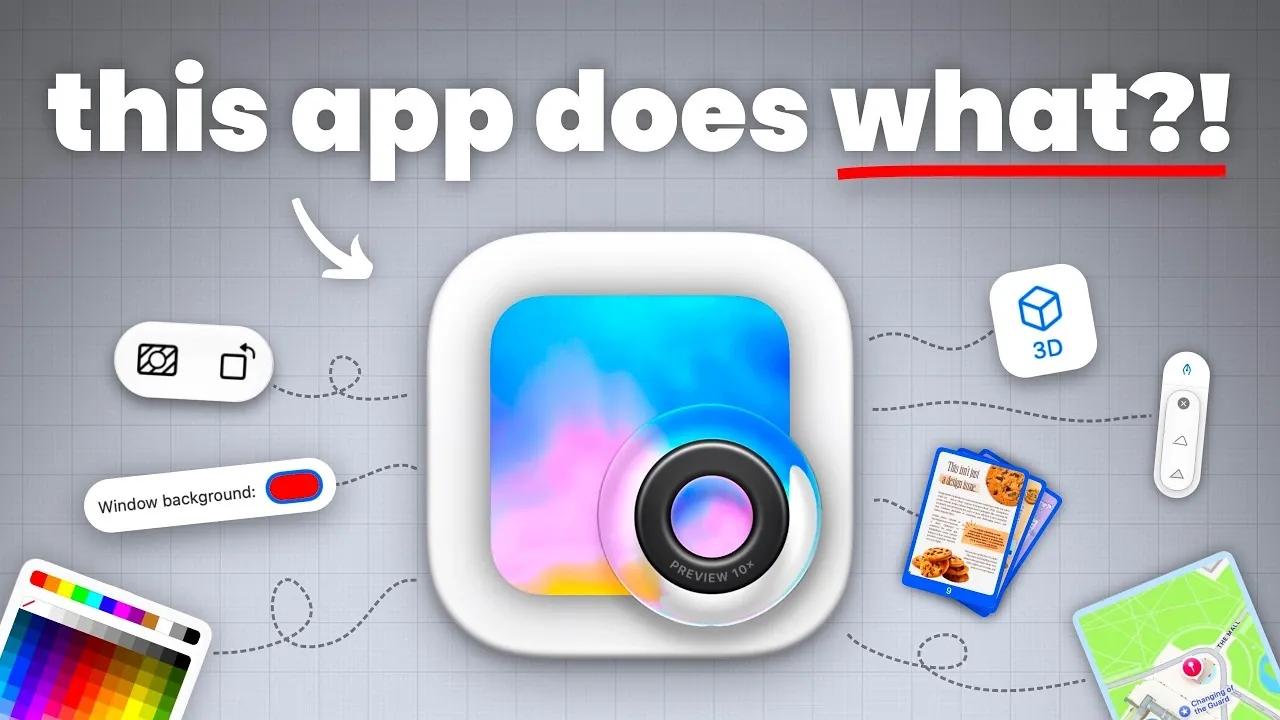
Apple Preview, a default macOS application, is often underestimated despite its extensive functionality. As MacVince explains, this software goes beyond basic document viewing to include features like redacting sensitive information from PDFs, making sure privacy for users handling confidential files. Additionally, Preview supports tasks such as metadata editing and background removal from images, making it suitable for both professional and creative workflows.
Discover how to enhance your productivity by merging, annotating and organizing PDFs effectively. Explore its image editing capabilities, including adjustments and transferring elements between files. Gain insight into how Preview integrates with macOS for streamlined file management and collaboration across different applications.
Unmatched PDF Management Capabilities
TL;DR Key Takeaways :
- Apple Preview is a versatile macOS application offering advanced PDF management, image editing and metadata handling, reducing the need for third-party software.
- Key PDF features include page rearrangement, redaction, annotation and effortless navigation, making it a powerful tool for document management.
- Image editing tools allow for background removal, quick adjustments and creative options, suitable for everyday tasks and quick edits.
- Preview supports broad file compatibility, including batch processing, flexible export options and even 3D model interaction for specialized tasks.
- Seamless integration with macOS and customizable tools enhance usability, making Preview a central hub for productivity and file management.
Preview excels in PDF management, rivaling dedicated software with its robust set of tools. Whether you’re organizing documents, securing sensitive information, or annotating files, Preview provides a comprehensive solution.
- Rearrange, Extract and Merge Pages: Drag and drop pages to reorder them, extract specific sections, or merge multiple PDFs into a single document. Adding new content is as simple as dragging an image or another PDF into the file.
- Redact Sensitive Information: Protect your privacy by permanently removing confidential details using the built-in redaction tool. This ensures sensitive data cannot be recovered or accessed.
- Annotate with Precision: Add text, shapes, highlights and comments directly to your PDF. You can also manage hyperlinks and edit metadata without needing additional software.
- Effortless Navigation: Use the contact sheet view to display all pages at once, making it easier to locate, edit, or rearrange specific sections of your document.
These features make Preview an indispensable tool for anyone working with PDFs, whether for personal, academic, or professional purposes.
Powerful Yet Simple Image Editing
Preview is not just limited to PDFs, it also offers a range of intuitive image editing tools that are perfect for quick adjustments and creative projects.
- Background Removal: The magic wand tool allows for one-click background removal, while manual refinement ensures precision for more complex images.
- Quick Adjustments: Resize, crop, rotate, or adjust exposure and contrast with just a few clicks. These tools are ideal for preparing images for presentations or social media.
- Creative Editing Options: Copy and paste elements between images, create collages, or use trackpad gestures to rotate and manipulate images effortlessly.
While it may not replace professional-grade software like Photoshop, Preview is a reliable option for quick edits and everyday image adjustments.

Become an expert in macOS with the help of our in-depth articles and helpful guides.
- Apple Releases macOS 26.6 Tahoe With Important Security Features
- macOS 27 Golden Gate: the First Things You Need to Do Right Now
- New iOS 27 Beta 5 Release Arrives with a Big Shift Coming
- macOS 27 is Here: Apple Silicon Just Got Its Biggest Upgrade Yet
- Apple Releases macOS 27 RC: Everything New in the Update
- The macOS 27 Beta 5 Release is Out: All the New Features
- Apple Releases MacOS 27 Beta 3 with New Mac Features
- macOS 27 Beta 6 is Now Available: All the Latest Features
- Updating Your Mac to macOS 27? The Key Changes to Know
- 10 Essential Features to Try First in macOS 27 Golden Gate
Comprehensive File Versioning and Metadata Management
Preview ensures that your work is secure and organized by offering advanced file versioning and metadata control.
- File Versioning: Restore previous versions of documents with ease, providing a safety net for accidental edits or deletions.
- Metadata Management: View and edit metadata, including GPS coordinates and editing history, directly within the app. Before sharing files, you can remove sensitive metadata, such as location data, to protect your privacy.
These features are particularly useful for professionals who need to maintain detailed records or ensure the security of shared files.
Versatility Through Broad File Compatibility
One of Preview’s standout features is its ability to handle a wide range of file types, making it a versatile tool for various tasks.
- Batch Processing: Save time by resizing, rotating, or converting multiple files simultaneously. This is especially useful for photographers or designers working with large image collections.
- Flexible Export Options: Export files in multiple formats, including JPEG, PNG and PDF. Holding the “Option” key during export reveals additional format options for specialized needs.
Preview’s compatibility with diverse file types, including PDFs, images, 3D models and even Photoshop files, eliminates the need for multiple specialized applications.
Customizable Tools and Seamless Navigation
Preview adapts to your workflow with customizable features and intuitive navigation options that enhance usability.
- Toolbar Customization: Personalize the toolbar by adding frequently used tools, such as navigation buttons or annotation options, for quicker access.
- Light and Dark Modes: Switch between modes to improve readability and reduce eye strain in different lighting conditions.
- Enhanced Navigation: Jump to specific pages, backtrack using embedded links, or change the canvas color for better visual clarity during editing tasks.
These features ensure that Preview remains user-friendly and adaptable, regardless of the complexity of the task.
Seamless Integration with the macOS Ecosystem
Preview’s deep integration with macOS enhances its functionality and makes it a central hub for managing files across your system.
- Apple Notes: Drag and drop PDFs or images into Notes for inline annotation or quick reference during meetings or research.
- Folder Management: Open entire folders of images in a single Preview window, streamlining the process of reviewing and editing multiple files.
This seamless integration allows you to work more efficiently across macOS applications, making Preview a valuable tool for both personal and professional use.
Advanced Features for Specialized Tasks
Preview goes beyond basic functionality by offering advanced features that cater to niche requirements, further solidifying its position as a powerful utility.
- 3D Model Interaction: Rotate, resize and render 3D models directly within the app, making it a useful tool for designers and engineers.
- Hidden Export Formats: Access additional file formats through specific commands, providing flexibility for unique project needs.
These advanced capabilities demonstrate that Preview is more than just a basic utility, it’s a tool capable of handling specialized tasks with ease.
Unlocking the Full Potential of Apple Preview
Apple Preview is a multifaceted application that offers far more than meets the eye. Its extensive range of features, including advanced PDF management, intuitive image editing, metadata handling and seamless integration with macOS, makes it an indispensable tool for any macOS user. Whether you’re managing complex documents, editing images, or working with 3D models, Preview provides a comprehensive solution that rivals many standalone applications. By exploring its hidden capabilities, you can transform Preview into a central component of your workflow, enhancing productivity and simplifying your tasks.
Media Credit: MacVince
Disclosure: Some of our articles include affiliate links. If you buy something through one of these links, Geeky Gadgets may earn an affiliate commission. Learn about our Disclosure Policy.
