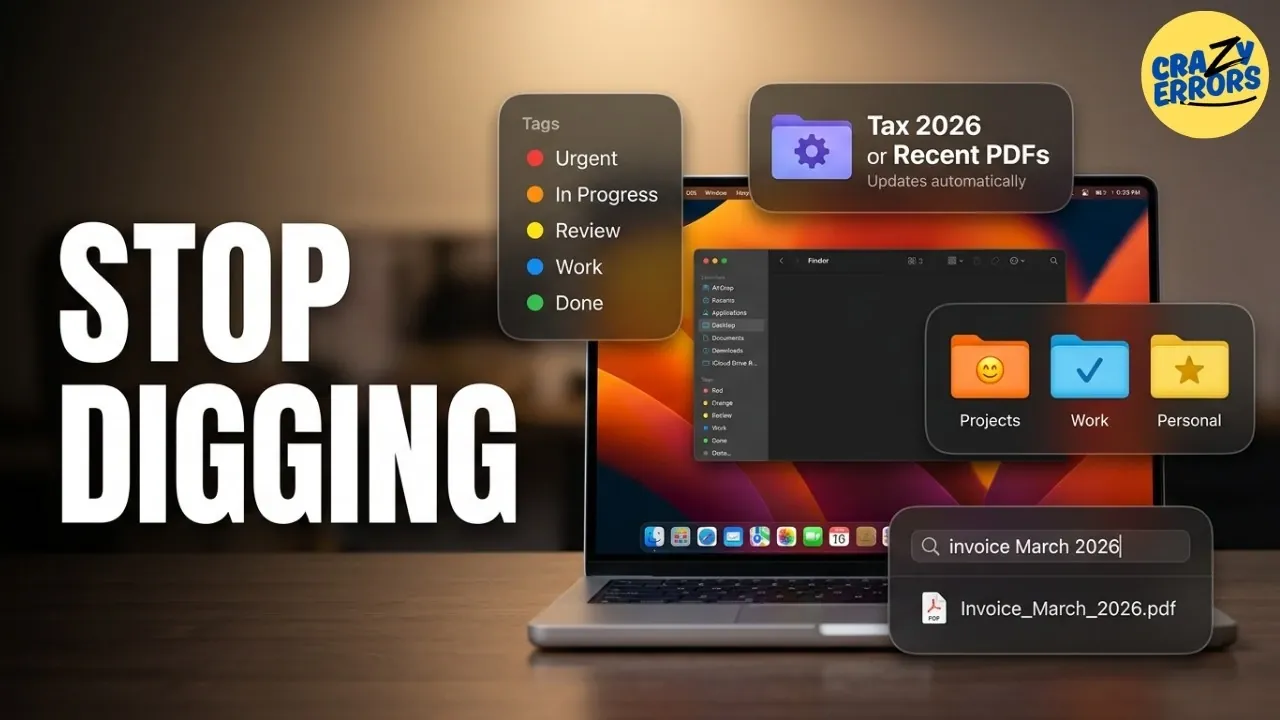
macOS includes built-in features that can streamline file organization, helping users manage their digital workspace more effectively. Crazy Errors explains how Smart Folders and desktop stacks can simplify this process. For example, Smart Folders let you create dynamic collections of files based on specific criteria, such as file type or modification date, without altering their physical location. This allows you to quickly access all images from a recent project or documents updated within the last month, saving time and reducing clutter.
Discover how to use tags to visually categorize files for easier retrieval and how to organize your desktop with stacks that automatically group similar items. Gain insight into customizing Finder’s toolbar for quicker access to essential functions and applying advanced search filters to locate files with precision. These strategies will help you make the most of macOS’s organizational capabilities, whether you’re juggling multiple projects or aiming to simplify everyday tasks.
Smart Folders: Organize Without Moving Files
TL;DR Key Takeaways :
- Smart Folders allow dynamic grouping of files based on customizable criteria, providing instant access to frequently updated or project-specific files without physically moving them.
- Tags enable color-coded categorization of files, simplifying organization and retrieval through visual grouping and searchable filters.
- Desktop Stacks automatically organize similar file types into categorized piles, reducing desktop clutter and improving accessibility.
- Customizing the Finder toolbar streamlines workflows by adding shortcuts to frequently used tools, enhancing efficiency and usability.
- Advanced search filters and Quick Look features help locate and preview files quickly, saving time and improving productivity when managing extensive file libraries.
Smart Folders are a dynamic way to group files based on specific criteria, such as file type, modification date, or assigned tags. Unlike traditional folders, Smart Folders don’t physically move your files; instead, they provide a virtual collection of files that meet your chosen parameters. This makes them ideal for keeping track of frequently updated documents or large projects.
Key benefits of Smart Folders include:
- Instant access to files without manually searching through multiple directories.
- Customizable criteria to suit your workflow, such as grouping all PDFs edited in the last week or files related to a specific project.
For example, if you’re working on a project with multiple file types, you can create a Smart Folder to display all related documents, images and spreadsheets in one place. This feature eliminates the need for repetitive searches, allowing you to focus on your work.
Tags: Categorize and Search with Ease
Tags offer a straightforward yet powerful way to organize your files and folders. By assigning color-coded tags, you can visually group related items and quickly locate them in Finder’s sidebar. This system is particularly useful for managing multiple projects or separating personal and professional files.
How to use tags effectively:
- Assign a red tag for active projects to prioritize them visually.
- Use a blue tag for archived files, making it easier to differentiate between current and completed tasks.
Tagged files are searchable, allowing you to filter results by category. For instance, if you need to locate all files tagged with “Invoices,” a quick search will display them instantly. This feature simplifies file retrieval and enhances organization, especially for users juggling various responsibilities.

Browse through more resources below from our in-depth content covering more areas on macOS.
- Apple Releases macOS 26.6 Tahoe With Important Security Features
- New iOS 27 Beta 5 Release Arrives with a Big Shift Coming
- Why macOS 27 is Officially Apple’s Biggest Mac Update Yet
- The macOS 27 Beta 5 Release is Out: All the New Features
- Apple Releases MacOS 27 Beta 3 with New Mac Features
- macOS 27 Beta 6 is Now Available: All the Latest Features
- What is New in the Just-Released macOS 27 Beta 7 Update
- iOS 27 Beta 5 Is Late: What’s Holding Up Apple’s Next Release?
- macOS 27 Beta 3 Unlocks Golden Gate Upgrades for Testers
- Apple Left a Massive MacBook Ultra Clue Hidden Inside macOS 27
Desktop Stacks: Declutter Your Workspace
A cluttered desktop can hinder productivity, but macOS offers a solution with desktop stacks. This feature automatically groups similar file types, such as screenshots, PDFs, or images, into organized piles. By keeping your desktop tidy, stacks ensure that your workspace remains functional and visually appealing.
Benefits of using desktop stacks:
- Consolidate scattered files into categorized stacks, reducing visual clutter.
- Quickly access specific files by clicking on a stack to reveal its contents.
For example, instead of having dozens of screenshots scattered across your desktop, they’ll be grouped into a single stack. This not only improves accessibility but also helps maintain a clean and organized workspace.
Finder Toolbar Customization: Streamline Your Workflow
Customizing the Finder toolbar allows you to tailor it to your specific needs, reducing repetitive actions and improving efficiency. By adding shortcuts to frequently used tools, you can streamline your workflow and access essential functions with ease.
Suggestions for toolbar customization:
- Add AirDrop for quick and seamless file sharing.
- Include Quick Look for instant file previews or a shortcut for file deletion to save time.
A personalized toolbar ensures that Finder works the way you want it to, enhancing usability and making everyday tasks more efficient.
Advanced Search Filters: Find Files Faster
Finder’s advanced search filters are invaluable for locating files with precision. By using the search bar and applying filters, you can narrow down results based on specific criteria, such as file type, date range, or keywords.
Practical applications of advanced search filters:
- Search for presentations created last month by setting a date range and specifying the file type.
- Use keywords to pinpoint specific documents, images, or other files within seconds.
This feature is particularly useful for users with extensive file libraries, making sure you spend less time searching and more time focusing on your tasks.
Quick Look: Preview Files Instantly
Quick Look is a simple yet effective tool that allows you to preview files without opening them in an application. By selecting a file and pressing the space bar, you can view its contents instantly, saving time and effort.
Supported file types include:
- Images
- PDFs
- Text documents
For instance, if you’re searching for a specific photo among hundreds, Quick Look enables you to identify it without opening each file individually. This feature is a time-saver, especially when working with large collections of files.
Optimize Finder Settings for Better Organization
Adjusting Finder settings can significantly enhance your file management experience. By customizing these settings, you can create a system that aligns with your workflow and preferences.
Key settings to consider:
- Set the default view (list, grid, or column) to match your organizational style.
- Organize the sidebar to display frequently accessed folders for quicker navigation.
- Enable file sorting preferences, such as sorting by date, type, or size, to keep files organized.
Additional options, like showing file extensions or allowing automatic trash emptying after 30 days, help maintain a cleaner and more efficient system.
Take Control of Your File Organization
macOS Finder offers a range of tools designed to simplify file management and boost productivity. From Smart Folders and tags to desktop stacks and advanced search filters, these features provide practical solutions for organizing and accessing your files. By exploring and using these tools, you can create a tailored system that enhances your workflow, saves time and reduces frustration. Start implementing these strategies today to make the most of your Mac’s capabilities.
Media Credit: Crazy Errors
Disclosure: Some of our articles include affiliate links. If you buy something through one of these links, Geeky Gadgets may earn an affiliate commission. Learn about our Disclosure Policy.
