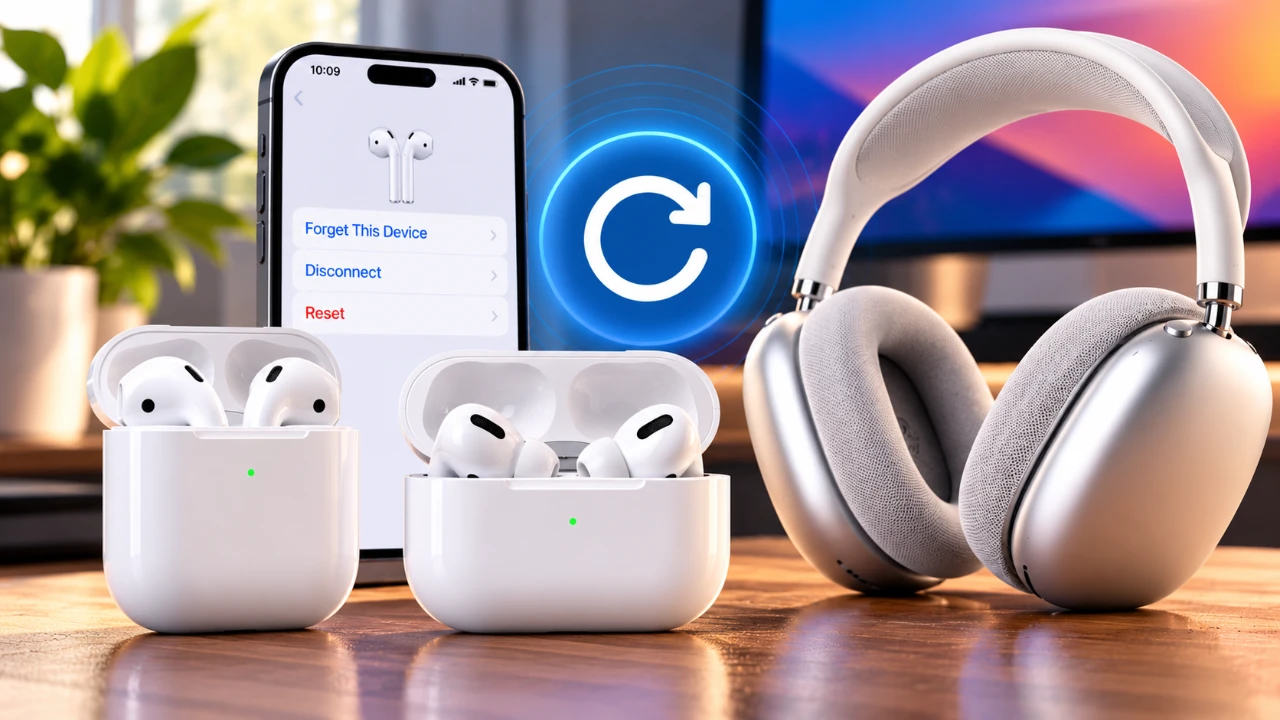
Resetting your AirPods, AirPods Pro, or AirPods Max is a straightforward process that can resolve connectivity issues, restore functionality, or prepare the devices for pairing with a new device. This guide provides clear, step-by-step instructions to help you reset your AirPods effectively. Whether you’re troubleshooting a problem or starting fresh, these steps will ensure your AirPods are restored to factory settings and ready for use. The video below from Apple gives us more details.

1: Unpairing AirPods or AirPods Pro
Before resetting your AirPods or AirPods Pro, it is essential to unpair them from your iPhone or other connected devices. This step ensures they are removed from your iCloud account, making them ready for a fresh connection. Follow these steps to unpair:
- Place your AirPods in their charging case and close the lid to ensure they are inactive.
- Open the lid of the charging case. If a connection card appears on your iPhone, dismiss it by tapping outside the card.
- Navigate to the Bluetooth settings on your iPhone and locate your AirPods in the list of connected devices.
- Select the option labeled “Forget This Device” and confirm your choice. This action removes the AirPods from all devices linked to your iCloud account.
2: Resetting AirPods or AirPods Pro
Once unpaired, you can proceed to reset your AirPods or AirPods Pro to their factory settings. The reset method depends on the type of charging case you are using:
- For cases without a setup button: Double-tap the front of the case three times while the status light flashes white. The light will flash amber and then white, indicating the reset is complete.
- For cases with a setup button: Press and hold the setup button located on the back of the case for approximately 15 seconds. The status light will flash amber and then white, signaling the reset is finished.
3: Unpairing AirPods Max
The process for unpairing AirPods Max differs slightly due to their unique design. To unpair your AirPods Max, follow these steps:
- Ensure the AirPods Max are outside their Smart Case and powered on.
- Access the Bluetooth settings on your iPhone and locate the AirPods Max in the list of connected devices.
- Select “Forget This Device” and confirm your decision. This action removes the AirPods Max from all devices associated with your iCloud account.
4: Resetting AirPods Max
Before resetting your AirPods Max, ensure they have sufficient charge. Once ready, follow these steps to reset them:
- Press and hold the listening mode button and the digital crown simultaneously for about 15 seconds.
- Observe the LED status indicator. It will flash amber and then white, confirming the reset is complete.
Understanding LED Status Indicators
The LED status light on your AirPods case or AirPods Max provides valuable feedback during the reset process. Understanding these indicators can help you confirm the status of your device:
- White: The device is ready to pair with a new device.
- Amber: The reset process is in progress, or the device requires charging.
- No light: The battery is depleted, or the device is powered off.
5: Pairing Your AirPods After Reset
After completing the reset, your AirPods, AirPods Pro, or AirPods Max are ready to pair with a new device. To pair them, follow these steps:
- Open the charging case or power on the AirPods Max, depending on your model.
- Bring the AirPods close to your iPhone. A connection prompt should automatically appear on your screen.
- Follow the on-screen instructions to complete the pairing process.
If the pairing process does not initiate, ensure that Bluetooth is enabled on your device and that your AirPods are sufficiently charged. Additionally, restarting your iPhone or resetting the AirPods again may resolve any lingering issues.
Optimizing the Reset Process
Resetting your AirPods, AirPods Pro, or AirPods Max is a practical solution for resolving connectivity problems or preparing the devices for a new user. By carefully unpairing the devices, following the appropriate reset steps and understanding the LED status indicators, you can ensure a seamless reset process. Once reset, your AirPods are ready to deliver the high-quality, wireless audio experience they are designed for.
Here are more guides from our previous articles and guides related to AirPods that you may find helpful.
- Apple AirPods Pro 4 Leaked: Massive Upgrades and New Design Revealed
- The AirPods Ultra Are Reportedly Set for Launch Next Month
- Apple AirPods 5 Leaked: Apple’s Next-Gen Earbuds Revealed
- New AirPods Features Coming to Your iPhone in iOS 27
- Leaked AirPods Pro 4 Specs Reveal Cameras and Extra Features
- Leak: Apple AirPods Pro Ultra May Bring the Biggest Upgrade
Source: Apple Support
Disclosure: Some of our articles include affiliate links. If you buy something through one of these links, Geeky Gadgets may earn an affiliate commission. Learn about our Disclosure Policy.
