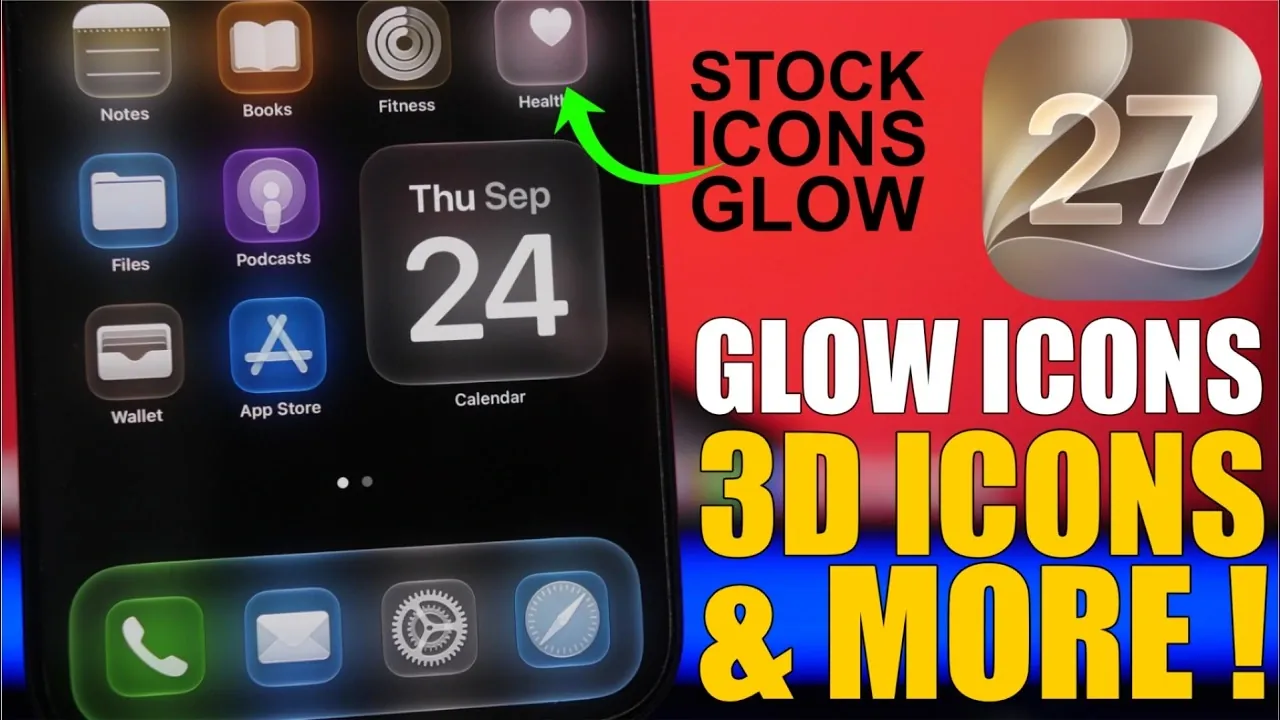
The iOS 27 update introduces a suite of advanced customization tools, empowering you to design a home screen that is both visually captivating and highly functional. With features like glowing icons, immersive 3D effects, and extra-large widgets, you can craft a personalized interface that reflects your unique style while enhancing usability. This guide provides a step-by-step approach to using these features, making sure your device not only stands out but also remains practical for everyday use.
Creating Stunning Glowing Icons
Glowing icons are a visually striking way to transform your home screen into a futuristic display. By following a few simple steps, you can achieve this sleek, high-tech look:
- Start with a black wallpaper: A dark background amplifies the glow effect, making it more vivid and eye-catching.
- Add a blurred wallpaper layer: Capture a screenshot of your home screen, blur it, and set it as your wallpaper. This creates a subtle halo effect around your icons, enhancing the glow.
- Use transparent icons: Apply transparent app icons to simulate light radiating from your shortcuts, resulting in a polished and modern design.
This combination of techniques transforms your home screen into a glowing, futuristic interface that feels both unique and sophisticated.
Adding Depth with 3D Icons
For a more tactile and layered aesthetic, 3D icons are an excellent choice. These icons create the illusion of depth, making your home screen feel dynamic and engaging. Here’s how to achieve this effect:
- Install a shadow effect shortcut: Use a shortcut app to add shadow effects to your app icons. These shadows create a floating effect, giving your icons a sense of depth.
- Customize shadow intensity: Adjust the size, opacity and direction of the shadows to match your preferred style and lighting effect.
- Save your layout: Once you’ve perfected the design, save your home screen layout for easy restoration or future adjustments.
By incorporating 3D icons, you can add a layer of realism and sophistication to your home screen without compromising its usability.
Unlocking the Potential of Dynamic Island Widgets
The Dynamic Island feature in iOS 27 offers a versatile and interactive space for widgets, allowing you to display real-time information in a compact format. To maximize its utility, consider these tips:
- Customize widget content: Add widgets that display countdowns, time progress, or other live data to keep important information at your fingertips.
- Explore third-party apps: Many apps, both free and premium, provide additional functionality for the dynamic island, allowing you to tailor it to your specific needs.
- Personalize idle display: Configure the idle state of the dynamic island to show useful details such as weather updates, calendar events, or battery status.
This feature seamlessly integrates utility with design, making your home screen both functional and visually appealing.
Making a Statement with Extra-Large Widgets
Extra-large widgets (XL widgets) are a standout feature in iOS 27, offering more space for visuals and information. These widgets are perfect for users who prefer bold, accessible displays. Here’s how to incorporate them into your setup:
- Select compatible apps: Apps like Ice Screen, Widget, and Mojo support XL widgets, providing options for weather updates, time, and other key information.
- Customize widget appearance: Adjust the transparency, colors, and layout of your XL widgets to complement your wallpaper and icon design.
- Focus on functionality: Use XL widgets to display essential information in a clear, easy-to-read format, making sure your home screen remains practical.
These oversized widgets not only enhance the visual appeal of your home screen but also improve accessibility and usability.
Key Tips for Customizing iOS 27
To fully harness the customization potential of iOS 27, keep the following tips in mind:
- Experiment with wallpapers: Light-colored wallpapers can enhance shadow and depth effects, while darker ones emphasize glowing icons.
- Save multiple layouts: Preserve different widget and icon arrangements to quickly switch between setups for various moods or purposes.
- Use third-party tools: Explore apps that offer additional widget designs, icon packs and customization options to expand your creative possibilities.
By combining glowing icons, 3D effects, dynamic island widgets and XL widgets, you can create a home screen that is both visually stunning and highly functional. These strategies allow you to showcase the full potential of iOS 27, delivering a personalized interface that enhances your overall user experience.
Here are more guides from our previous articles and guides related to iOS 27 Home Screen Customization that you may find helpful.
- iOS 27 Customization Guide: the Best Tricks for Your iPhone Screens
- iOS 27 Out Now: the Settings Every iPhone User Should Change
- iOS 27 Complete Guide: Everything You Need to Know
- Transform Your iPhone: 5 Best iOS 27 Home Screen Ideas
Source & Image Credit: iReviews
Disclosure: Some of our articles include affiliate links. If you buy something through one of these links, Geeky Gadgets may earn an affiliate commission. Learn about our Disclosure Policy.
