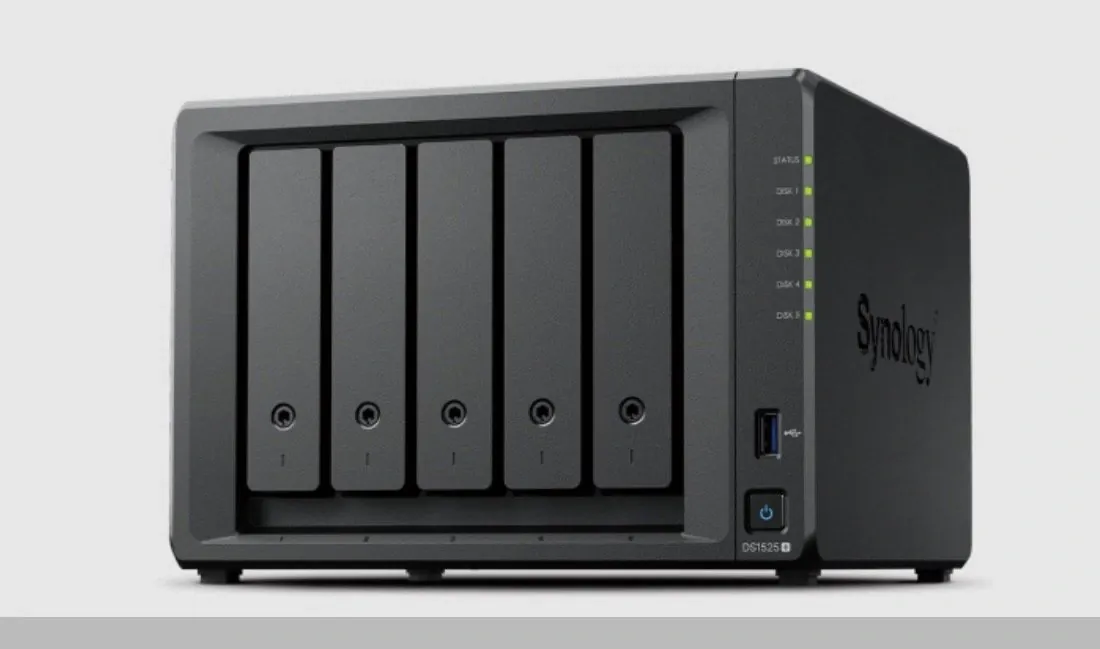
Have you ever found yourself frustrated with a sluggish file sync, mysteriously vanishing storage space, or inexplicable errors while using Synology NAS? You’re not alone. Despite its reputation as a robust and versatile platform for file synchronization and collaboration, many users unknowingly make critical missteps that undermine its potential. From mismanaging file versioning to overlooking essential security configurations, these seemingly small errors can snowball into wasted resources, disrupted workflows, and even security vulnerabilities. The good news? Most of these pitfalls are entirely avoidable with the right knowledge and a few proactive adjustments.
In this guide, SpaceRex uncovers the most common mistakes Synology Drive users make and, more importantly, how to fix them. You’ll discover how to reclaim wasted storage, prevent synchronization conflicts, and secure your data without sacrificing performance. Whether you’re a seasoned NAS user or just getting started, this guide will help you optimize your setup and avoid the headaches that come from improper configurations. By the end, you’ll not only understand how to sidestep these issues but also unlock the full potential of Synology Drive’s powerful features. Sometimes, the smallest tweaks can make the biggest difference, are you ready to find out how?
Common Synology Drive Mistakes
TL;DR Key Takeaways :
- Properly manage file versioning to avoid excessive storage consumption and system inefficiencies by setting limits, disabling versioning for non-critical folders, and clearing outdated versions.
- Configure Synology NAS Share Sync correctly by avoiding bidirectional synchronization to prevent loops and data duplication, and clearly define synchronization directions.
- Enable on-demand sync during setup to optimize local storage usage and prevent unnecessary file downloads, especially for macOS users.
- Reduce reliance on the QuickConnect relay server by forwarding port 6690 TCP or using a VPN/Tailscale for faster and more secure remote access.
- Regularly manage SSL certificates to ensure secure connections, avoid disruptions, and mitigate security vulnerabilities by monitoring expiration dates and using long-term certificates when appropriate.
1. Mismanaging File Versioning
File versioning is an essential feature that enables you to retain multiple versions of a file, offering a safety net for recovering previous iterations. However, poor management of this feature can result in excessive storage consumption and system inefficiencies, particularly in environments with large files or frequent collaborative edits.
- Common Issue: Retaining an excessive number of file versions unnecessarily increases storage usage and can degrade system performance.
- Solution:
- Set a reasonable limit on the number of file versions retained to balance recovery needs with storage efficiency.
- Disable versioning for non-critical folders to conserve resources and focus on essential data.
- Use snapshots as an alternative for version control in scenarios where they are more appropriate.
- Regularly clear outdated versions and empty the recycling bins to free up valuable storage space.
2. Configuring Synology NAS Share Sync Incorrectly
The NAS-to-NAS synchronization feature in Synology Drive is a powerful tool for maintaining data consistency across devices. However, improper configuration can lead to synchronization loops, data conflicts, and inefficiencies, undermining the reliability of your setup.
- Common Issue: Setting up bidirectional synchronization on both NAS devices creates endless loops and data duplication.
- Solution:
- Install Share Sync on only one NAS device (the client) to prevent looping issues and ensure smooth synchronization.
- Clearly define the synchronization direction to avoid conflicts and maintain data integrity.
Avoid These Synology NAS Mistakes

Check out more relevant guides from our extensive collection on Synology NAS systems that you might find useful.
- How to Set Up a Synology NAS for Family File & Media
- Synology NAS Drops HEVC Support: What It Means for Users
- Synology NAS Home vs Homes folders explained
- UGREEN vs Synology: A Comprehensive NAS Comparison
- What is Synology NAS quick connect and how do you use it
- How to soft reset your Synology NAS if you are locked out
- Synology DSM 7.3 Update: Third-Party Drive Compatibility Returns
- Synology NAS tips & tricks for new owners in 2024
- Backup a Synology NAS to an external USB drive storage
- Synology DiskStation DS224+ and DS124 NAS storage launches
3. Misconfiguring On-Demand Sync
On-demand sync is a feature designed to optimize local storage by allowing you to access files without downloading them to your device. However, failing to enable this feature during setup can result in unnecessary local storage consumption, reducing the efficiency of your system.
- Common Issue: All files are downloaded locally, quickly filling up your device’s storage and limiting available space for other tasks.
- Solution:
- Enable on-demand sync during the initial setup to prevent unnecessary downloads and optimize storage usage.
- After allowing the feature, delete any unneeded local folders to reclaim valuable storage space.
- For macOS users, ensure the feature is properly configured to avoid compatibility issues and maximize its benefits.
4. Overreliance on the QuickConnect Relay Server
QuickConnect simplifies remote access to your NAS by eliminating the need for complex network configurations. However, relying exclusively on the QuickConnect relay server can lead to slower performance due to potential throttling, especially during large file transfers.
- Common Issue: File transfers and remote access become sluggish when relying solely on the QuickConnect relay server.
- Solution:
- Forward port 6690 TCP to enable direct connections to your NAS, significantly improving performance.
- Consider using a VPN or Tailscale for secure and efficient remote access without compromising speed.
5. Neglecting SSL Certificate Management
SSL certificates are critical for making sure secure connections between your devices and the NAS. However, expired or improperly configured certificates can disrupt file synchronization and remote access, leaving your data vulnerable to potential security risks.
- Common Issue: Expired or misconfigured SSL certificates cause client disconnections, authentication errors, and potential security vulnerabilities.
- Solution:
- Use long-term SSL certificates, such as 10-year certificates, for local or VPN-only environments to reduce the frequency of renewals.
- Regularly monitor certificate expiration dates and renew them promptly to avoid disruptions in service.
- Ensure proper configuration of SSL certificates to maintain secure and reliable connections between devices.
By addressing these common mistakes, you can significantly enhance the performance, reliability, and efficiency of your Synology Drive setup. Properly managing file versioning, configuring synchronization settings, and optimizing remote access are key steps to making sure a seamless and productive experience. Take the time to review your current setup, implement these recommendations, and unlock the full potential of Synology Drive’s powerful features.
Media Credit: SpaceRex
Disclosure: Some of our articles include affiliate links. If you buy something through one of these links, Geeky Gadgets may earn an affiliate commission. Learn about our Disclosure Policy.
