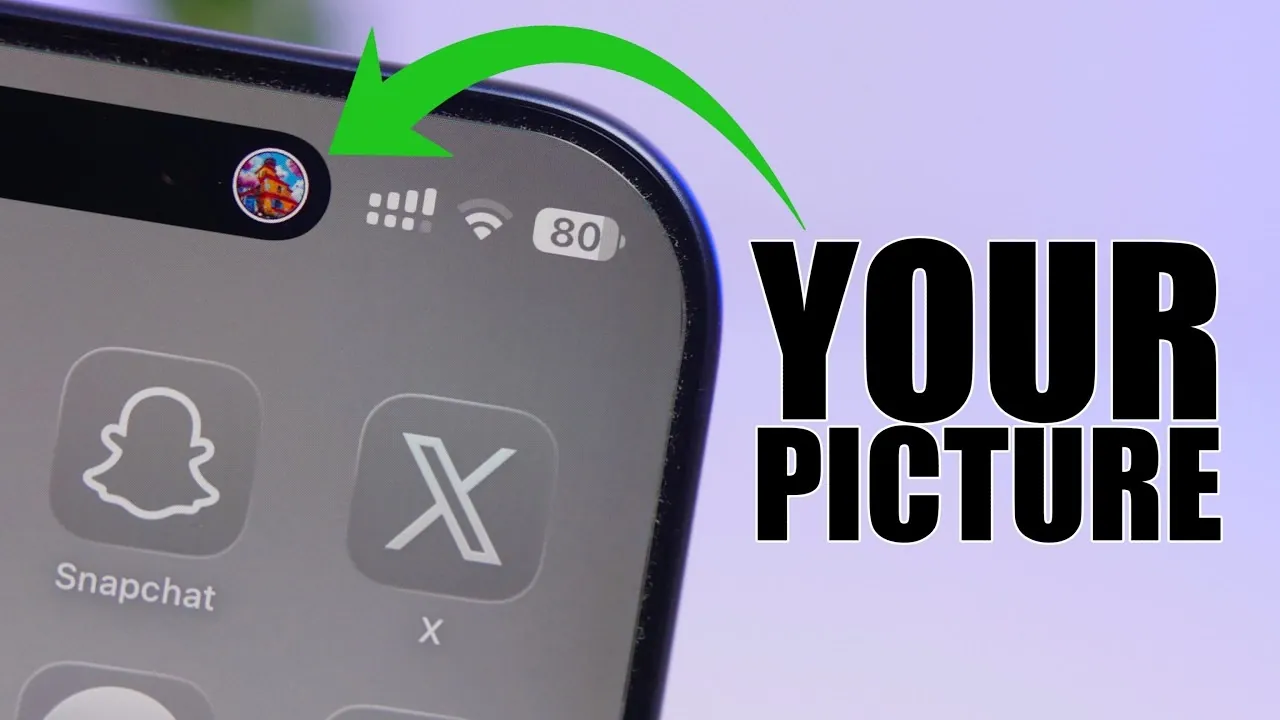
The Dynamic Island feature on your device is more than just a functional display; it’s a canvas for expressing your personal style. By using the free app “Cocoa Widgets”, you can transform this space into a reflection of your individuality by adding your favorite photos. This guide will take you through the process step-by-step, from downloading the app to exploring advanced customization options, making sure your device stands out with a unique and visually appealing touch. The video below from iReviews gives us more details.

1: Download and Install Cocoa Widgets
To begin, download the free “Cocoa Widgets” app from your device’s app store. This app is essential for unlocking the customization potential of your Dynamic Island. Once the app is installed, open it and follow the on-screen instructions to enable its integration with your device. This setup ensures that the app can seamlessly interact with the Dynamic Island, making the customization process smooth and efficient.
2: Enable Customization for Dynamic Island
After launching the app, navigate to the settings menu to activate the Dynamic Island customization feature. This step is critical, as it grants the app permission to modify the display area and allows you to add and adjust photos effortlessly. Without this activation, the app cannot interact with the Dynamic Island, so make sure this feature is enabled before proceeding.
3: Choose, Edit and Customize Your Photos
Once customization is enabled, you can select photos from your device’s library to display on the Dynamic Island. The app provides a suite of editing tools to help you optimize your images for the best possible appearance. These tools include:
- Crop: Resize and focus your photo to fit perfectly within the Dynamic Island’s display area.
- Zoom: Highlight specific details by zooming in on your image for a more personalized touch.
- Rotate: Adjust the orientation of your photo to align seamlessly with the display layout.
- Adjust: Modify brightness, contrast and other visual elements to enhance clarity and aesthetic appeal.
In addition to these tools, you can customize the outline color of your photo to match your preferred aesthetic, creating a cohesive and polished look. This feature allows you to align your photos with your device’s overall theme or your personal style.
4: Position and Arrange Your Photos
After editing your photo, the next step is to position it on the Dynamic Island. The app offers flexibility, allowing you to place your photo on the left, right, or both sides of the display. This ensures that your customization aligns perfectly with your preferences. If you decide to make changes later, the app makes it easy to remove or replace photos, giving you complete control over your display’s appearance.
5: Explore Advanced Customization Features
For those who want to take personalization a step further, the app includes advanced customization options. You can choose from three avatar shapes—circle, square, or rounded square—to frame your photos. These shapes allow you to experiment with different styles and find the one that best suits your aesthetic. Additionally, combining these framing options with the editing tools enables you to create a display that is both functional and uniquely yours. Take the time to explore these features and experiment with various combinations to achieve the perfect look.
Enhance Your Device with Personal Touches
Customizing your Dynamic Island with personal photos is a straightforward yet impactful way to elevate your device’s visual appeal. The “Cocoa Widgets” app simplifies the process, offering intuitive tools to select, edit and position your images with ease. From cropping and zooming to choosing avatar shapes and outline colors, the app provides everything you need to create a display that reflects your personality. By following these steps, you can transform your Dynamic Island into a unique and engaging feature that enhances both the functionality and aesthetic of your device. Take advantage of these customization options to make your device truly one of a kind.
Check out more relevant guides from our extensive collection on Dynamic Island customization that you might find useful.
- These 5 iOS 26.3 Hacks Change How You Use Your iPhone
- iOS 27 Leak: Apple Is Giving You More Control Over the ‘Liquid Glass’ Design
Source & Image Credit: iReviews
Disclosure: Some of our articles include affiliate links. If you buy something through one of these links, Geeky Gadgets may earn an affiliate commission. Learn about our Disclosure Policy.
