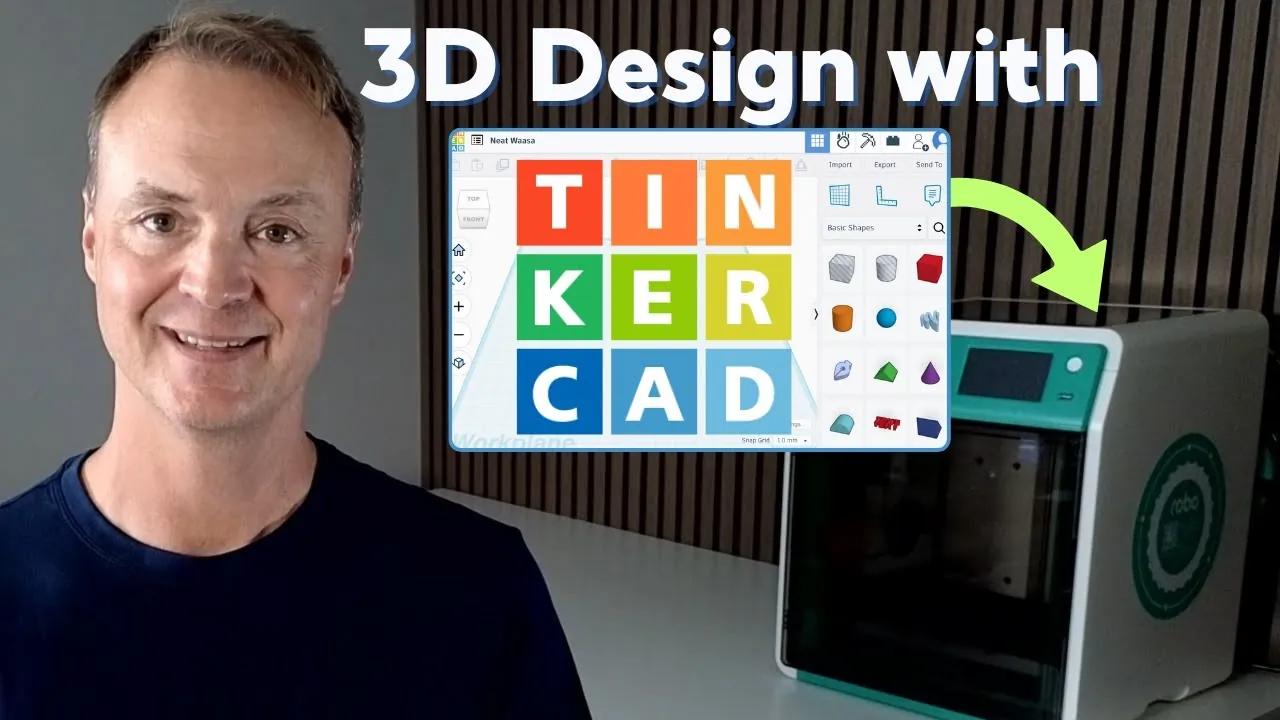
Have you ever imagined turning your ideas into physical objects with just a few clicks? Thanks to tools like Tinkercad, what once seemed like science fiction is now an accessible reality for anyone with a computer and a 3D printer. Whether you’re a curious beginner or someone looking to dip their toes into the world of 3D design, Tinkercad offers a user-friendly gateway to unleash your creativity. Its intuitive interface and powerful features make it possible to design everything from custom keychains to intricate prototypes, no prior experience required. But where do you start, and how do you ensure your designs are ready for 3D printing? That’s where this step-by-step guide comes in, designed to help you navigate the process with confidence.
In this beginner-friendly walkthrough, Teacher’s Tech shows how to transform your ideas into tangible creations using Tinkercad’s 3D design tools. From mastering the basics of the workspace to exporting your designs for printing, each section is crafted to build your skills incrementally. You’ll also discover tips for precision, tricks for streamlining your workflow, and even how to tackle your first project, like designing a custom keychain. Whether you’re an educator looking for classroom-friendly tools or a hobbyist eager to experiment, this guide by Teacher’s Tech will equip you with the knowledge to bring your designs to life. The journey from idea to object is simpler than you think, let’s explore how.
Beginner’s Guide to Tinkercad
TL;DR Key Takeaways :
- Tinkercad is a beginner-friendly, web-based platform for 3D modeling and printing, offering tools for personal, educational, and creative projects.
- The platform features three main tools: 3D Design for creating models, Circuits for simulating electronics, and Code Blocks for programmatic design.
- The 3D design workspace allows users to drag and drop shapes, import files, and manipulate objects with tools like resizing, rotating, and grouping.
- Advanced features such as the Scribble Tool, Text Tool, and Hole Tool enable users to create intricate and personalized designs.
- Designs can be exported as STL files for 3D printing, with slicing software used to prepare the model for optimal print quality.
Getting Started with Tinkercad
To begin your journey with Tinkercad, you’ll first need to create an account. The platform caters to a wide range of users, offering options for personal use and classroom management, making it suitable for individuals, educators, and students alike. Once registered, you’ll gain access to Tinkercad’s three primary features:
- 3D Design: Create and modify 3D models using a comprehensive library of shapes and tools.
- Circuits: Design and simulate electronic circuits for educational or practical purposes.
- Code Blocks: Use block-based coding to programmatically generate 3D designs.
For the purposes of this guide, the focus will remain on the 3D design tools, which form the foundation for creating models that can be printed.
Understanding the 3D Design Workspace
Tinkercad’s 3D design workspace is designed to be intuitive and beginner-friendly. When you start a new project, you’ll be presented with a blank canvas where you can drag and drop shapes from the library. These shapes include basic geometric forms like cubes, spheres, and cylinders, which act as the building blocks for your designs.
The workspace also allows you to import existing 2D or 3D files, allowing you to modify pre-existing designs. Navigating the workspace is straightforward, use your mouse or trackpad to zoom in and out, pan across the canvas, and rotate the view. This flexibility ensures you can inspect your design from every angle, allowing for greater accuracy and precision.
Using Tinkercad for 3D Printing Beginners Guide 2025

Here are more detailed guides and articles that you may find helpful on 3D printing
- 3Doodler Pro+ 3D printing pen launches from $250
- Autodesk Ember 3D Printer Now Available For $5995
- FLUX All-in-One System Offers 3D Printing, 3D Scanning, Laser
- Longer FDM LK5 PRO open source 3D printer $329
- Bamboo Lab A1 Mini Review: Affordable 3D Printing for Beginners
- New 3Doodler Create 3D Printing Pen Now Available For $99
- iPen 3D Printing Pen Designed For Children From $49
- Affordable Cetus2 multi-material and color 3D printer
- Lite3DP open source, Arduino MSLA / LCD-SLA resin micro 3D
Manipulating and Customizing Objects
Once you’ve added shapes to the workspace, Tinkercad provides a variety of tools to manipulate and customize them. You can resize, rotate, and reposition objects to fit your design requirements. For example, resizing a cube can transform it into a rectangular base, while rotating a cylinder can create angled edges.
To streamline your workflow, Tinkercad allows you to group and duplicate objects. This feature is particularly useful for creating symmetrical or repetitive designs. Additionally, tools like the ruler, snap grid, and work plane help you achieve precise alignments and measurements, which are essential for functional 3D prints. By mastering these tools, you can ensure that your designs are both accurate and practical.
Exploring Advanced Features
As you gain confidence with Tinkercad’s basic tools, you can begin exploring its advanced features to create more intricate and personalized designs. Some of the standout tools include:
- Scribble Tool: Draw custom shapes directly onto the workspace, allowing for freeform creativity.
- Text Tool: Add and customize text to create personalized designs, such as nameplates or labels.
- Hole Tool: Subtract one shape from another to create cutouts, openings, or hollow sections.
For instance, you can use the hole tool to create a circular opening in a rectangular block, forming a frame or attachment point. These advanced features enable you to push the boundaries of your creativity, allowing for the design of more complex and functional models.
Exporting and Preparing Your Design for 3D Printing
Once your design is complete, the next step is to export it as an STL file, the standard format used for 3D printing. Tinkercad simplifies this process with its built-in export function, making sure your design is ready for the next stage.
After exporting the STL file, you’ll need to process it using slicing software such as Ultimaker Cura or PrusaSlicer. These programs convert your 3D model into layers and generate instructions for your 3D printer. During this step, you can adjust settings such as material type, print speed, and layer height to optimize the print quality. Proper slicing ensures that your design is accurately translated into a physical object.
Practical Example: Designing a Custom Keychain
To put these steps into practice, consider creating a simple keychain. Start by dragging a rectangular block onto the workspace to serve as the base. Use the text tool to add your name or a custom message, then position the text on top of the base. Finally, use the hole tool to create a small circular cutout for the keyring.
Once your design is complete, export it as an STL file, slice it using your preferred software, and print it. This straightforward project is an excellent way to familiarize yourself with Tinkercad’s tools and the 3D printing process.
Tips for Beginners
If you’re just starting out with Tinkercad, it’s important to focus on mastering the basics before diving into more advanced features. Here are some practical tips to help you get started:
- Begin with simple designs to build confidence and develop a solid understanding of the tools.
- Experiment with different shapes and features to explore their functionality and potential applications.
- Use the snap grid and ruler tools to ensure precision and alignment in your designs.
Tinkercad’s user-friendly interface makes it easy to learn and experiment, so don’t hesitate to explore its features. Whether you’re a student, educator, or hobbyist, this platform provides everything you need to turn your ideas into reality. With practice and creativity, you’ll be able to design and print a wide range of 3D models, from practical tools to decorative items.
Media Credit: Teacher’s Tech
Disclosure: Some of our articles include affiliate links. If you buy something through one of these links, Geeky Gadgets may earn an affiliate commission. Learn about our Disclosure Policy.
