Apple has officially released iOS 26.5, bringing a range of new features, performance improvements and critical updates to enhance your device. However, simply installing the update is not enough to ensure your iPhone or iPad operates at its best. To fully use the benefits of iOS 26.5 and avoid common post-update issues, there are several essential steps you should take. These actions address potential challenges related to beta testing, keyboard functionality, Bluetooth connectivity, network settings, message encryption and app compatibility, making sure a smooth and optimized experience.
Disable Beta Testing for Stability
If you participated in the beta testing program for iOS 26.5, it is crucial to disable beta updates after installing the official release. Remaining on the beta track can expose your device to bugs or system instability, as beta versions are designed for testing rather than everyday use. Switching to the stable release ensures a more reliable and consistent experience.
To disable beta updates:
- Navigate to Settings > General > Software Update > Beta Updates.
- Select “Off” to stop receiving beta updates.
You can re-enable beta updates later if you wish to test future versions. For now, staying on the stable release minimizes potential disruptions and ensures your device operates smoothly.
Reset Your Keyboard Dictionary for Improved Typing
After updating to iOS 26.5, you may encounter issues with autocorrect or predictive text. These problems often arise from outdated or conflicting data in the keyboard dictionary. Resetting the dictionary can resolve these issues and restore accurate typing functionality.
To reset your keyboard dictionary:
- Go to Settings > General > Transfer or Reset iPhone > Reset > Reset Keyboard Dictionary.
Keep in mind that this action will erase any custom words or phrases you’ve added over time. While you’ll need to retrain your device, this step eliminates persistent errors and ensures smoother typing experiences moving forward.
Reconnect Bluetooth Devices for Seamless Connectivity
Major system updates like iOS 26.5 can sometimes disrupt Bluetooth connections, leading to dropped connections or degraded audio quality. Reconnecting your Bluetooth devices is a simple yet effective way to resolve these issues and restore seamless functionality.
To reconnect a Bluetooth device:
- Open Settings > Bluetooth.
- Tap the “i” icon next to the affected device.
- Select “Forget This Device”, then pair the device again.
This process ensures that your accessories, such as headphones, speakers and smartwatches, work reliably with your updated device.
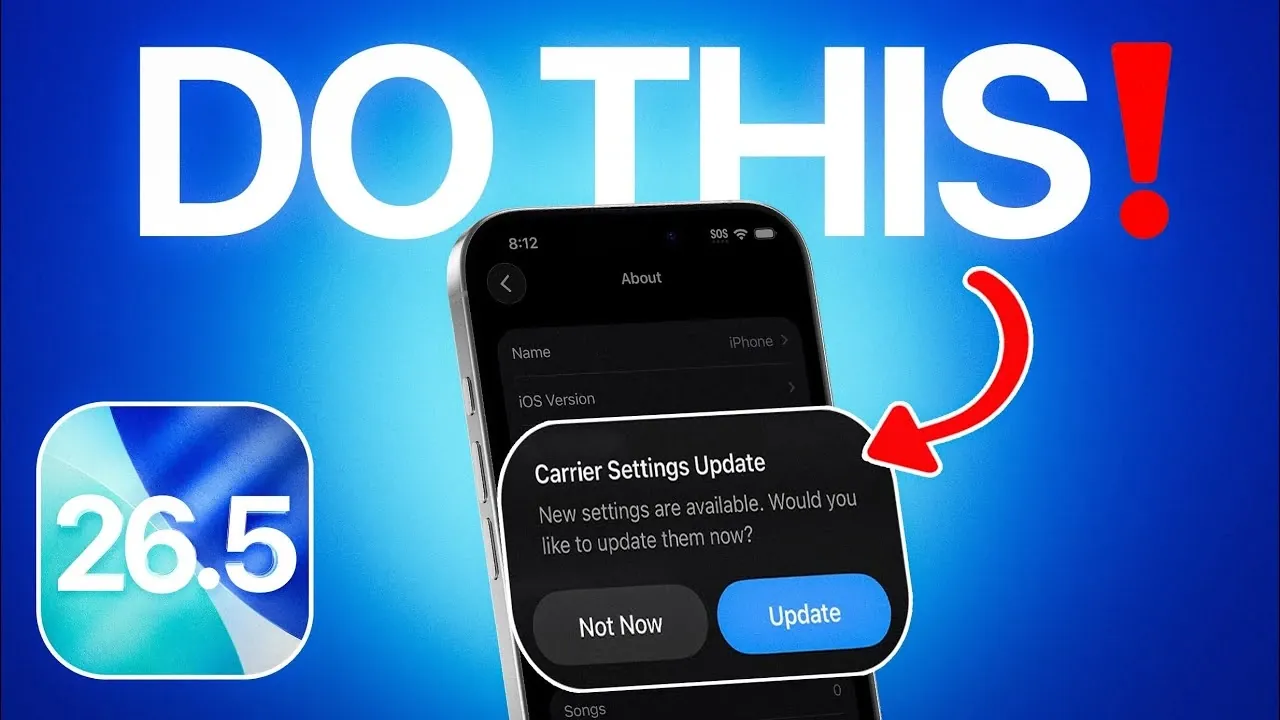
Update Carrier Settings for Optimal Network Performance
Carrier settings updates are often overlooked but play a critical role in maintaining optimal network performance. These updates improve call quality, data speeds and compatibility with your carrier’s network, making sure a smoother mobile experience.
To check for carrier settings updates:
- Go to Settings > General > About.
- If an update is available, a prompt will appear to install it.
By keeping your carrier settings up to date, you can minimize connectivity issues and enjoy improved network reliability.
Enable RCS Message Encryption for Secure Communication
One of the standout features of iOS 26.5 is enhanced support for RCS (Rich Communication Services) messaging, including end-to-end encryption for conversations with Android users. This feature provides an added layer of security, making sure your messages remain private and protected from interception.
To enable RCS encryption:
- Open your messaging app and access its settings menu.
- Verify that RCS messaging is enabled.
Activating this feature allows you to communicate securely, giving you peace of mind when exchanging sensitive information.
Update Third-Party Applications for Compatibility
Outdated apps may not function properly with iOS 26.5, potentially causing crashes, performance issues, or overheating. Updating your apps ensures they are fully compatible with the new operating system and allows you to take advantage of the latest features and security improvements.
To update your apps:
- Open the App Store.
- Tap your profile icon and select “Update All”.
Regularly updating your apps not only enhances compatibility but also ensures you benefit from ongoing improvements and bug fixes provided by developers.
Maximizing Your iOS 26.5 Experience
Installing iOS 26.5 is an important step in keeping your device secure, efficient and up to date. However, taking proactive measures after the update is equally essential to ensure optimal performance. By disabling beta testing, resetting your keyboard dictionary, reconnecting Bluetooth devices, updating carrier settings, allowing RCS encryption and refreshing your apps, you can address potential issues and fully enjoy the enhancements iOS 26.5 offers. These steps help maintain a reliable, secure and optimized device for your everyday needs.
Browse through more resources below from our in-depth content covering more areas on iOS 26.5 Update.
- 5 Things You Must Check Before Updating to iOS 26.5
- iOS 26.5: 5 Hidden Features You Need to Try
- iOS 26.4.2 vs. 26.5 RC: Should You Update Now or Wait for Next Week’s Release?
- Why You’ll Want to Install iOS 26.5 the Second It Launches
- Apple’s iOS 26.5 Update is Imminent — Is Your iPhone Ready?
Source & Image Credit: iDeviceHelp
Disclosure: Some of our articles include affiliate links. If you buy something through one of these links, Geeky Gadgets may earn an affiliate commission. Learn about our Disclosure Policy.
