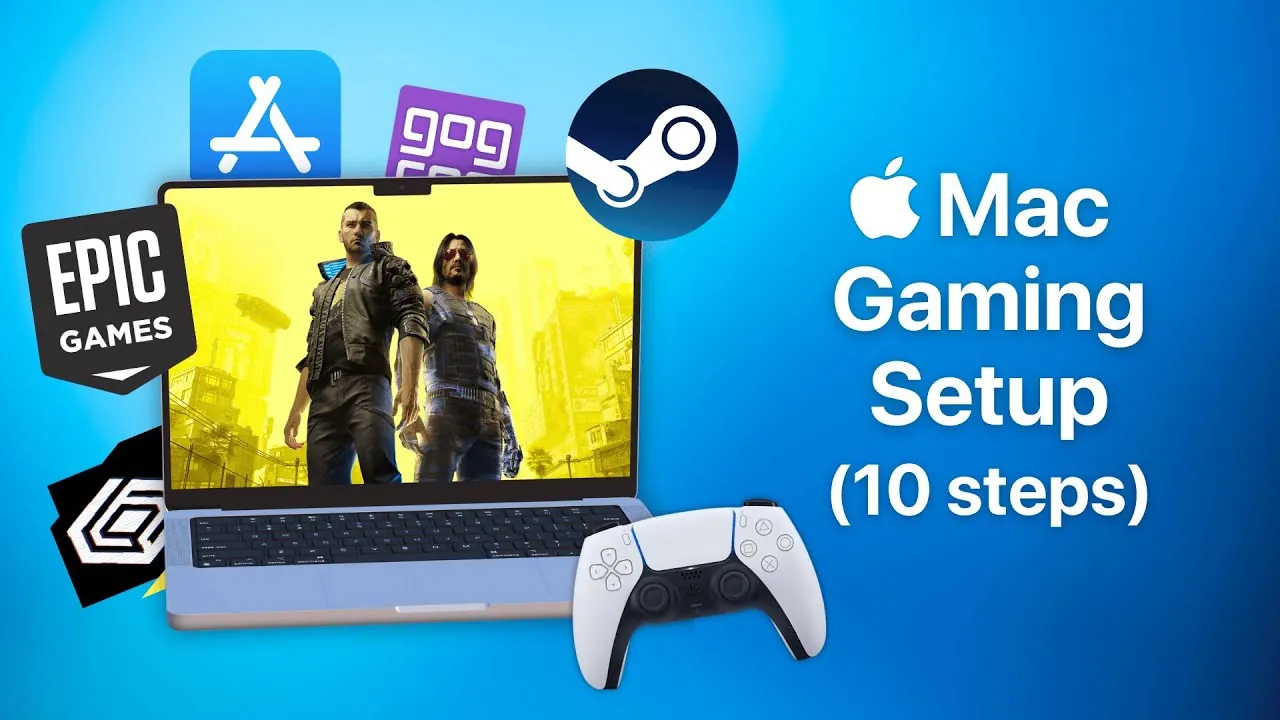
Have you ever wondered if your Mac could be more than just a productivity powerhouse? It’s no secret that gaming on macOS has long been overshadowed by PC dominance, but the tide is turning. With the advent of Apple Silicon chips and a growing library of macOS-compatible titles, your Mac is no longer just a workhorse, it’s a legitimate gaming machine in waiting. Yet, diving into Mac gaming without preparation can feel like trying to run a marathon in the wrong shoes. To truly unlock your Mac’s potential, you’ll need more than just the right hardware; you’ll need the right strategy. This coverage is here to guide you through the essential steps that will transform your Mac into a gaming setup that’s both powerful and seamless.
In the following guide, Andrew Tsai teaches you how to optimize your Mac for gaming, from selecting the best native macOS games to using tools that let you play PC titles. You’ll learn why a gaming controller or a high-performance mouse can make all the difference in your gameplay, and how to manage your Mac’s performance to avoid frustrating slowdowns. Whether you’re a casual gamer or someone ready to tackle graphically demanding titles, these steps will help you create a setup that feels custom-built for your needs. By the end, you might just find yourself questioning why you didn’t start gaming on your Mac sooner.
Optimize Your Mac for Gaming
TL;DR Key Takeaways :
- Apple Silicon chips have significantly improved Mac gaming performance, making it possible to play demanding titles like Resident Evil 4 Remake and Cyberpunk 2077 natively on macOS.
- Enhance your gaming experience with accessories like gaming controllers (e.g., PS5 DualSense, Xbox Series) and gaming mice, which offer better precision and comfort compared to standard Mac peripherals.
- Expand your game library by using platforms like Steam, Epic Games Store, and GOG, which provide a wide range of Mac-compatible and DRM-free titles.
- Play Windows games on macOS using tools like Apple’s Game Porting Toolkit, Crossover, or Parallels Desktop, bridging the gap between macOS and Windows gaming.
- Optimize your Mac for gaming by managing heat, upgrading storage with external SSDs, and fine-tuning settings like resolution, graphics, and performance modes for smoother gameplay.
1. Explore Native Mac Games
Start your gaming journey by focusing on games designed specifically for macOS. Platforms like the Mac App Store and Apple Arcade offer a wide selection of optimized titles that ensure smooth gameplay without requiring additional configurations. Popular games such as Resident Evil 4 Remake, Cyberpunk 2077, and Assassin’s Creed Shadows are now available for macOS, showcasing the platform’s growing potential in the gaming world. By choosing native games, you can enjoy seamless performance and compatibility, making this the ideal starting point for Mac gamers.
2. Enhance Gameplay with a Gaming Controller
A gaming controller can significantly improve your experience, especially for action, racing, and platformer games. Modern controllers like the PS5 DualSense and Xbox Series controllers are fully compatible with macOS via Bluetooth. For those who prefer a retro touch, third-party options like 8BitDo controllers are also supported. To connect, activate Bluetooth on your Mac, set the controller to pairing mode, and follow the on-screen instructions. A controller not only enhances comfort but also provides precise control, making it an essential accessory for serious gaming.
3. Upgrade to a Gaming Mouse
Precision is key in many gaming genres, and Apple’s Magic Mouse often falls short in this regard. Investing in a dedicated gaming mouse can dramatically improve responsiveness and accuracy. Additionally, disabling macOS’s default mouse acceleration can further enhance control, particularly in genres like first-person shooters and strategy games. A gaming mouse paired with optimized settings ensures smoother gameplay and better performance, giving you a competitive edge.
4. Expand Your Game Library with Distribution Platforms
To access a broader range of games, install popular distribution platforms like Steam, the Epic Games Store, and GOG. Steam offers an extensive collection of Mac-compatible titles, while the Epic Games Store frequently provides free games, allowing you to expand your library at no cost. For DRM-free options, GOG is an excellent choice, allowing you to play games offline without restrictions. These platforms open up a world of gaming possibilities, making sure you never run out of options.
5. Play PC Games on macOS
Mac users can now enjoy a vast library of Windows games thanks to tools like Apple’s Game Porting Toolkit. Software such as Crossover allows you to run Windows games directly on macOS without needing to install Windows. Alternatively, Parallels Desktop creates a virtual Windows environment, making it ideal for older or unsupported games. These solutions bridge the gap between macOS and Windows gaming, giving you access to titles that were previously unavailable on Mac.
Optimize Your Mac for Gaming : A Complete Guide

Gain further expertise in Mac gaming optimization by checking out these recommendations.
- Cyberpunk 2077 on Mac : Apple Silicon Meets AAA Games
- Mac Gaming in 2024: How the M4 Max MacBook Pro Stacks Up
- You WON’T BELIEVE How This Mac Mini M4 Handles Games
- M4 Mac mini for Gaming: A Budget Beast?
- Play Windows games are Apple Silicon Macs using Whiskey
- Nvidia RTX 4090 vs. Apple M4 Max MacBook Pro: Ultimate Laptop
- Run Windows on M Series Macs: Unlock Gaming, Coding & More
- Can This Nvidia Laptop Crush Apple’s M4 Max MacBook Pro
- macOS Tahoe Release: What You Need to Know
- Mac vs Windows Battle: Can Apple’s M4 Pro Reign Supreme
6. Relive Classics with Retro Game Emulation
Emulation offers a way to revisit classic games from older consoles and handheld systems. Tools like OpenEmu, Dolphin, and RPCS3 make it possible to play games from platforms such as the GameCube, Wii, and PlayStation 3. OpenEmu supports a wide range of systems, while Dolphin and RPCS3 specialize in specific consoles. These emulators bring nostalgic gaming experiences to your Mac, allowing you to enjoy timeless classics with modern convenience.
7. Expand Storage with External Drives
Modern games often require significant storage space, and your Mac’s internal drive may not be sufficient. A high-speed external SSD with Thunderbolt connectivity is a practical solution for expanding your storage capacity. Format the drive as APFS to ensure compatibility with macOS and take advantage of faster read/write speeds. This setup reduces load times and improves overall performance, making sure your gaming experience remains smooth and uninterrupted.
8. Optimize Performance for Gaming
Maximizing your Mac’s hardware capabilities is crucial for an optimal gaming experience. On models with active cooling, such as the MacBook Pro, allowing high-power mode prioritizes performance over energy efficiency. Adjusting in-game resolution or using upscaling technologies like MetalFX can also improve frame rates. Tools like the Metal HUD or Steam overlay provide real-time performance metrics, helping you fine-tune settings for the best results.
9. Manage Heat and Cooling Effectively
Thermal management is essential for maintaining consistent performance during extended gaming sessions. Ensure your Mac is placed in a well-ventilated area, and consider using cooling pads or desk fans, especially for fanless models like the MacBook Air. Overheating can lead to thermal throttling, which reduces performance and impacts gameplay. By managing heat effectively, you can enjoy longer gaming sessions without interruptions.
10. Fine-Tune Advanced Settings
Small adjustments can have a significant impact on your gaming experience. Customize mouse acceleration for precise control, configure controller layouts to suit specific games, and experiment with graphics settings to find the right balance between performance and visuals. These fine-tuning efforts can elevate your gameplay, making sure a smoother and more enjoyable experience.
Unlock the Full Potential of Mac Gaming
By following these steps, you can transform your Mac into a versatile gaming platform capable of handling a wide range of titles. From exploring native macOS games to running PC titles through emulation or virtualization, these optimizations ensure a seamless and enjoyable gaming experience. With the right tools, accessories, and configurations, your Mac can rival traditional gaming PCs, offering a powerful and flexible solution for gamers of all levels.
Media Credit: Andrew Tsai
Disclosure: Some of our articles include affiliate links. If you buy something through one of these links, Geeky Gadgets may earn an affiliate commission. Learn about our Disclosure Policy.
