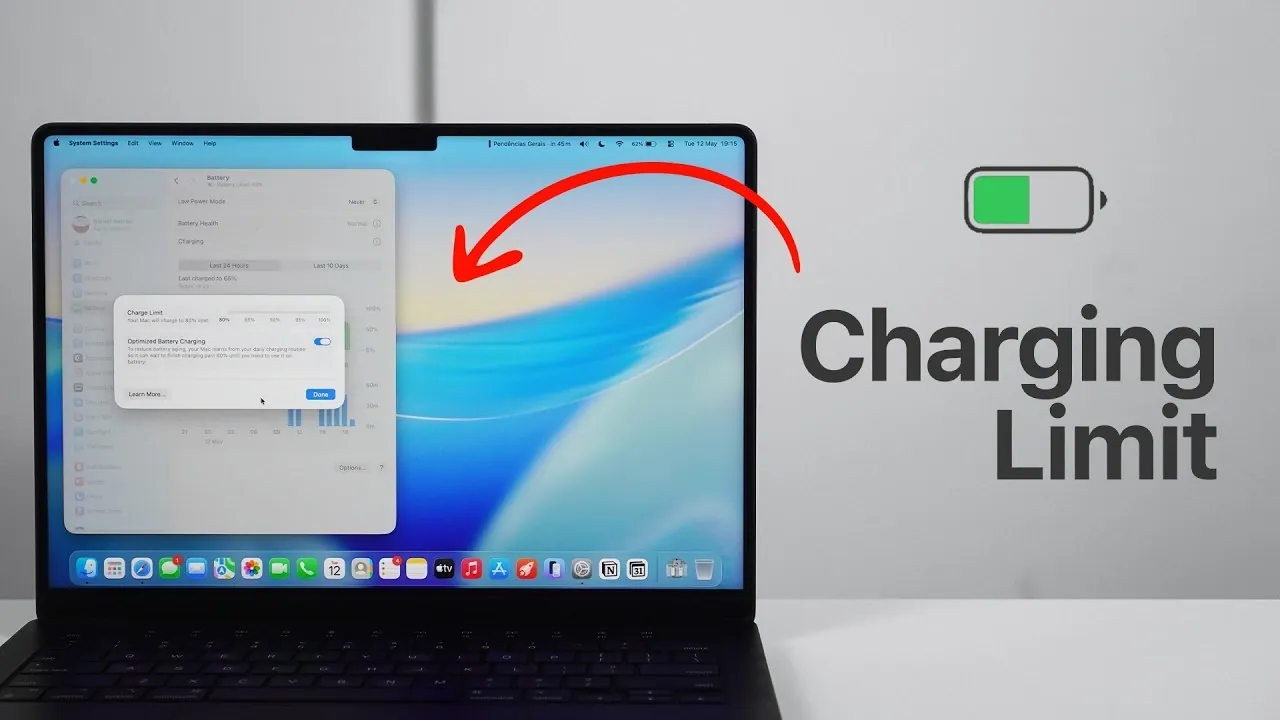
Maintaining your MacBook’s battery health is essential for making sure consistent performance and extending its overall lifespan. With the release of macOS 26.4 (MacOS Tahoe) and later versions, Apple has introduced advanced charging features designed to reduce battery degradation. These tools allow you to set a charging limit and enable optimized battery charging, giving you greater control over your device’s battery management. The video below from Daniel About Tech provides a detailed explanation of these features, their benefits, and how to use them effectively to maximize your MacBook’s battery longevity.

How to Access Charging Settings
To take advantage of these advanced battery management tools, ensure your MacBook is updated to macOS 26.4 or later. Once updated, follow these steps to access and configure the charging settings:
- Click the Apple menu and select System Settings.
- Navigate to the Battery section and then click on Charging.
- Explore the available options, including the Charge Limit and Optimized Battery Charging features.
These settings are designed to help you customize your MacBook’s charging behavior, making sure better long-term battery health and performance.
Understanding the Charging Features
macOS Tahoe introduces two key features to help you manage your battery more effectively: the Charge Limit and Optimized Battery Charging. Each feature serves a specific purpose in reducing battery wear and maximizing its lifespan.
Charge Limit
The Charge Limit feature allows you to set a maximum charging threshold, typically at 80%. By capping the charge level, this feature prevents the battery from reaching or staying at 100%, which can accelerate chemical degradation over time. Limiting the charge reduces stress on the battery, helping to preserve its capacity. Occasionally, the system may charge the battery to 100% for calibration purposes, making sure accurate battery health readings. This feature is particularly beneficial for users who frequently keep their MacBook plugged in for extended periods, such as during desk work or while using external monitors.
Optimized Battery Charging
Optimized Battery Charging uses machine learning to analyze your daily usage patterns. It charges the battery to 80% during regular use and only completes the charge to 100% when it predicts you’ll need a full battery. For example, if you typically unplug your MacBook at 8 a.m., the system will delay charging to 100% until just before that time. While this feature is less precise than the Charge Limit option, it offers a convenient, automated way to balance battery health with usability, making it ideal for users with consistent daily routines.
Best Practices for Battery Care
In addition to using the advanced charging features, adopting healthy charging habits can further enhance your MacBook’s battery longevity. Consider the following recommendations:
- Avoid keeping your MacBook plugged in at 100% for prolonged periods, as this can accelerate battery wear.
- Alternate between using your MacBook on battery power and while plugged in to maintain a balanced charge cycle.
- Enable the Charge Limit feature to cap charging at 80%, especially if you use your MacBook in a stationary setup.
- Periodically allow the battery to discharge to around 20% before recharging to maintain proper calibration.
- Keep your MacBook in a cool, well-ventilated environment to prevent overheating, which can negatively impact battery health.
By following these practices, you can ensure that your MacBook remains efficient and reliable over time, aligning with the principles of lithium-ion battery care.
Why These Features Are Important
Lithium-ion batteries, which power your MacBook, naturally degrade over time with each charge cycle. Factors such as high charge levels, exposure to heat and prolonged charging at 100% can accelerate this degradation. The Charge Limit and Optimized Battery Charging features are designed to mitigate these risks by reducing unnecessary stress on the battery.
These tools are particularly valuable for users who rely on their MacBooks for demanding daily tasks, such as professional work, creative projects, or academic use. By incorporating these features into your routine, you can maintain consistent performance and extend the overall lifespan of your device. Additionally, these settings provide a proactive approach to battery care, helping you avoid the inconvenience and cost of premature battery replacements.
Maximizing Your MacBook’s Battery Health
The advanced charging features in macOS Tahoe empower you to take control of your MacBook’s battery health. By setting a charging limit and allowing optimized battery charging, you can significantly reduce battery degradation and ensure long-term performance. Take a few moments to explore these settings in your MacBook’s System Settings and incorporate the recommended charging habits into your daily routine. These small but impactful adjustments can help keep your MacBook running efficiently and reliably for years to come.
Below are more guides on MacBook from our extensive range of articles.
- MacBook Neo Setup Guide: First 20 Things You Must Do
- MacBook Neo Review: Is the $599 Budget Mac Actually Good?
- Apple MacBook Neo vs MacBook Air: Key Trade-Offs at $599
- MacBook Neo Review: Did Apple Build the Perfect Budget Mac?
- MacBook Neo vs MacBook Air: Which Laptop Fits Your Budget?
Source & Image Credit: Daniel About Tech
Disclosure: Some of our articles include affiliate links. If you buy something through one of these links, Geeky Gadgets may earn an affiliate commission. Learn about our Disclosure Policy.
