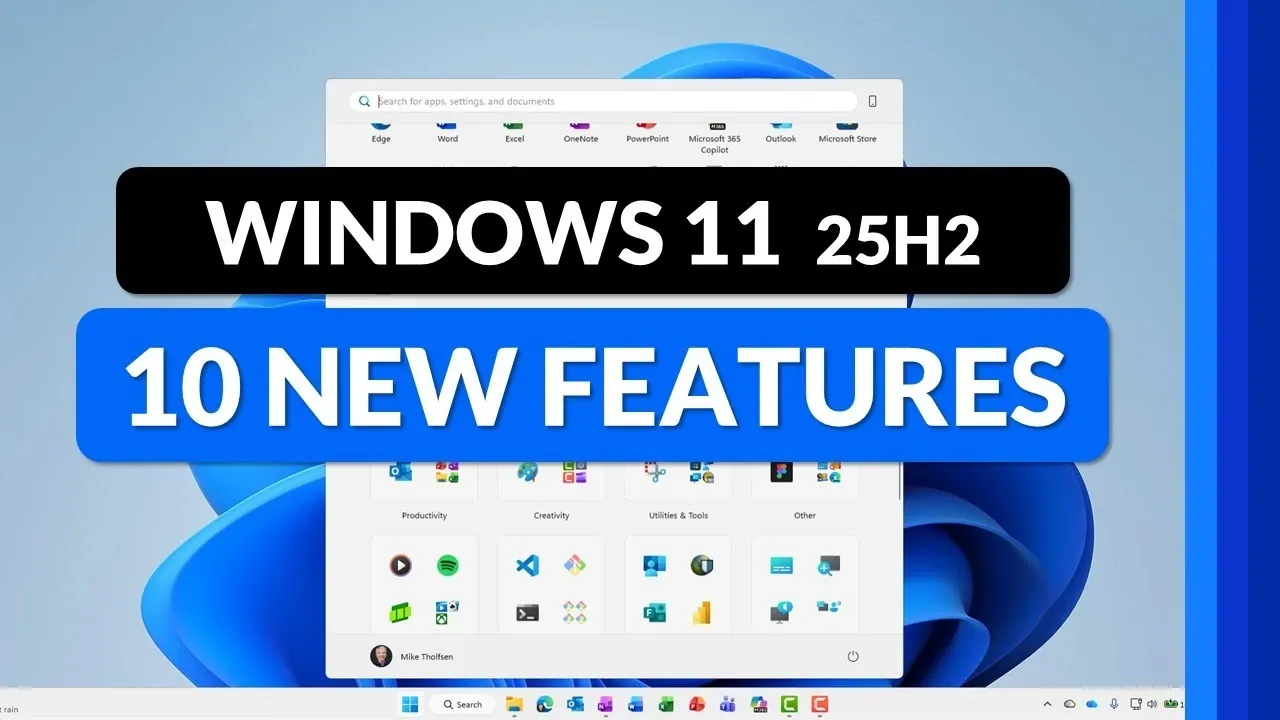
Have you ever wished your operating system could truly adapt to your needs, making every interaction feel seamless and personalized? The Windows 11 25H2 update might just be the fantastic option you’ve been waiting for. With bold enhancements like AI-powered widgets, a more intuitive Start Menu, and productivity-boosting tools like Microsoft 365 Copilot, this update doesn’t just tweak, it transforms. Whether you’re a multitasking professional or a casual user, these features promise to redefine how you engage with your PC. Gone are the days of clunky interfaces and rigid workflows; Windows 11 is stepping into the future, and it’s bringing you along for the ride.
Below Mike Tholfsen explores the top 10 features that make this update a standout. From customizable lock screen widgets to the revamped Snipping Tool with Bing Visual Search, each addition is designed to simplify your digital life while offering a touch of innovation. Curious about how the new Dark Mode refinements or keyboard shortcuts could make your daily tasks smoother? Or perhaps you’re intrigued by the seamless integration of your smartphone with your PC? There’s plenty to uncover, and each feature brings its own unique value to the table. As you read on, consider how these updates could reshape the way you work, play, and connect.
Windows 11 25H2 Highlights
TL;DR Key Takeaways :
- The Start Menu now offers enhanced customization, including resizing, app categorization, and the ability to remove recommended apps for a cleaner interface.
- Widgets have been redesigned with AI-powered tools like Copilot and image generation, along with improved organization and customization options.
- Microsoft 365 Copilot is integrated into the taskbar, providing quick access to AI-driven productivity tools for tasks like drafting documents and summarizing emails.
- The Snipping Tool now includes Bing Visual Search, allowing users to identify objects or gather context directly from screenshots.
- Phone Link updates allow seamless access to calls, messages, and notifications on your PC, improving connectivity and workflow between devices.
Revamped Widgets with AI Integration
Widgets have undergone a significant redesign, focusing on improved organization and functionality. The separation of “Widgets” and “Discover” tabs simplifies navigation, making it easier to find the information you need. New AI-powered tools, such as Copilot and image generation features, expand the utility of widgets, offering capabilities that go beyond basic functionality. Customization options have also been enhanced, allowing you to tailor widgets to display content that matters most to you.
Microsoft 365 Copilot on the Taskbar
Microsoft 365 Copilot is now seamlessly integrated into the taskbar, providing quick access to AI-driven tools that enhance productivity. You can activate it using the taskbar icon or the Windows + C shortcut, making it readily accessible. With both mini and full-screen modes available, Copilot assists with tasks such as drafting documents, summarizing emails, and generating ideas. This feature is particularly valuable for users who rely on Microsoft 365 for work or personal projects, as it streamlines complex tasks into manageable steps.
Snipping Tool with Bing Visual Search
The Snipping Tool has been enhanced with the addition of Bing Visual Search, combining image capture with powerful search capabilities. This feature allows you to identify objects, locations, or other elements directly from your screenshots. Whether you’re conducting research or seeking additional context for an image, this integration makes the Snipping Tool a versatile resource for both personal and professional use.
Improved Phone Link Integration
Phone Link has been updated to provide a more seamless connection between your PC and smartphone. You can now access calls, messages, and notifications directly from your computer, eliminating the need to switch between devices. This integration ensures a smoother workflow, allowing you to stay connected and productive without interruptions. Whether you’re responding to texts or managing notifications, Phone Link bridges the gap between your devices.
10 New Features in Windows 11 25H2 update (Tips & Tricks for 2025)

Learn more about Windows 11 by reading our previous articles, guides and features :
- Run Windows 11 on Your Mac: A Complete Guide
- Windows 11 vs Windows 10 games performance tested
- How to Use the ChatGPT App for Windows 11
- 11 Windows 11 Features That Will Change How You Work & Play
- How to Customize the Windows 11 Taskbar for Maximum
- Windows 11 vs SteamOS : Which Wins on the Ally X?
- How to Remove Bloatware and Boost Privacy in Windows 11
- How to install Windows 11 on a MacBook or Mac in 2024
- Windows 11 Touchscreen Gestures Explained: Beginners & Pros
- How to Record Your Screen on Windows 11: Step-by-Step Guide
Dark Mode Improvements
Dark Mode has been refined to deliver a more consistent and visually appealing experience across the system. Key elements such as file copy and delete dialogs now fully support Dark Mode, making sure a cohesive appearance. This improvement is particularly beneficial for users who work in low-light environments or prefer a darker aesthetic. By reducing visual strain and maintaining a uniform design, Dark Mode enhancements contribute to a more comfortable user experience.
New Keyboard Shortcuts for Text Formatting
Two new keyboard shortcuts have been introduced to simplify text formatting tasks. You can now use Windows + Minus to insert an en dash (–) and Windows + Shift + Minus for an em dash (—). These shortcuts are especially useful for users who frequently work with text, such as writers, editors, or professionals in content creation. By providing quick access to commonly used punctuation, these shortcuts improve efficiency and reduce the need for manual formatting.
Lock Screen Widgets
The lock screen now supports customizable widgets, offering quick access to essential information without unlocking your device. You can display updates such as weather forecasts, sports scores, or AI-powered suggestions directly on the lock screen. This feature ensures that you stay informed at a glance while maintaining the security of your device. By combining convenience with functionality, lock screen widgets enhance the overall user experience.
System Clock with Seconds Display
The system clock has been updated to include an option for displaying seconds, providing more precise timekeeping. While this feature may result in a slight increase in power consumption, it is particularly useful for users who require exact time tracking, such as professionals in fields like finance or IT. The ability to toggle this option ensures that it can be customized to suit individual preferences and needs.
Simplified Account Settings
Account management has been streamlined with the consolidation of settings under the “Your Accounts” section in the Settings menu. This change simplifies navigation, making it easier to manage your Microsoft account, subscriptions, and related preferences. By organizing account settings into a single location, this update reduces complexity and enhances the overall usability of the system.
The Windows 11 25H2 update represents a significant step forward in enhancing the user experience. From improved customization options to the integration of AI-powered tools, these features are designed to make your interactions with Windows 11 more intuitive and efficient. Whether you’re exploring the revamped widgets, using the new keyboard shortcuts, or taking advantage of the enhanced Phone Link integration, this update ensures that Windows 11 continues to evolve as a versatile and user-friendly operating system.
Media Credit: Mike Tholfsen
Disclosure: Some of our articles include affiliate links. If you buy something through one of these links, Geeky Gadgets may earn an affiliate commission. Learn about our Disclosure Policy.
