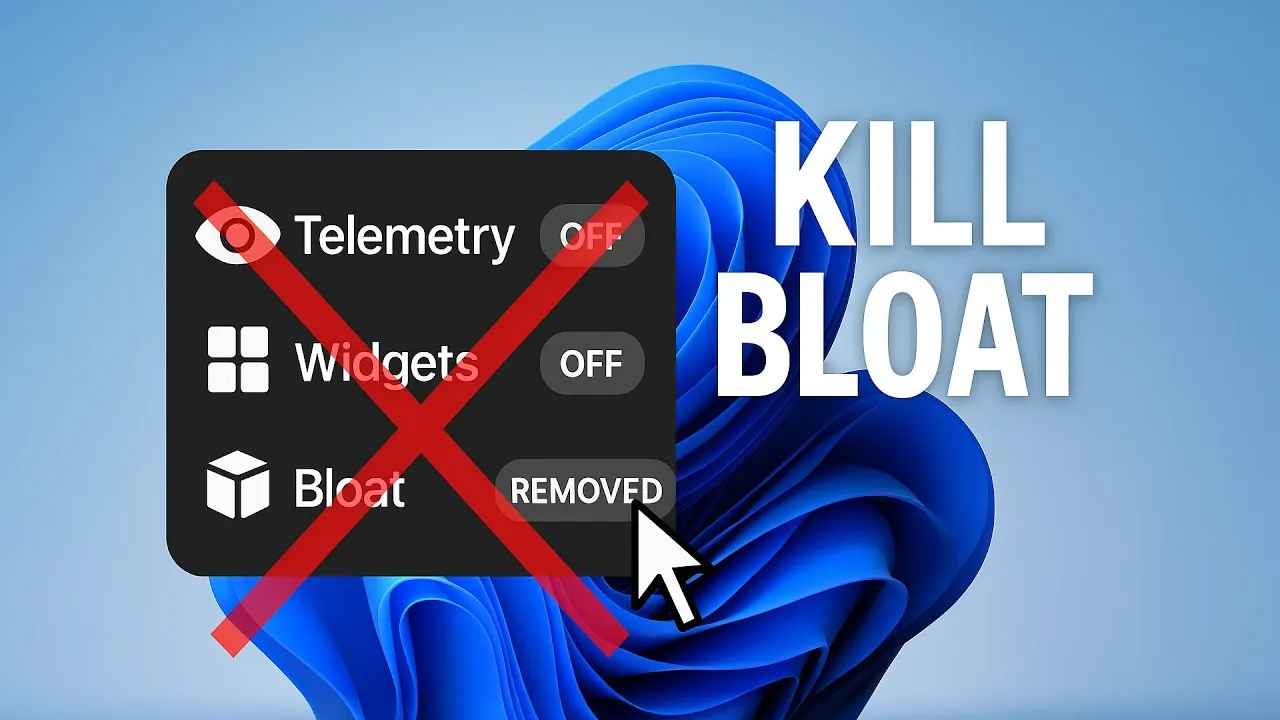
Have you ever wondered how much control you really have over your Windows 11 system? Beneath its polished interface lies a maze of pre-installed apps, intrusive tracking features, and bloated settings that can bog down performance and compromise your privacy. While Microsoft touts Windows 11 as a modern operating system for productivity and connection, many users find themselves wrestling with unnecessary clutter and invasive telemetry. The good news? You don’t have to settle for a system that works against you. With a few intentional tweaks, you can strip away the excess, reclaim your privacy, and optimize your device for a faster, more secure experience.
Below David Bombal explains how to transform Windows 11 into a lean, efficient, and private operating system that works on your terms. From disabling telemetry features that siphon your data to removing bloatware that clogs your system, you’ll discover practical steps to regain control. We’ll also delve into fine-tuning system settings, managing updates effectively, and choosing tools that enhance usability without compromise. Whether you’re a casual user frustrated by unnecessary widgets or a power user seeking advanced customization, this guide will empower you to create a system that prioritizes your needs, not Microsoft’s. Because your computer should work for you, not the other way around.
Optimize Windows 11 Settings
TL;DR Key Takeaways :
- Opt for a local account during Windows 11 setup to enhance privacy by keeping data stored locally and disabling features like location services and diagnostic data sharing.
- Remove pre-installed bloatware using tools like Revo Uninstaller or PowerShell to free up system resources and improve performance.
- Disable tracking and telemetry features to safeguard privacy by using tools like Chris Titus Tech Windows Toolbox and adjusting privacy settings manually.
- Switch to a privacy-focused browser like Brave or Firefox, configure its settings, and use privacy-enhancing extensions for a safer online experience.
- Fine-tune system settings and manage startup programs to optimize performance, improve security, and reduce boot times effectively.
Start with a Local Account
During the initial setup of Windows 11, Microsoft encourages users to create an online account. However, opting for a local account is a more privacy-conscious choice, as it keeps your data stored locally on your device rather than syncing it to Microsoft’s cloud services. To set up a local account:
- Disconnect from the internet during the installation process to bypass the online account requirement.
- Use command-line tools, such as Shift + F10 during setup, to force the local account option.
Additionally, disable features like location services, diagnostic data sharing, and advertising IDs during setup. These steps help reduce unnecessary data collection from the outset, making sure a more private and secure system.
Remove Unnecessary Bloatware
Windows 11 often comes preloaded with applications that you may never use, commonly referred to as bloatware. These programs consume valuable system resources and may collect data in the background. To remove them effectively:
- Use tools like Revo Uninstaller or PowerShell commands to identify and delete unwanted applications.
- Ensure no leftover files or registry entries remain to maintain a clean system.
Removing bloatware not only frees up storage space but also improves overall system performance, allowing your device to run more efficiently.
Remove Bloatware & More from Windows 11
Gain further expertise in Windows 11 by checking out these recommendations.
- Improve Your Windows 11 Performance – Free Must Have App
- Optimize Windows 11 start-up programs for faster boot times
- 16 Apps to Enhance Your Windows 11 Experience & Workflows
- Advanced Windows 11 registry tweaks to improve PC performance
- Windows 11 24H2 update brings a wealth of new features
- ASUS ProArt PZ13 Snapdragon X Windows Tablet hands on review
- Stop Wasting Tokens: Optimize Claude Code Like a Pro
- Improve your Steam Deck performance with lossless scaling
- Boost Claude Code Efficiency with Context Window Optimizations
- Unlock the Wild West: Red Dead Redemption Now on Steam Deck
Disable Tracking and Telemetry
Microsoft collects diagnostic and usage data through telemetry features, which can compromise your privacy. To minimize data collection:
- Use tools like Chris Titus Tech Windows Toolbox to disable telemetry, location tracking, and features like Wi-Fi Sense.
- Manually adjust privacy settings in Windows to restrict app permissions, turn off activity history, and disable personalized ads.
These changes ensure that your personal information remains private and under your control, reducing the risk of unnecessary data sharing.
Optimize Your Browser
Microsoft Edge is the default browser in Windows 11, but it may not meet your privacy needs. Switching to a privacy-focused browser can enhance your online security. Consider alternatives like Brave or Firefox, which offer:
- Built-in ad and tracker blocking for a safer browsing experience.
- Customizable privacy settings to suit your specific needs.
After selecting a browser, take time to configure its settings. Disable unnecessary features, enable HTTPS-only mode, and consider adding privacy-enhancing extensions to further protect your online activity.
Fine-Tune System Settings
Customizing system settings can improve both performance and security. Tools like Chris Titus Tech Windows Toolbox provide a streamlined way to make these adjustments. Key optimizations include:
- Disabling Bing search integration in the Start menu to improve search speed and privacy.
- Allowing the display of hidden files for easier file management.
- Turning off unnecessary features like IPv6 and the Windows Platform Binary Table (WPBT) to reduce potential vulnerabilities.
Before making significant changes, create a system restore point to safeguard your data and settings in case of unexpected issues.
Streamline Software Management
Efficient software management is essential for maintaining a fast and responsive system. To achieve this:
- Install essential tools, such as Putty or 7-Zip, directly through trusted sources or the Windows Toolbox.
- Manage startup programs using the Task Manager to reduce boot times and free up system resources.
By controlling which applications run at startup, you ensure that only necessary programs are active, improving overall system performance and responsiveness.
Secure Your System and Manage Updates
Regular updates are critical for maintaining security, but managing them effectively is equally important. To take control of updates:
- Use group policies or registry edits to schedule updates at convenient times, preventing unexpected disruptions.
- Access legacy control panel options for advanced configuration settings, such as pausing updates or deferring feature upgrades.
These steps allow you to balance security with system stability, making sure that updates do not interfere with your workflow while keeping your system protected against vulnerabilities.
Use Tools for Advanced Customization
Advanced users can take advantage of tools like Chris Titus Tech Windows Toolbox and Revo Uninstaller to further customize their Windows 11 installation. These tools enable you to:
- Disable unnecessary services to free up system resources.
- Customize system behavior to align with your specific needs and preferences.
Exploring these tools allows you to unlock additional features and configurations, enhancing your overall experience. Sharing your findings with the community can also help others achieve similar results, fostering a more informed and empowered user base.
By following these steps, you can transform your Windows 11 system into a more private, efficient, and user-friendly platform. Whether you’re disabling telemetry, removing bloatware, or fine-tuning system settings, each adjustment contributes to a smoother and more secure computing experience. With the right tools and configurations, you can take full control of your system and enjoy a better digital environment.
Media Credit: David Bombal
Disclosure: Some of our articles include affiliate links. If you buy something through one of these links, Geeky Gadgets may earn an affiliate commission. Learn about our Disclosure Policy.
