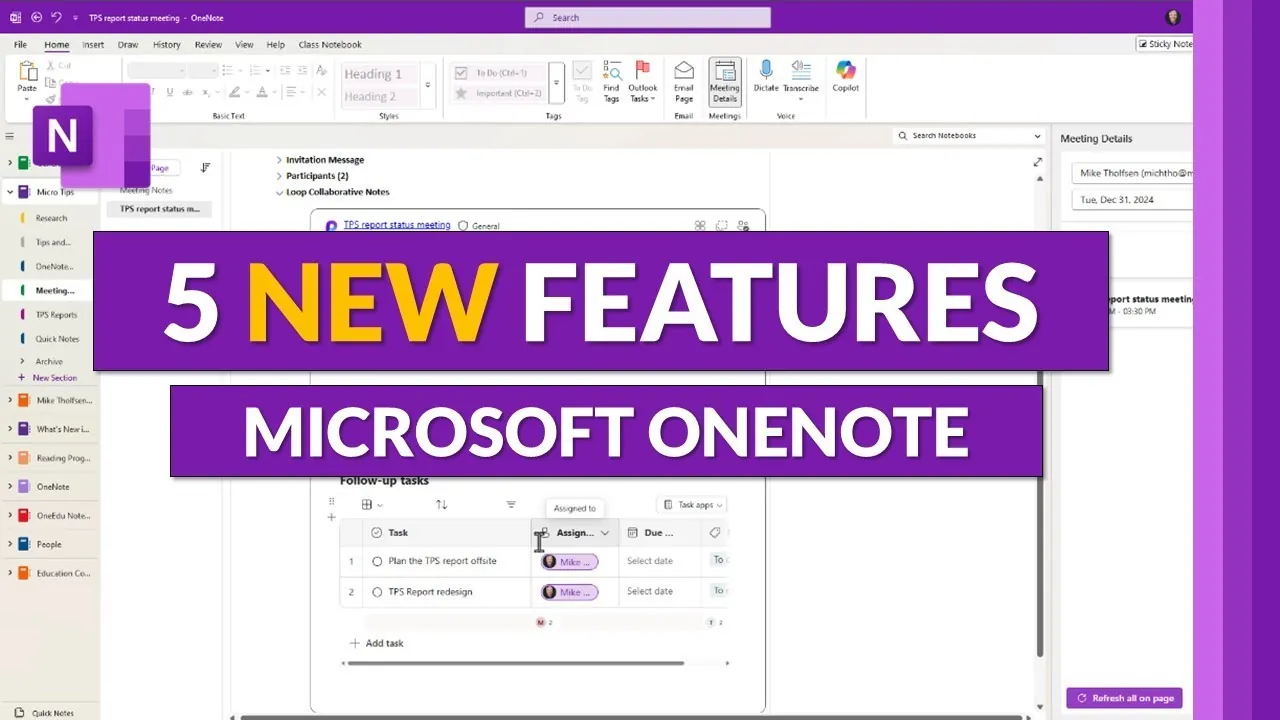
We’ve all been there—juggling meeting notes, brainstorming ideas, or trying to annotate a PDF, only to feel like the tools we’re using just aren’t keeping up. Whether you’re a student scribbling down lecture highlights, a professional managing endless meeting agendas, or a creative mind sketching out your next big idea, staying organized and productive can sometimes feel like an uphill battle. But what if your go-to note-taking app could do more than just keep up? What if it could actually make your workflow smoother, your notes clearer, and your creative process more enjoyable?
Enter Microsoft OneNote’s latest updates for 2025. Packed with five innovative features, these enhancements are designed to meet you where you are—whether that’s in a fast-paced meeting, deep in a creative project, or simply trying to keep your thoughts in order. From seamless meeting integration to advanced inking tools that feel like they were made just for you, these updates promise to take the frustration out of note-taking and replace it with flexibility, ease, and a touch of fun. In the video below Mike Tholfsen goes each one in more detail.
Microsoft OneNote 2025 Updates
TL;DR Key Takeaways :
- Enhanced meeting integration now includes automatic syncing of recordings, transcripts, and notes, along with embedded meeting content for streamlined workflows.
- The new eye dropper tool allows users to create custom pen colors by selecting hues from their screen, improving personalization and visual organization.
- Improved PDF and image inking ensures annotations stay aligned even when resizing or moving documents, enhancing clarity and consistency.
- Two new pen types—fountain pen and brush pen—offer refined strokes and dynamic textures, catering to both professional and creative needs.
- The ink straightening tool makes handwritten notes more legible and polished, ideal for presentations and collaborative projects.
Microsoft OneNote has introduced five innovative features for 2025, designed to enhance productivity, creativity, and overall usability. These updates focus on improving meeting integration, expanding inking capabilities, and refining the handling of PDFs and images.
Enhanced Meeting Integration
OneNote’s meeting integration has been significantly upgraded, particularly for users of Microsoft Teams. The modernized meeting details pane now includes Loop collaborative notes, allowing real-time updates and shared contributions during meetings. This ensures your notes remain aligned with agendas, tasks, and outcomes, making collaboration more seamless.
Key improvements include:
- Automatic syncing of meeting recordings, transcripts, and notes, eliminating the need for manual transfers.
- Embedded meeting content, such as agendas and recordings, directly accessible within your notebooks.
These enhancements consolidate all meeting-related materials in one location, simplifying follow-ups and improving efficiency. By integrating meeting content directly into your workflow, you can focus on actionable insights without the hassle of switching between platforms.
Eye Dropper Tool for Custom Pen Colors
The new eye dropper tool for inking introduces a higher level of personalization. This feature allows you to create custom pen colors by selecting hues directly from your screen. Whether you’re matching brand colors for a project or adding a creative flair to your notes, this tool offers exceptional flexibility.
Benefits of this feature include:
- Assigning unique colors to specific topics or categories for better visual organization.
- Enhancing creativity by tailoring your notes to your preferences or project requirements.
This tool enables users to make their notes both functional and visually appealing. For those who rely on color-coded systems, it provides a practical way to improve clarity and organization while adding a personal touch.
5 New Microsoft OneNote Updates for 2025
Master Microsoft OneNote with the help of our in-depth articles and helpful guides.
- How to Use Apple Pencil with OneNote on iPad
- New 2024 OneNote features to improve your notetaking and more
- Apple Notes vs MS OneNote : Which Note-Taking App is Best
- How to Use OneNote Templates to Boost Productivity
- How to use OneNote CoPilot AI to improve your productivity
- How to Use Microsoft OneNote for Effective Project Management
- Mastering OneNote Search: Tips for Finding Notes Fast
- Learn how to use OneNote to improve your productivity – Beginners
- How to Use Tags in OneNote 2025 for Better Organization
- How to Use PARA in Microsoft OneNote to Boost Productivity
Improved PDF and Image Inking
Annotating PDFs and images in OneNote has become more intuitive and reliable. Ink annotations now remain anchored to the content, even when the document is resized or moved. This ensures your notes stay aligned and organized, reducing the risk of misplaced or disjointed annotations.
This feature is particularly useful for:
- Marking up contracts, scanned documents, or lecture slides without losing alignment.
- Maintaining clarity and consistency in your notes, even when working with dynamic content.
Whether you’re a student annotating lecture slides or a professional reviewing contracts, this improvement ensures your annotations are precise and dependable. It’s a practical enhancement for anyone who frequently works with PDFs or images.
New Pen Types for Creative Inking
OneNote now offers two new pen types—the fountain pen and the brush pen—designed to cater to both professional and artistic needs. These additions provide users with greater versatility in their inking experience.
Features of the new pen types include:
- The fountain pen delivers refined, elegant strokes, ideal for formal note-taking or calligraphy.
- The brush pen creates dynamic, textured lines, perfect for sketches or creative projects.
Users can also adjust the thickness and style of these pens, giving them complete control over their inking. Whether you’re drafting technical diagrams or adding artistic flourishes to your notes, these tools adapt to your specific goals, making them suitable for a wide range of applications.
Ink Straightening Tool
Handwritten notes in OneNote now benefit from the ink straightening tool, which enhances legibility and professionalism. With a single click, uneven handwriting is straightened, resulting in polished and organized notes. This feature is particularly helpful for users with naturally uneven handwriting or those who write quickly during meetings or lectures.
The ink straightening tool offers the following advantages:
- Maintaining a clean and organized notebook for presentations or collaborative projects.
- Improving the readability of your notes, making sure your ideas are clearly communicated.
This tool is a valuable addition for anyone who values clarity and professionalism in their handwritten notes. It ensures that your ideas are presented in a way that is both visually appealing and easy to understand.
Final Thoughts
The 2025 updates to Microsoft OneNote demonstrate a commitment to enhancing functionality and user experience. From improved meeting integration to advanced inking tools and better PDF handling, these features cater to a wide range of needs. Whether your focus is on productivity, creativity, or organization, these updates provide practical tools to help you achieve your goals. By incorporating these enhancements, OneNote continues to evolve as a versatile platform for both personal and professional use.
Media Credit: Mike Tholfsen
Disclosure: Some of our articles include affiliate links. If you buy something through one of these links, Geeky Gadgets may earn an affiliate commission. Learn about our Disclosure Policy.
