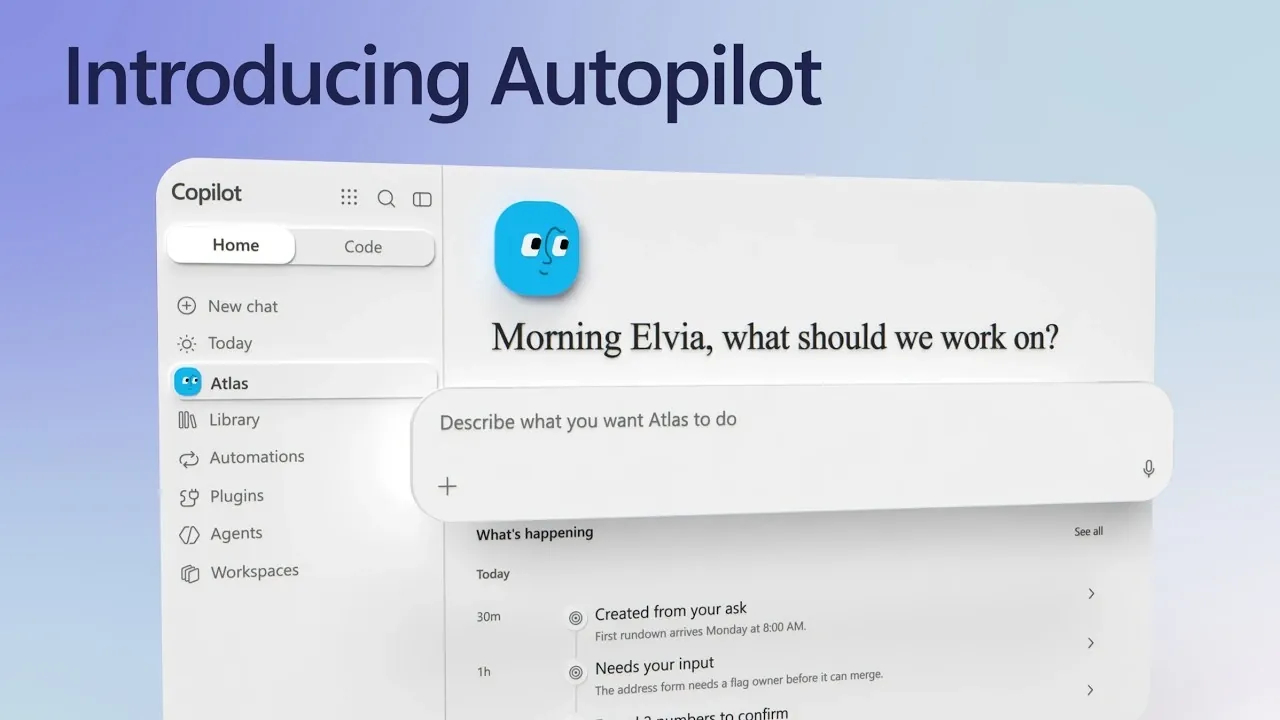
Microsoft Copilot can now keep working when your laptop is off. Running in the cloud, it continues with the tasks you assign. Autopilot is a new personal AI agent feature in Microsoft Copilot that can follow conversations, monitor projects and handle recurring work without repeated prompts. You can create one without coding, give it goals in everyday language and review actions that need your approval. Explore how Microsoft Mechanics shows you how to set up an agent, what it can do across your apps and how administrators manage access and billing.
Autopilot in Microsoft Copilot
TL;DR Key Takeaways :
- Autopilot is a personal AI agent in Microsoft Copilot that can follow conversations, monitor channels and work on recurring tasks or projects in the cloud, even when your laptop is off.
- You can create and customize an Autopilot in the Copilot app without coding. Each agent has a unique identity in Agent 365 and appears as reporting to you in the organization chart.
- Autopilot uses Work IQ, Microsoft 365 services and connected systems to carry out assigned routines and create documents, spreadsheets and designs. It can also help with expenses, scheduling and project monitoring.
- Autopilot operates within your tenant’s security boundary, works only on assigned tasks and respects organizational permissions and guardrails. It can flag decisions and request approval for actions.
- Administrators must activate Autopilot and enable usage-based billing. They can control access and session settings, and view adoption, activity and spending insights in the Microsoft 365 Admin Center.
Autopilot is a personal AI agent now available in Microsoft Copilot. It can follow conversations, monitor channels, run recurring tasks and work on projects over weeks without repeated prompts. Because it runs in the cloud, it can continue working when you power off your laptop.
You give Autopilot goals in natural language. It uses connected work information and apps to carry out assigned tasks, flag decisions that need your attention and report on its activity.
Setting Up a Personal Agent
You can create an Autopilot from the Copilot app without coding skills or technical expertise, and it can be ready in moments. During setup, you choose a name and can customize its design, shape and color. Autopilot appears on the left side of Copilot under the name you give it.
Each Autopilot has a unique identity in Agent 365 and appears as reporting to you in the organization chart. It can suggest goals as it develops an understanding of your commitments, colleagues and work patterns. You can also describe the work you want it to do.
For calendar work, Autopilot can identify tasks such as moving one-on-one meetings and cleaning up a schedule. It presents a plan for approval, then works in the background and notifies you of changes or steps that need your approval. You can add or change tasks later to refine its goals.

Explore further guides and articles from our vast library that you may find relevant to your interests in Microsoft Copilot and Autopilot.
- New Microsoft Copilot Super App with Autopilot Assistant to Handle Your Work
- Automate Project Plans with 6 Microsoft 365 Copilot Upgrades
- 6 Powerful Microsoft Copilot in Excel Use Cases & Workflow Examples
- How to use Copilot in Microsoft Teams & Outlook to improve your communications
- Microsoft Copilot Can Now Build Microsoft PowerPoint Slides from OneNote
Routines, Skills and Work Connections
Routines let Autopilot carry out ongoing assignments, such as tracking procurement, following work commitments or monitoring a product launch. They also support finance and security team goals. Autopilot can summarize an item that needs a decision, highlight a deadline and offer actions to take. It can also send you daily emails on launch status.
Autopilot uses knowledge from Work IQ and other connected systems. Plugins can give it access to other agents, skills and work services. Its skills can create artifacts such as Word documents, Excel workbooks and Figma designs. In one example, the agent’s plugins and skills had approval from its organization’s IT team. Autopilot also has access to Microsoft 365 services, including Teams, Outlook and OneDrive.
Each agent has dedicated compute to run assigned tasks around the clock. Instructions define its objectives, actions, timing and expected outputs. Autopilot works only on tasks you have asked it to do, operates within your tenant’s security boundary and respects the permissions and guardrails set by you and your organization.
Working Across Apps and Conversations
Autopilot can handle work that normally requires entries in a web app. For an expense report, it can find receipts in an inbox, enter line items and upload receipts. You can inspect its steps, respond when it asks about a charge and decide whether to submit the report.
The expanded Overview shows files the agent has worked on, recent chats, and interactions in Microsoft Teams channels and shared email threads. The activity view brings together recent work and items that need your input.
Teams can message an Autopilot in a channel as it follows an assigned project. It can flag shipping issues, including a shipment at risk of missing the receiving cutoff and arriving too late, and a purchase-order deadline. It can also break down key terms in a supplier purchase order, then prepare a decision document covering delivery details and supplier considerations.
When asked to arrange a group call, it can find a time, request permission to book it and send the invite after approval.
Controls for Microsoft 365 Administrators
The Microsoft 365 Admin Center has an Autopilot page under Copilot for setup and organization-level information. After activation, administrators can see how many users with access have created an Autopilot and how many agents are actively working. The page also surfaces actions such as onboarding and pending access requests.
Autopilot Insights provides adoption metrics and organization-level spending details. Usage insights add trends, session counts, the tools agents call most, the most active groups and the top AI models in use.
Copilot settings control who can access Autopilot and whether agent sessions run only in the cloud or also locally on managed devices. Administrators can also configure whether Copilot experiences can automatically approve agent actions.
Autopilot requires an administrator to activate it and turn on usage-based billing. Its work is limited to the tasks you assign and the permissions and guardrails set by you and your organization. Administrators can set access and session rules in Copilot settings.
If you want a personal agent to help with ongoing work, Autopilot in Microsoft Copilot is worth a closer look. You can create one in the Copilot app and give it tasks to work on in the background.
Media Credit: Microsoft Mechanics
Disclosure: Some of our articles include affiliate links. If you buy something through one of these links, Geeky Gadgets may earn an affiliate commission. Learn about our Disclosure Policy.
