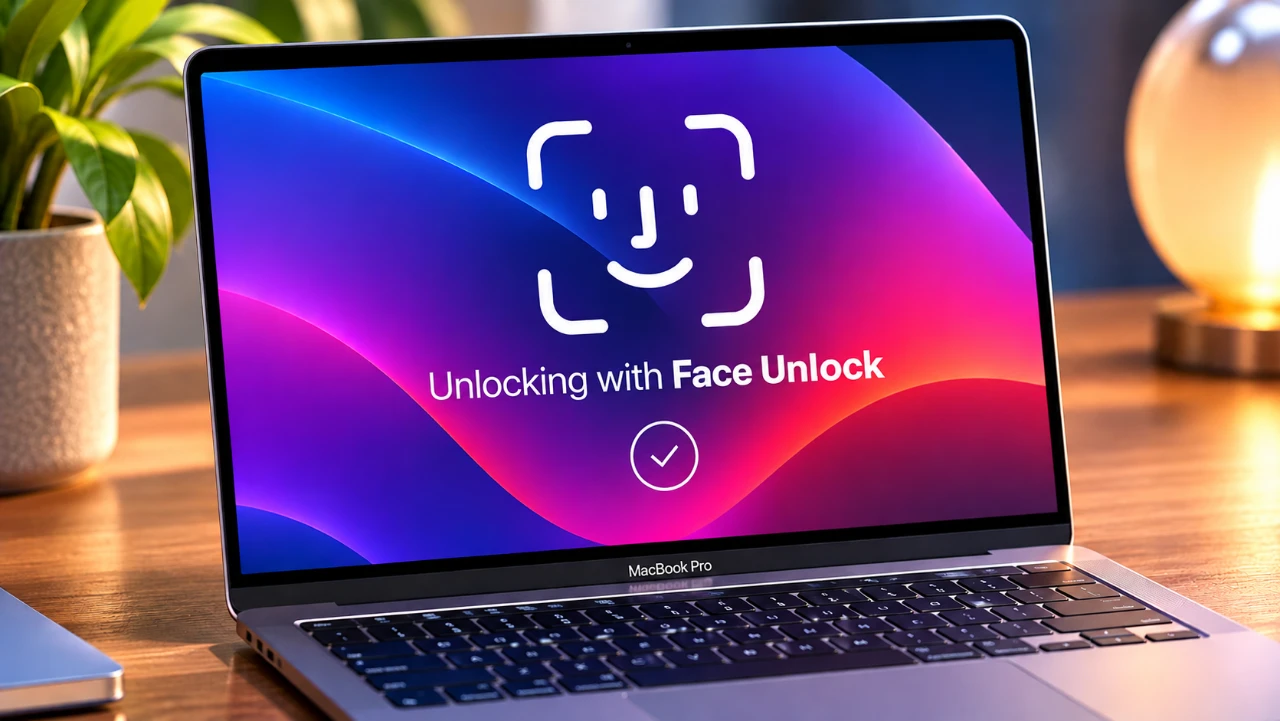
Face recognition technology has become an integral part of modern devices and now it’s available for macOS users through the free app, Glance. This innovative tool allows you to unlock your MacBook with just a glance, even if your device lacks Touch ID. While it offers convenience and ease of use, understanding its features, setup process and limitations is essential for making sure a secure and smooth experience. The video below from Daniel About Tech provides a detailed overview of how Glance works, how to install and configure it, and what to keep in mind when using it.
TL;DR Key Takeaways :
- Face Unlock for Mac: Brings biometric face recognition to macOS 15+ devices using an open-source, on-device machine learning pipeline.
- Core ML & Local Processing: Converts facial features into encrypted numerical embeddings locally via Apple’s Vision and Core ML frameworks without sending data to servers.
- Notch UI Integration: Features dynamic island-style animations right inside the MacBook’s camera notch (or pill shape on notchless models).
- Convenience Over Hard Security: Operates by typing your password into the lock screen via accessibility permissions; designed as a helpful shortcut rather than a hardware-level secure enclave.
What is Glance?
Glance is a third-party application designed to bring face recognition functionality to MacBooks running macOS 15 Sequoia or later. By using your device’s built-in or external camera, it enables you to unlock your Mac without needing to type a password. Unlike Apple’s native biometric systems such as Face ID or Touch ID, Glance operates independently and uses software automation rather than dedicated depth-sensor hardware.
One of the app’s standout features is its focus on privacy and security. All face recognition data is processed locally on your Mac using Core ML and Vision frameworks, making sure that no sensitive information is uploaded to external servers. This makes Glance a viable option for users who prioritize data privacy. However, because macOS lacks a native API for third-party biometric login integration, Glance achieves this by securely typing your stored password when an authorized face is recognized.
How to Install and Set Up Glance
Installing and setting up Glance is a straightforward process. Follow these steps to get started:
- Visit the official Glance website at tryglance.app or its GitHub repository to download the application.
- Open the downloaded disk image and drag the file into your Mac’s Applications folder.
- Open the app and follow the on-screen onboarding instructions.
During installation, you will need to grant specific permissions to ensure the app functions correctly. These permissions include access to your Mac’s camera and accessibility controls. Once the app is installed, proceed with the following steps to configure face recognition:
- Grant accessibility permissions to Glance so the application can safely input credentials into the lock screen.
- Enable camera access so the app can observe facial frames in memory (without saving raw images to disk).
- Choose your preferred camera device, with support for both built-in webcams and external desktop monitors.
- Follow the guided enrollment prompts to capture your face across multiple angles.
- Link your Mac password once, which is securely encrypted behind Touch ID or your device password gate.
Once configured, Glance will allow you to unlock your MacBook seamlessly by simply looking at the camera, providing a hands-free and efficient user experience.

Key Security Features
Glance incorporates several built-in protections to enhance user confidence and safeguard personal data:
- Offline Processing: Facial recognition and liveness checks execute entirely on-device through native machine learning models, leaving zero digital footprints on external servers.
- AES-GCM Encryption: Captured faces are transformed into abstract mathematical fingerprints (embeddings) and the raw camera frames are immediately discarded.
- Keychain Integration: Encryption keys are locked inside the native macOS Keychain behind a Touch ID or device-password gate.
- Liveness Detection: To mitigate spoofing risks from static photographs, the software monitors micro-movements and subtle visual cues over a rolling time window.
While these measures offer impressive security for an open-source utility, the developer explicitly frames Glance as a convenience feature rather than an absolute security upgrade, as standard webcams lack structural depth sensors.
Limitations and Customization Options
Before adopting Glance as your daily driver, keep its operational boundaries in mind:
- Not a Hardware Secure Enclave: Because standard Mac webcams capture 2D images rather than 3D depth maps, the system may occasionally be susceptible to advanced video spoofing, making it best suited for trusted home or private office environments.
- Password Automation Trade-off: Since third-party apps cannot natively hook into macOS login hooks, it relies on automated text entry via accessibility privileges.
To fine-tune your workflow, Glance includes robust customization settings:
- Multiple Identities: Enroll different variations of yourself (such as with glasses, facial hair, or altered lighting) or multiple household users.
- Notch & Animation Styles: Configure active notch feedback, switch to a floating pill display, or turn off animations entirely.
- Auto-Lock Sessions: Set idle duration timers that automatically require manual Touch ID re-authentication after periods of inactivity.
Final Thoughts on Using Glance
Glance provides a clever, privacy-centric utility for Mac owners wanting the speed of face recognition without waiting for official hardware integration. Its local Core ML model architecture, encrypted keychain credentials, and liveness algorithms make it a polished addition to compatible Macs. Just remember its intended purpose: a fast, frictionless convenience shortcut for trusted settings rather than a military-grade security replacement.
Expand your understanding of MacBook with additional resources from our extensive library of articles.
- The First M7 Beast: Why Apple’s Rumored MacBook Ultra Changes Everything
- Inside the OLED MacBook Ultra: Why These 7 Leaks Change Everything
- Apple’s M6 MacBook Pro Leaks Reveal a Surprising Strategy Shift
- What to Expect From Apple’s Rumored M6 MacBook Pro Drop This Month
- The OLED MacBook Pro Is Finally Confirmed for October—And It Changes Everything
- Is Apple Finally Launching the MacBook Ultra This Month?
Source: Daniel About Tech
Disclosure: Some of our articles include affiliate links. If you buy something through one of these links, Geeky Gadgets may earn an affiliate commission. Learn about our Disclosure Policy.
