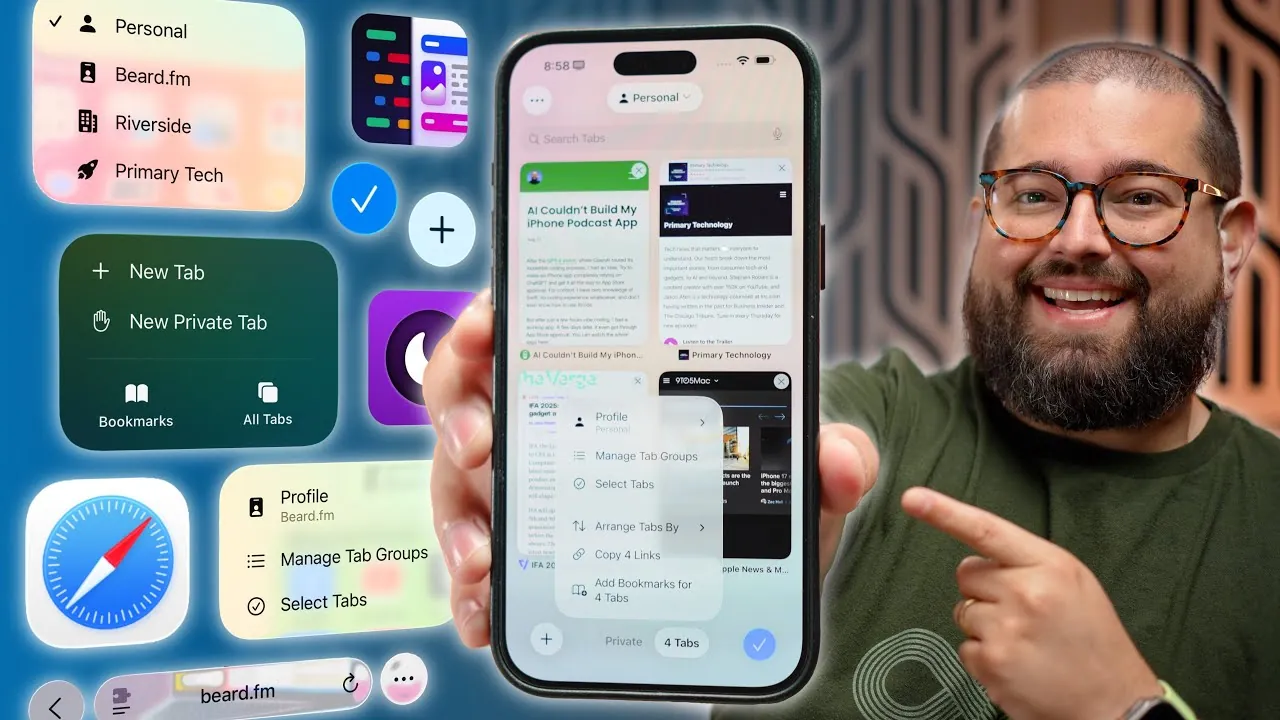
iOS 26 introduces a range of enhancements to Safari, transforming it into a more versatile and efficient browser. Whether you’re managing multiple tabs, customizing your start page, or prioritizing privacy, these updates are designed to elevate your browsing experience across Apple devices. The video below from Stephen Robles explores the hidden features and practical tools that can help you maximize Safari’s potential.

Personalize Your Start Page for a Unified Experience
Safari’s start page now offers extensive customization options, allowing you to create a browsing environment tailored to your needs. With the ability to sync your start page across your iPhone, iPad, and Mac, you can maintain a consistent experience no matter which device you use. Key features include:
- Add favorites, iCloud tabs, and reading lists for quick access to frequently visited content.
- Set custom wallpapers to make your start page visually appealing and unique.
- Organize elements to prioritize the information and tools that matter most to you.
This level of personalization is particularly beneficial for users who switch between devices, making sure a seamless and efficient browsing experience.
Streamline Your Workflow with Advanced Tab Management
Managing tabs has become more intuitive and efficient in iOS 26. Safari introduces new tools and gestures to help you stay organized and reduce clutter:
- Swipe up on the address bar to view all open tabs in a grid layout for easy navigation.
- Group tabs by project, topic, or purpose to keep related content together.
- Search, pin, duplicate, or close multiple tabs simultaneously to save time.
- Sort tabs alphabetically or by website for quick access to specific pages.
These enhancements are designed to simplify your workflow, allowing you to focus on the content that matters most without unnecessary distractions.
Organize and Sync with Tab Groups
Tab groups take organization to the next level, allowing you to cluster related tabs for better management. This feature is particularly useful for multitaskers who need to keep their activities distinct. With tab groups, you can:
- Create separate groups for work, personal interests, or research projects.
- Sync tab groups across iCloud for seamless access on all your Apple devices.
- Combine tab groups with profiles to create tailored browsing environments for different tasks.
By organizing your tabs into groups, you can easily switch between activities without losing track of your progress.
Separate Browsing Activities with Profiles
Safari’s new profile feature allows you to separate your browsing activities for better focus and organization. Each profile can be customized with its own:
- Start page, tailored to specific needs or interests.
- Favorites and tab groups for streamlined navigation.
- Extensions and preferences to suit different tasks or workflows.
This feature is ideal for users who juggle multiple roles, such as work, personal browsing, and research, helping to minimize distractions and maintain productivity.
Enhance Focus with Reader Mode and Accessibility Tools
Reader Mode in Safari has been refined to provide a distraction-free reading experience. With a single tap, you can:
- Remove ads and unnecessary clutter, leaving only the text and images.
- Customize font, background color, and text size to improve readability.
- Use text-to-speech to listen to articles while multitasking or on the go.
Additionally, Apple Intelligence enhances accessibility by generating article summaries and tables of contents for longer pieces, making it easier to navigate and understand complex content.
Expand Safari’s Capabilities with Extensions
Safari extensions in iOS 26 allow you to add new functionalities to the browser, making it more adaptable to your needs. Popular extensions include:
- Noir: Forces dark mode on websites for a consistent viewing experience.
- OverPicture: Enables picture-in-picture for videos, enhancing multitasking.
- Vidimote: Lets you control video playback speed for better control over media.
- Mapper: Redirects Google Maps links to Apple Maps for seamless navigation.
- ChatGPT Extension: Integrates AI-powered search capabilities directly into Safari.
These extensions provide practical tools for managing media, navigating maps, and using AI, making Safari a more powerful browser.
Strengthen Privacy with Enhanced Private Browsing Mode
Privacy remains a cornerstone of Safari’s design, and iOS 26 introduces upgrades to private browsing mode for added security:
- Secure private tabs with Face ID or Touch ID to prevent unauthorized access.
- Keep private tabs separate from regular browsing sessions for better organization and peace of mind.
These features ensure that your sensitive information stays protected, whether you’re shopping online, accessing confidential content, or simply browsing privately.
Additional Features for a Smoother Experience
Safari in iOS 26 includes several smaller updates that collectively enhance usability and convenience:
- Mute individual tabs with audio or video playback to eliminate distractions.
- Share bookmarks, links, and tab groups effortlessly with friends or colleagues.
- Search within tabs or pages more efficiently using improved search functionality.
While these updates may seem minor, they contribute significantly to a more seamless and enjoyable browsing experience.
Maximize Your Safari Experience
The updates in iOS 26 make Safari a more powerful and customizable browser, catering to a wide range of user needs. From start page personalization and advanced tab management to profiles and enhanced privacy, these features are designed to streamline your browsing experience. By exploring and utilizing these hidden capabilities, you can tailor Safari to fit your workflow, ensuring a seamless and efficient experience across all your Apple devices.
Here are more guides from our previous articles and guides related to iOS 26 Safari updates that you may find helpful.
- iOS 26 Beta 5 Release Date, Features, and Updates
- iOS 26 Beta 8 Features, Updates, and Release Timeline
- How iOS 26 Beta 2 Improves CarPlay, Safari, and More
- iOS 26 Beta 3 Features: What’s New in Apple’s Latest Update
- iOS 26 Beta 2 Hidden Features: 20 Updates You Need to Know
Source & Image Credit: Stephen Robles
Disclosure: Some of our articles include affiliate links. If you buy something through one of these links, Geeky Gadgets may earn an affiliate commission. Learn about our Disclosure Policy.
