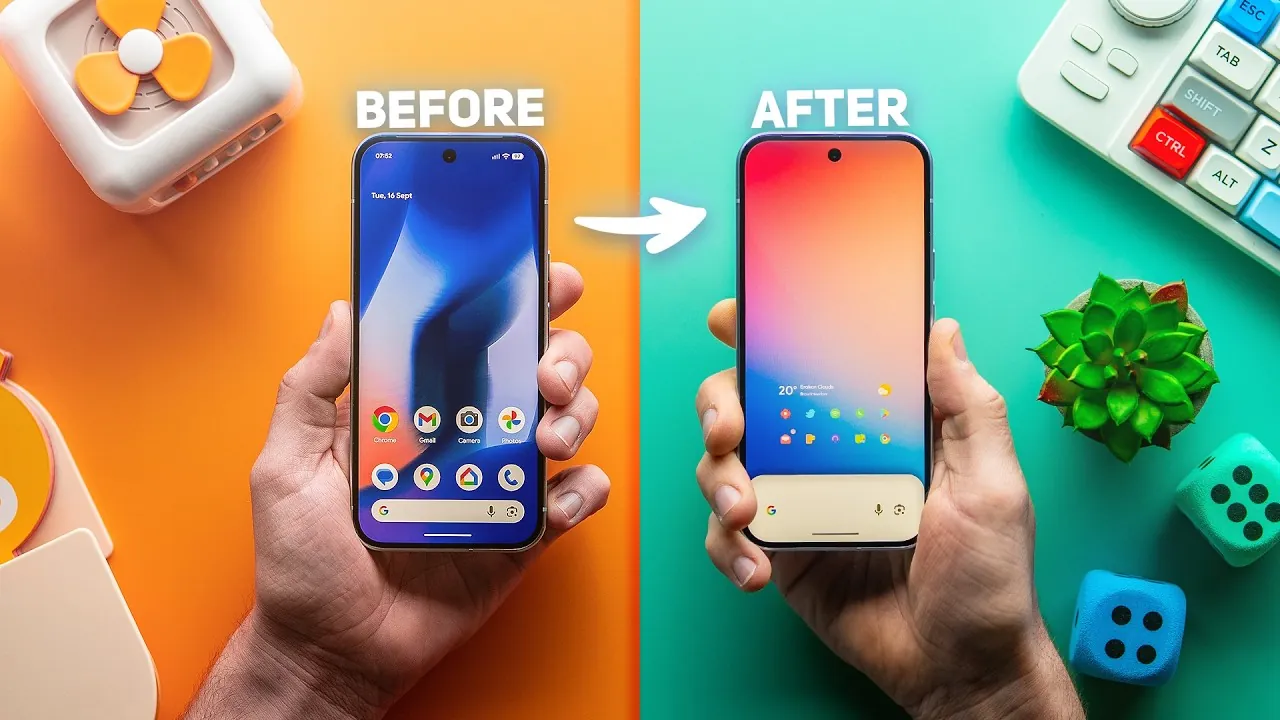
Are you looking to break free from the default look of your Google Pixel home screen? With the right tools and techniques, you can create a personalized experience that reflects your style and enhances functionality—all without requiring root access. The video below from Sam Beckman provides step-by-step instructions to help you customize your device, from removing default widgets to exploring third-party launchers, making sure to strike a balance between aesthetics and usability.

How to Hide the “At a Glance” Widget
The “At a Glance” widget is a hallmark of the Pixel Launcher, but it may not suit everyone’s preferences. If you prefer a cleaner, minimalist home screen, you can remove this widget using the SmartSpacer app and Shizuku for system API access. Follow these steps:
- Enable developer options on your Pixel device by tapping the build number in the settings menu multiple times.
- Install and set up Shizuku to grant the necessary permissions for system-level changes.
- Use SmartSpacer to replace the “At a Glance” widget with a blank space, creating a more streamlined look.
Keep in mind that this customization may need to be reapplied after system updates or wallpaper changes. While it requires some initial setup, the result is a more polished and distraction-free home screen.
Removing Default Icons and App Suggestions
To achieve a blank canvas for your home screen, you’ll need to disable app suggestions and remove default icons. This process is straightforward:
- Open your home screen settings and turn off the “Suggestions” feature to stop app recommendations from appearing.
- Manually drag and remove unwanted app icons from the home screen to clear space for your custom layout.
This simple adjustment gives you full control over your home screen’s appearance, allowing you to design a layout that aligns with your preferences and workflow.
Designing Custom App Icons with KWGT
Custom app icons can add a unique and personal touch to your home screen. Using KWGT (Kustom Widget Maker), you can design icons that reflect your style while maintaining functionality. Here’s how to get started:
- Add a KWGT widget to your home screen by selecting it from the widget menu.
- Open the KWGT editor to design your custom icon, choosing colors, shapes, and text that match your theme.
- Assign the newly created icon to the app of your choice by linking it within the editor.
This method not only enhances the visual appeal of your device but also allows you to create a cohesive and personalized design.
Creating Custom Grid Layouts
The default grid layout of the Pixel Launcher can feel restrictive, but you can overcome these limitations by using widgets to house multiple app icons. This approach gives you the freedom to arrange apps in a way that suits your workflow. While setting up custom grid layouts may take some time, the added flexibility and improved organization are well worth the effort.
Modifying the Dock and Search Bar
The dock and search bar are prominent elements of the Pixel Launcher, but they can interfere with a clean and cohesive design. To modify or hide these elements, consider the following options:
- Use KLWP (Kustom Live Wallpaper) presets to seamlessly integrate the dock and search bar into your wallpaper design.
- Try the Dual Wallpaper app to hide dock elements on the lock screen, creating a more minimalist appearance.
These adjustments can help you achieve a polished and unified look for your home screen, enhancing both aesthetics and usability.
Adding a Double-Tap to Sleep Gesture
Adding a double-tap gesture to lock your phone is a practical way to enhance usability while reducing wear on your power button. The Tap Tap Lock app makes this feature easy to implement. Simply install the app and configure it to lock your device with a double-tap on the home screen. This small but effective customization improves convenience and extends the lifespan of your hardware.
Exploring Third-Party Launchers
For advanced customization options, consider switching to a third-party launcher. These launchers offer features that go beyond the limitations of the default Pixel Launcher. Popular choices include:
- Hyperion Launcher: Known for its advanced gesture controls and sleek interface.
- Niagara Launcher: Ideal for minimalists, with a focus on one-handed use and simplicity.
- Smart Launcher: Features adaptive icons and intelligent app sorting for better organization.
- Nova Launcher: Offers extensive customization options and a highly responsive user experience.
Each launcher has unique strengths, so explore their features to find the one that best suits your needs and preferences.
Enhancing Aesthetics with Widget Packs
Widget packs are an excellent way to elevate the visual appeal of your home screen. Third-party KWGT and KLWP presets provide a wide range of designs, from minimalist to intricate. Experiment with different packs to find a style that resonates with you and complements your overall theme. These widgets not only enhance aesthetics but also add functionality, allowing you to display useful information at a glance.
Taking Full Control of Your Google Pixel
Customizing your Google Pixel home screen is a rewarding process that allows you to create a device tailored to your style and needs. By hiding default widgets, designing custom icons, and exploring third-party launchers, you can transform your phone into a reflection of your personality. Whether you’re modifying the dock, experimenting with grid layouts, or incorporating widget packs, these techniques empower you to take full control of your device’s appearance and functionality.
Gain further expertise in Google Pixel customization by checking out these recommendations.
- Best Google Pixel 10 Pro Settings for a Personalized Experience
- Transparent Mod for Google Pixel 10 Pro: A Unique Customization
- Google Pixel 10 Pro: Everything You Need to Know
- Google Pixel 9 Tips & Tricks Revealed
- Google Pixel Watch 4 Leaks: Design, Features, and Release Date
Source & Image Credit: Sam Beckman
Disclosure: Some of our articles include affiliate links. If you buy something through one of these links, Geeky Gadgets may earn an affiliate commission. Learn about our Disclosure Policy.
