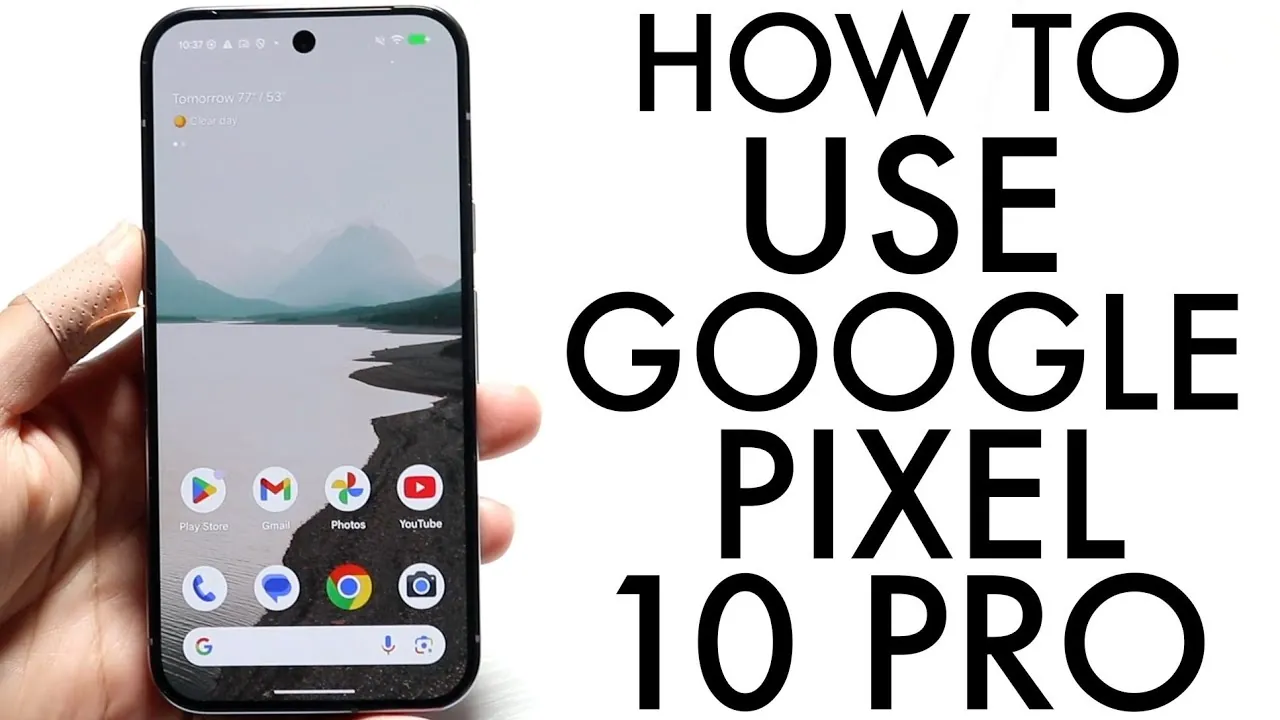
The Google Pixel 10 Pro is a flagship smartphone designed to deliver a seamless and highly customizable user experience. Whether you’re new to the Pixel series or upgrading from an older model, understanding its features and functionality is key to unlocking its full potential. The video below from Simple Alpaca will walk you through its physical design, setup process, navigation gestures, and customization options, making sure you get the most out of this powerful device.

Physical Design and Core Features
The Pixel 10 Pro combines modern aesthetics with practical functionality, making it a standout device in the smartphone market. Its sleek design features a vibrant, edge-to-edge touchscreen display with a discreetly embedded front-facing camera. The frosted glass back houses a triple-camera system, catering to photography enthusiasts, while the reflective aluminum sides add a premium feel. The absence of a SIM card tray highlights its exclusive support for eSIM technology, streamlining connectivity.
Key physical features include:
- A USB Type-C port for fast charging and efficient data transfer.
- Wireless and reverse wireless charging capabilities for added convenience.
- Side-mounted power and volume buttons for intuitive access.
- High-quality stereo speakers for an immersive audio experience.
To protect your Pixel 10 Pro, consider investing in a durable case and a tempered glass screen protector. These accessories safeguard your device from accidental drops and scratches, making sure it remains in excellent condition over time.
Getting Started: Powering On and Customizing Your Lock Screen
Powering on the Pixel 10 Pro is simple and user-friendly. Press and hold the side-mounted power button or double-tap the display to wake the device. Once powered on, you can personalize the lock screen to reflect your style and preferences. Through the settings menu, you can adjust the wallpaper, clock style, and accent colors, creating a visually appealing and functional interface.
The lock screen also supports at-a-glance widgets, which provide quick access to essential information such as weather updates, calendar events, and notifications. This feature ensures that important details are always at your fingertips.
Customizing the Home Screen and Navigating the Device
The home screen serves as the central hub for your Pixel 10 Pro, and customizing it can enhance your overall experience. You can personalize the home screen by:
- Adding widgets for quick access to apps and information, such as weather or calendar updates.
- Rearranging app icons to prioritize your most-used applications.
- Modifying the dock at the bottom of the screen to include frequently accessed apps.
To access all installed apps, swipe up from the bottom of the display to open the app drawer. This intuitive gesture eliminates the need for physical buttons, making navigation seamless.
The Pixel 10 Pro’s advanced navigation gestures further simplify the user experience:
- Swipe up from the bottom of the screen to return to the home screen.
- Swipe up and hold to access the multitasking view and recently used apps.
- Swipe from the left or right edge to go back to the previous screen.
These gestures are designed to make navigation faster and more intuitive, allowing you to move through the device with ease.
Managing Notifications and Quick Settings
The Pixel 10 Pro makes it easy to stay informed and manage settings through its notification and quick settings panels. To view notifications, swipe down from the top of the screen. This panel displays messages, alerts, and app updates, making sure you never miss important information.
A second swipe reveals the quick settings panel, where you can:
- Toggle essential features like Wi-Fi, Bluetooth, and airplane mode.
- Adjust screen brightness to suit your environment.
- Access shortcuts to additional settings for faster configuration.
This dual-panel system is designed for efficiency, allowing you to manage your device with minimal effort.
Exploring Settings and Keeping Your Device Updated
The settings app serves as the control center for your Pixel 10 Pro, offering a wide range of customization options. Within the settings menu, you can:
- Adjust display preferences, including brightness, color modes, and dark mode.
- Manage connected devices such as Bluetooth headphones or smartwatches.
- Configure privacy and security settings to protect your data.
Regular system updates are crucial for maintaining optimal performance and security. To check for updates, navigate to the settings app, select “System,” and tap “System update.” Keeping your device updated ensures access to the latest features and improvements.
Enhancing Productivity with Multitasking and App Management
The Pixel 10 Pro is designed to handle multitasking with ease, making it an ideal choice for users who need to juggle multiple tasks. To access the multitasking view, swipe up and hold from the bottom of the screen. From this view, you can:
- Switch between open apps quickly and efficiently.
- Close unused apps to free up memory and improve performance.
- Enable split-screen mode to run two apps simultaneously, enhancing productivity.
These multitasking features are particularly useful for activities such as comparing documents, taking notes during a video call, or browsing the web while watching a video.
Maximizing the Potential of Your Pixel 10 Pro
The Google Pixel 10 Pro combines innovative technology with user-friendly features, making it a versatile device for both beginners and experienced users. By familiarizing yourself with its physical design, navigation gestures, and customization options, you can tailor the device to meet your specific needs. Regular updates and effective multitasking capabilities ensure a smooth and efficient experience, allowing you to fully harness the power of this advanced smartphone.
Unlock more potential in Google Pixel 10 Pro features by reading the previous articles we have written.
- Google Pixel 10 Pro XL: Top 10 Features You Need to Know
- Google Pixel 10 Pro XL Leak: Specs, Features, and Release Date
- Google Pixel 10 Pro XL Launch Date, Features, and More
- Google Pixel 10 Pro XL vs Pixel 9 Pro XL: Full Comparison Guide
- Google Pixel 10 Pro Fold: Performance, Features, and More
Source & Image Credit: Simple Alpaca
Disclosure: Some of our articles include affiliate links. If you buy something through one of these links, Geeky Gadgets may earn an affiliate commission. Learn about our Disclosure Policy.
