Your smart thermostat says the house is 72°F, but you still reach for a sweater whenever you sit by the home-office window. Turning up the heat makes the hallway warmer without making that chair much more comfortable.
The thermostat may be working perfectly. It measures the air near its sensor, which might be down the hall rather than beside your desk. Remote sensors can help account for differences between rooms, but they still measure air temperature at particular locations. They don’t show which surfaces are cold or whether a draft is reaching your seat.
Before changing the schedule again or buying another sensor, it helps to work out whether the whole room is cold or the discomfort is concentrated in one spot. Those are different problems, even if they both send you reaching for the thermostat.
A temperature reading is not a map of the room
A cold pane of glass can make a nearby seat feel uncomfortable even when the air temperature seems reasonable. Airflow matters too: a vent may warm one part of the room while furniture blocks its path to another. In sunny weather, the opposite problem can occur as a wall or desk warms up through the afternoon.
If you already have a room sensor, its history is a useful place to start. A bedroom that stays cooler than the hallway throughout the heating cycle gives you a different starting point from a room whose reading looks normal but feels cold beside the window.
The reading helps you narrow the question. Finding an answer usually means looking around the room itself.
Start with the simple checks
Begin with things that do not need a new gadget. Make sure the room’s vent is open and unobstructed; furniture, curtains, or a desk can quietly disrupt airflow. Check whether a window covering changes the feeling of the room during direct sun.
Notice when and where the discomfort occurs. Does moving your chair away from the window help? Is the room slow to warm up after the heating starts, or does it stay cold all evening? Compare it with a nearby room during the same heating cycle rather than comparing one room in the morning with another at night.
Keep a short note of what you find. “The desk corner feels cold even after the heating has been running” gives you somewhere specific to investigate. It is also a more useful description for a technician than “the thermostat seems wrong.”
See which surfaces are colder
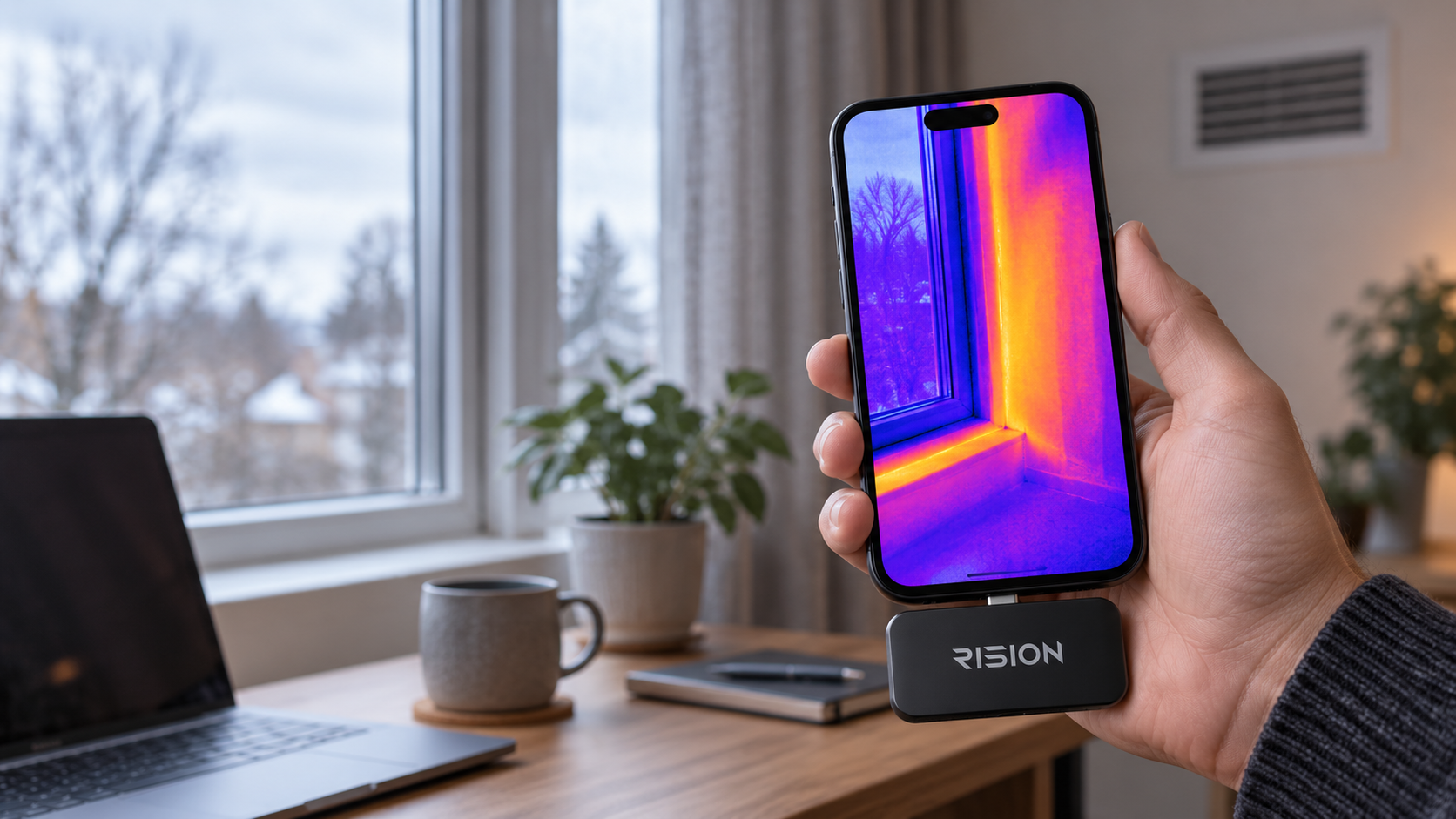
If the simple checks don’t explain it, a phone-connected thermal camera can help you compare surface temperatures around the uncomfortable spot. Instead of checking a single point, you can see how the window surround, wall and floor edge differ within the same view.
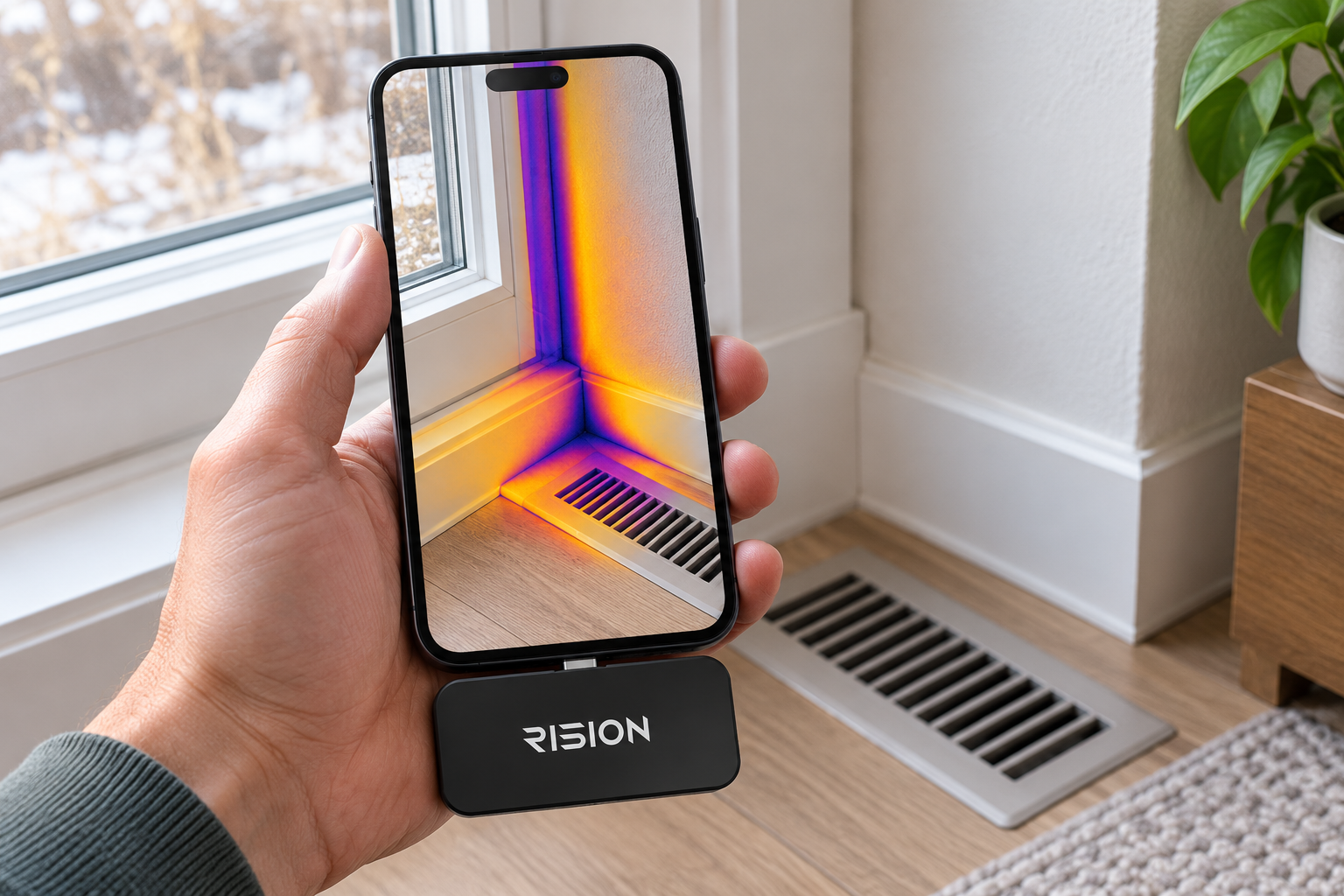
Start near your usual seat and scan slowly across the window frame and surrounding wall. Include the floor beneath it and any nearby vent. Compare adjacent areas while the room conditions remain steady; a scan taken during a heating cycle is not directly comparable with one taken hours later in sunlight.
A cooler band around the frame gives you a reason to inspect that area more closely. It might lead you to check the weatherstripping or ask about insulation. The image alone cannot tell you which is responsible. Likewise, a temperature difference around a vent can direct attention to that area, but it is not an airflow measurement.
Thermal cameras read surface temperatures, not what lies behind a wall. Reflections and recent sunlight also affect what you see. Look for a pattern you can find again under similar conditions, rather than treating the most striking color in one image as evidence of a fault.
Match the thermal image to the room
Once you spot a cool band, the next question is exactly where it sits. A heat map can be harder to interpret than an ordinary photo, particularly where the frame, sill and wall meet. The Rision Thermal camera for Smartphone, available as the Magic model, combines thermal and visible scene detail through its AI dual-light fusion feature, AI BiSpectrix.
This helps you connect the temperature pattern to the actual frame or wall edge in front of you. The Magic works with supported iOS, Android and Windows devices, so you can view and capture the image using a compatible phone or computer. For this kind of home check, the useful part is being able to identify and save the location clearly, without mistaking the fused image for an explanation of the fault.
Let the finding guide the next step
If moving furniture away from a vent helps, give the room time to settle before judging the result. Change one thing at a time so you can tell what made a difference. You can then compare the room sensor’s readings and your comfort at the desk, rather than relying only on how the thermal image looks.
If the air temperature stays close to your preferred setting but sitting beside the window remains uncomfortable, another sensor may simply confirm what you already know. Moving the desk may make the space more comfortable while you investigate the window area. If the whole room stays colder than the rest of the house, take those room readings to an HVAC professional along with any relevant images.
Persistent discomfort after the obvious checks, moisture marks or a heating system that cannot maintain its setting deserve further attention. Save an ordinary photo alongside the thermal image and record when it was taken and whether the heating was running. That context helps a professional understand what you were seeing.
The thermostat still has a useful job: keeping track of the temperature and controlling the heating. A closer look at the room helps you decide whether to change a setting, clear an obstruction, or investigate a particular window or wall. That is a better basis for your next purchase—or repair—than turning up the heat and hoping.
Disclosure: Some of our articles include affiliate links. If you buy something through one of these links, Geeky Gadgets may earn an affiliate commission. Learn about our Disclosure Policy.
