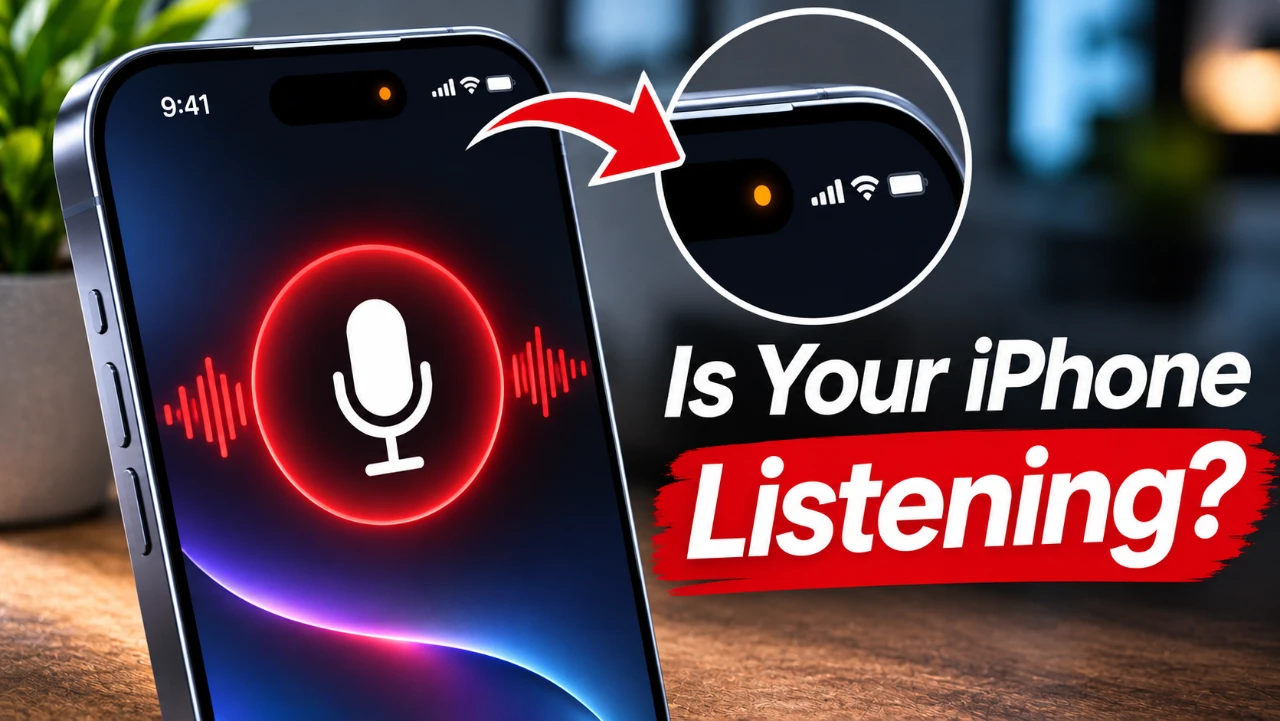
Your iPhone does listen to you, but not in the way many fear. While rumors about apps secretly recording conversations for targeted advertising persist, the reality is more nuanced. Your device’s microphone is primarily used for specific functions, such as activating Siri or allowing voice commands. Targeted ads, on the other hand, are largely driven by your online activity rather than covert eavesdropping. By understanding how your iPhone uses its microphone and collects data, you can take proactive steps to safeguard your privacy and maintain control over your personal information. The video below from Proper Honest Tech gives us more details.
TL;DR Key Takeaways :
- No Eavesdropping Ads: Studies and security audits confirm apps do not covertly stream ambient voice logs to build ad profiles; digital footprints drive recommendations.
- Always-On Voice Triggers: Hardware-level low-power processors continuously listen strictly for activation phrases like “Siri” or “Hey Siri”.
- Visual Indicator Dots: An active orange status dot in your Dynamic Island or status bar explicitly reveals when the microphone is engaged.
- Privacy Hardening: Users can disable ambient listening toggles, restrict third-party mic permissions, and opt out of cross-app tracking in iOS settings.
How Siri Listens, and What You Can Do About It
Siri, Apple’s voice assistant, is designed to respond to designated wake phrases. This feature relies on a specialized low-power acoustic buffer chip that continuously monitors the immediate environment for the spoken command. While this functionality enhances hands-free convenience, it can occasionally lead to accidental activations triggered by similar phonetic sounds, resulting in brief unintended audio buffers.
If you are strictly concerned about privacy regarding voice assistant recording retention, you can modify your device configurations:
- Disable Always-On Voice Recognition in your iPhone Siri settings to stop continuous keyword monitoring.
- Adjust analytical sharing permissions to prevent audio samples from being stored or reviewed for service improvements.
By making these adjustments, you ensure Siri activates exclusively via manual physical inputs, giving you absolute command over your device’s audio hardware.
How Apps Use Your Microphone
Your iPhone provides clear hardware-backed visual indicators whenever device sensors are engaged. An orange dot illuminates in the status bar whenever any software process utilizes the microphone, while a green dot signals active camera usage. These visual cues operate at the system kernel level, meaning malicious apps cannot bypass or mask them.

Additionally, the App Privacy Report in iOS settings logs detailed 7-day micro-behavioral histories for sensor and network access. While fears of apps recording private conversations for targeted marketing remain widespread, cybersecurity audits consistently show no evidence supporting continuous audio harvesting. Apps request microphone access for functional utilities such as voice messaging, VoIP calls, and dictation.
To ensure strict control over app behavior:
- Regularly audit app permissions for microphone and speech recognition under your privacy settings.
- Revoke background microphone permissions for any application that does not require it for active operation.
Targeted Ads: The Role of Your Digital Activity
The eerily personalized ads you encounter across social media and web browsers are powered by your comprehensive digital footprint rather than ambient microphone monitoring. Data brokers, advertising networks, and platform ecosystems (such as Meta and Google) track your cross-site browsing history, search queries, location metadata, and app interaction habits to build behavioral profiles.
To minimize algorithmic profiling and restrict targeted tracking:
- Disable “Allow Apps to Request to Track” globally within your iOS Privacy & Security menu.
- Turn off “Apple Advertising Personalized Ads” to restrict device-level identifier ad matching.
- Manage off-platform tracking permissions directly inside third-party social media account settings.
Privacy Settings to Strengthen Your Security
Taking control of your data security requires auditing built-in system parameters. Apple provides native tools to lock down sensitive hardware channels:
- Turn off “Improve Siri and Dictation” data-sharing preferences.
- Restrict background microphone and speech parsing permissions for non-essential apps.
- Check the App Privacy Report periodically to inspect background sensor calls.
- Opt out of cross-app data sharing networks.
Why Ads Feel Personal: The Psychology Behind It
Even with robust tracking protections enabled, targeted advertisements often feel unnervingly coincidental. This phenomenon is driven by the “frequency illusion” (or Baader-Meinhof phenomenon) combined with sophisticated algorithmic probability forecasting. When you think about purchasing a specific item, your brain subconsciously highlights related advertisements that were already being served to your demographic profile, leading to the false impression that your phone listened to your conversation.
Take Control of Your Privacy
Your iPhone is not covertly streaming your private conversations to ad agencies, but active voice assistants and app permission structures demand mindful management. By adjusting your system configurations, reviewing sensor indicators, and limiting tracking tokens, you can maintain absolute transparency and security over your personal data.
Source: Proper Honest Tech
Disclosure: Some of our articles include affiliate links. If you buy something through one of these links, Geeky Gadgets may earn an affiliate commission. Learn about our Disclosure Policy.
