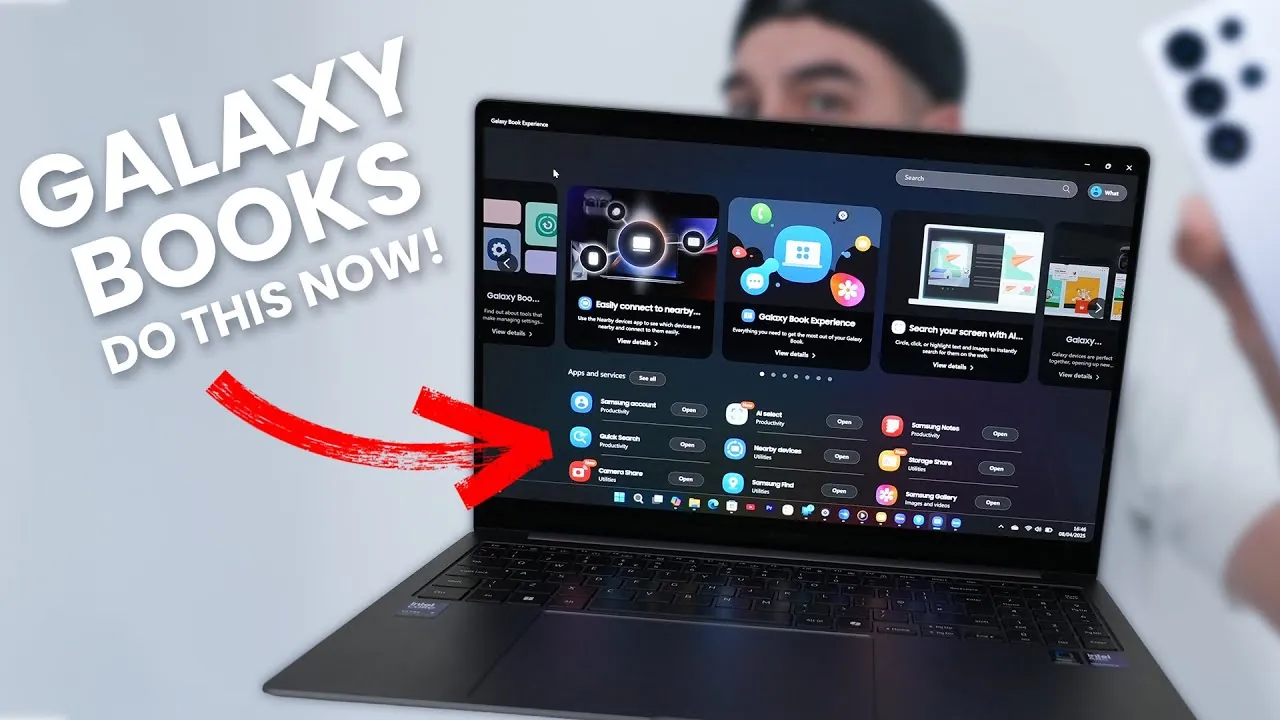
The Samsung Galaxy Book 5 Pro is not just a laptop; it is a powerful tool designed to integrate seamlessly into the Samsung ecosystem. Whether you are a professional aiming to boost productivity, a student managing multiple tasks, or a tech enthusiast exploring new possibilities, this device offers features that enhance connectivity, convenience, and efficiency. If you own other Galaxy devices, such as a smartphone, tablet, or Galaxy Buds, you can unlock a range of functionalities that make multitasking and device integration effortless. Below are 10 essential tips to help you maximize the capabilities of your Galaxy Book 5 Pro in a great new video from WhatGear.

1. MultiControl: Manage Multiple Devices with Ease
The MultiControl feature allows you to use your Galaxy Book’s keyboard and mouse to control other Galaxy devices, such as smartphones and tablets. This functionality eliminates the need for external storage or cloud services by allowing you to drag and drop files directly between devices. Additionally, you can customize the layout of connected devices for a more intuitive navigation experience. By streamlining your workflow, MultiControl ensures that multitasking becomes more efficient and less time-consuming.
2. Continue on Other Devices: Cross-Device Productivity
With the Galaxy Book 5 Pro, you can seamlessly copy and paste text, images, and other content across your Galaxy devices. For instance, you can start drafting an email on your phone and finish it on your laptop without any interruptions. This feature ensures a smooth and uninterrupted workflow, allowing you to stay productive no matter which device you are using.
3. Quick Share: Wireless File Transfers Made Simple
Quick Share is Samsung’s fast and reliable file-sharing feature, designed to simplify the transfer of large files such as high-resolution photos or videos. By using Wi-Fi connectivity, you can share files between Galaxy devices without the need for cables or external drives. This feature is particularly useful for professionals and creatives who frequently exchange large files.
4. Storage Share: Access Your Phone’s Storage on Windows
Storage Share allows you to access your Galaxy phone’s storage directly from your Galaxy Book via Windows File Explorer. This feature essentially transforms your phone into an external drive, allowing you to drag and drop files between devices effortlessly. It eliminates the need for additional software, making file management straightforward and convenient.
5. Phone Link: Stay Connected Across Devices
Phone Link integrates your Galaxy phone with your Galaxy Book, allowing you to receive notifications, calls, and messages directly on your laptop. You can even mirror your phone’s screen and run Android apps in separate windows. This feature enhances multitasking by keeping all your essential communications and apps accessible from one device.
6. Camera Share: Upgrade Your Video Calls
Camera Share lets you use your Galaxy phone as a high-quality webcam for your Galaxy Book. This feature provides superior image quality compared to most built-in laptop webcams, making it ideal for video calls, streaming, or online meetings. You can also adjust angles and use advanced camera features to achieve a professional look during virtual interactions.
7. Second Screen: Expand Your Workspace with Galaxy Tab
If you own a Galaxy Tab, you can use it as a secondary display for your Galaxy Book. This feature is perfect for multitasking, video editing, or gaming, as it provides additional screen space to manage multiple applications simultaneously. By expanding your workspace, you can work more efficiently and stay organized.
8. Samsung Pass: Simplify Password Management
Samsung Pass is a secure password management tool that syncs your credentials across Galaxy devices, including the Galaxy Book. With browser extension support, you can access saved passwords effortlessly, making sure both convenience and security for your online accounts. This feature eliminates the hassle of remembering multiple passwords while keeping your data protected.
9. Samsung Find: Locate Your Devices Anywhere
Samsung Find helps you track lost or stolen Galaxy devices, including your Galaxy Book, phone, or Galaxy Buds. Using a map interface, you can pinpoint the location of your devices and even enlist nearby Galaxy users to assist in finding them. This feature provides peace of mind, making sure that you can recover your devices quickly and efficiently.
10. Auto-Switching Galaxy Buds: Seamless Audio Transitions
Galaxy Buds automatically switch between connected Galaxy devices, such as your phone and Galaxy Book, based on your activity. Whether you are taking a call or watching a video, this feature ensures uninterrupted audio transitions. Additionally, Samsung Find can help you locate misplaced earbuds, adding an extra layer of convenience.
Additional Features to Explore
The Galaxy Book 5 Pro offers a variety of additional features that further enhance its functionality within the Samsung ecosystem:
- Dynamic AMOLED 2X Display: Experience vibrant visuals and smooth responsiveness with the advanced touchscreen display, ideal for both work and entertainment.
- Windows Copilot AI Key: Use AI-powered assistance to boost productivity and streamline tasks with just a press of a button.
- Galaxy Book Experience App: Manage Samsung-specific apps, updates, and services from a centralized hub for added convenience.
- Smart Switch: Easily migrate data from your old device to the Galaxy Book, making sure a smooth transition without data loss.
The Samsung Galaxy Book 5 Pro is more than just a laptop—it is a central hub for your digital life. By using its advanced features, you can streamline workflows, enhance connectivity, and enjoy a truly integrated experience across your Galaxy devices. Whether you are managing tasks, collaborating on projects, or staying entertained, these tips will help you unlock the full potential of your Galaxy Book 5 Pro.
Take a look at other insightful guides from our broad collection that might capture your interest in Samsung Galaxy Book 5 Pro.
- Samsung Galaxy Book 5 Pro 360
- Samsung Galaxy Book5 Pro 360 Copilot+ Laptop Unveiled
- Samsung Galaxy Book 4 Pro gets reviewed (Video)
- Samsung Galaxy Book 4 Edge vs Apple M3 MacBook Pro (Video
- Samsung Galaxy Book 3 Pro vs Apple M2 MacBook Air (Video)
Source & Image Credit: WhatGear
Disclosure: Some of our articles include affiliate links. If you buy something through one of these links, Geeky Gadgets may earn an affiliate commission. Learn about our Disclosure Policy.
