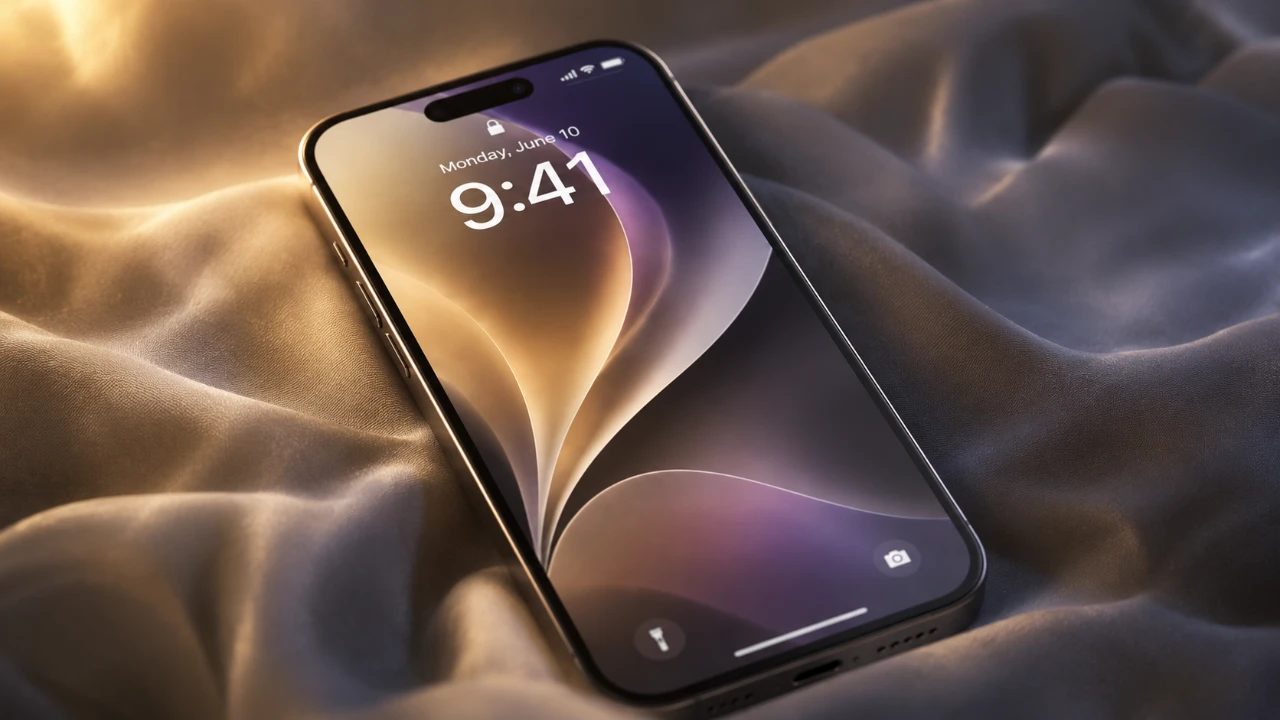
If you’ve recently updated your iPhone to iOS 27, there are several key actions you should take to ensure your device operates efficiently, remains secure and allows you to fully enjoy the latest features. The video below from Daniel About Tech shows us a range of steps that will help you address common post-update concerns while maximizing the benefits of Apple’s newest operating system.

1. Update Your Apps for Seamless Compatibility
One of the first things you should do after installing iOS 27 is to update your apps. Open the App Store and check for updates to your third-party applications. Developers often release updates to ensure their apps are fully compatible with the latest iOS version. Without these updates, you may encounter issues such as app crashes, glitches, or reduced functionality.
By keeping your apps updated, you’ll enjoy a smoother and more reliable experience across all your favorite tools and services. Regular updates also ensure you benefit from the latest features and security enhancements provided by app developers.
2. Optimize Storage for Better Performance
iOS updates typically require additional storage for background processes and new features, which can impact your device’s performance if space is limited. To maintain optimal functionality, check your available storage by navigating to Settings > General > iPhone Storage. Aim to keep at least 10-20 GB of free space to accommodate system needs and future updates.
Here are some effective ways to free up storage:
- Delete old conversations and media files in messaging apps like WhatsApp or iMessage.
- Offload unused apps through the iPhone Storage settings, which removes the app but retains its data for future use.
- Transfer photos, videos and other large files to cloud storage services such as iCloud, Google Photos, or Dropbox.
Proactively managing your storage not only prevents slowdowns but also ensures your device remains responsive and ready for new updates.
3. Personalize the Liquid Glass Feature
The Liquid Glass feature, first introduced in iOS 26 and further refined in iOS 27, offers a unique way to customize your display’s transparency and opacity. This feature enhances both the aesthetics and usability of your device, especially in varying lighting conditions.
To personalize this feature, go to Settings > Appearance > Liquid Glass. Experiment with different transparency levels to find a setting that suits your preferences. Whether you prefer a more vibrant or subdued display, Liquid Glass allows you to tailor your screen’s appearance for a more personalized and visually appealing experience.
4. Allow Time for System Stabilization
After a major iOS update, it’s common for your device to experience temporary performance issues. You might notice faster battery drain, slower performance, or occasional overheating. These issues are typically caused by background tasks such as file indexing, app optimization and system recalibration.
Here’s how to manage this period effectively:
- Allow a few days for the system to complete these background processes.
- Avoid running resource-intensive apps or tasks during this time.
- If performance issues persist beyond a week, consider resetting your settings or contacting Apple Support for further assistance.
By giving your device time to stabilize, you’ll ensure it operates at peak performance and delivers a consistent and reliable user experience.
5. Explore the Upgraded Parental Controls
iOS 27 introduces significant enhancements to its parental control features, making it easier than ever to manage family settings and monitor device usage. These tools are accessible through Settings > Screen Time and offer a range of new options to help parents maintain control over their children’s digital habits.
With the upgraded parental controls, you can:
- Create child accounts with tailored restrictions to suit their age and needs.
- Set limits on app usage and block access to inappropriate content.
- Schedule device downtime to encourage healthy screen time habits.
These improvements provide parents with greater flexibility and peace of mind, making sure that children use their devices responsibly while staying safe online.
Maximize Your iOS 27 Experience
By taking these five essential steps, you can ensure a smooth transition to iOS 27 while addressing potential challenges. Updating your apps, managing storage effectively, customizing the Liquid Glass feature, allowing time for system stabilization and exploring the enhanced parental controls will help you unlock the full potential of your iPhone. With these adjustments, you’ll enjoy a more efficient, secure and personalized experience with Apple’s latest operating system.
Take a look at other insightful guides from our broad collection that might capture your interest in iOS 27 update.
- iOS 27 is Coming Today: Read This Before You Update Your iPhone
- 10 Cool Things Your iPhone Can Do After Updating to iOS 27
- iOS 27 is Almost Here: Why Apple’s Biggest Upgrade is Worth It
- iOS 27 RC Released: the Final Update Brings One Big Surprise
- Should You Update to iOS 27 on Day One?
Source & Image Credit: Daniel About Tech
Disclosure: Some of our articles include affiliate links. If you buy something through one of these links, Geeky Gadgets may earn an affiliate commission. Learn about our Disclosure Policy.
