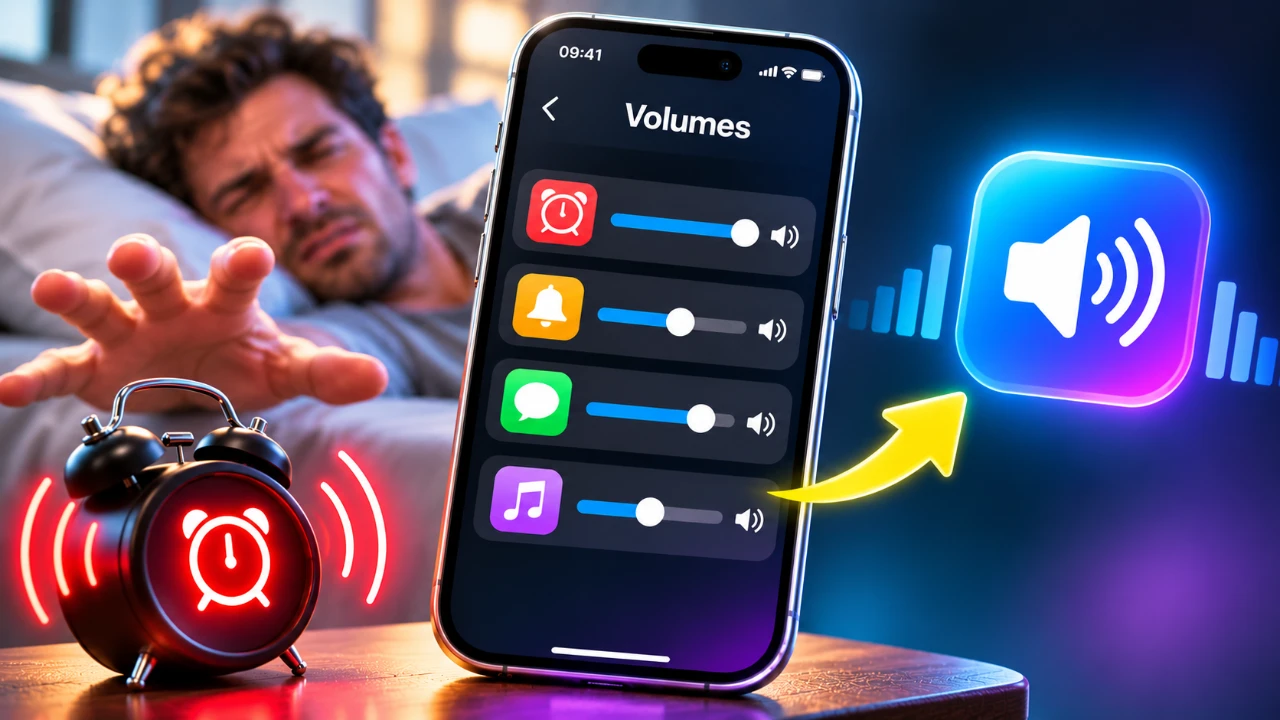
The release of iOS 27 introduces a significant enhancement for iPhone users: the ability to manage volume levels independently for ringtones, alarms, notifications, and media. This long-awaited feature provides greater control over your device’s audio settings, allowing for a more personalized and precise sound experience. Whether you want a loud ringtone but quieter notifications or need to ensure your alarms are always audible, this update makes it possible. Follow this guide to configure these settings effectively and make the most of iOS 27’s new sound management options.

1: Update Your iPhone to iOS 27
Before accessing the independent volume control features, ensure your iPhone is running iOS 27. This update is essential for unlocking the new sound settings. To check and update your device:
- Open the Settings app on your iPhone.
- Navigate to General > Software Update.
- If an update is available, follow the on-screen instructions to download and install it.
Once your device is updated, you can proceed to explore and customize the enhanced sound settings.
2: Navigate to the Sound Settings
To begin adjusting your audio preferences, access the Sounds & Haptics section in the Settings app. This is where all the new volume control options are located.
- Open the Settings app.
- Tap on Sounds & Haptics.
Here, you’ll find dedicated sliders and toggles for managing the volume of different sound categories, offering a more granular level of control.
3: Enable and Adjust Independent Volume Controls
The core feature of iOS 27’s sound settings is the ability to adjust volume levels independently for various sound types. To activate and configure this functionality:
- Turn off the “Match Ringtone Volume” option. This ensures that your ringtone volume is no longer tied to other sound categories.
- Disable “Change with Buttons” to prevent the physical volume buttons from altering ringtone or alert sounds.
Once these settings are adjusted, you can fine-tune the following sound categories using individual sliders:
- Ringtone Volume: Adjust this slider to control the loudness of incoming call alerts without affecting other sound types.
- Alarms and Timers Volume: This slider manages the sound levels for alarms and timers set in the Clock app, making sure they remain consistent regardless of other settings.
- Alerts and System Sounds Volume: Use this slider to adjust the volume for notification sounds, such as messages and app alerts, as well as system sounds like keyboard clicks and the camera shutter.
These options allow you to create a sound profile that suits your daily needs and preferences.
4: Customize Wake-Up Alarm Volume
For users who rely on the Sleep/Wake Up feature in the Health app, iOS 27 provides a dedicated volume control for wake-up alarms. This ensures that your wake-up alarms are unaffected by changes to other sound settings. To adjust this:
- Open the Clock app.
- Tap on Alarm and select Edit Sleep Schedule.
- Use the volume slider within the Sleep/Wake Up settings to set your preferred wake-up alarm volume.
This feature guarantees a consistent and reliable wake-up experience tailored to your preferences.
5: Manage Media Volume
With iOS 27, the physical volume buttons on your iPhone are now exclusively dedicated to controlling media playback volume by default. This includes music, videos and other media content. If you prefer the buttons to also adjust ringtone or notification sounds, you can re-enable the “Change with Buttons” option in the Sounds & Haptics settings.
This separation ensures that media playback volume can be adjusted independently, providing a more seamless listening experience.
6: Understand Silent Mode Behavior
The Silent Mode switch on the side of your iPhone continues to mute ringtones, notifications, and system sounds. However, it does not affect alarms or media playback, which will still play at the set volume. If you want all sounds to be audible, ensure that Silent Mode is turned off.
This distinction allows you to maintain control over which sounds are muted and which remain active, depending on your environment and preferences.
The Benefits of Independent Volume Controls
The introduction of independent volume controls in iOS 27 marks a significant improvement in sound management for iPhone users. By separating the volume settings for ringtones, alarms, notifications, and media, this feature provides a more tailored and adaptable audio experience.
- Ensure your alarms are always loud enough to wake you up, regardless of other sound settings.
- Keep notifications subtle during meetings or quiet environments without affecting your ringtone volume.
- Enjoy uninterrupted media playback with dedicated volume controls for music and videos.
This level of customization allows you to adapt your iPhone’s audio output to suit any situation, whether you’re at work, at home, or on the go. By following the steps outlined above, you can take full advantage of iOS 27’s enhanced sound settings and enjoy a more personalized and efficient iPhone experience.
Expand your understanding of the iOS 27 update with additional resources from our extensive library of articles.
- iOS 27: The First Things You Should Do Right After Updating
- iOS 27 is Coming Today: Read This Before You Update Your iPhone
- Updated to iOS 27? the 10 Best Features to Test on Your iPhone
- 10 Cool Things Your iPhone Can Do After Updating to iOS 27
- iOS 27 is Almost Here: Why Apple’s Biggest Upgrade is Worth It
Source & Image Credit: Daniel About Tech
Disclosure: Some of our articles include affiliate links. If you buy something through one of these links, Geeky Gadgets may earn an affiliate commission. Learn about our Disclosure Policy.
