Apple has officially launched iOS 27, a significant update aimed at enhancing your iPhone’s performance and introducing advanced features. To make the most of this update, it’s crucial to take specific actions immediately after installation. These steps will help you optimize your device’s performance, ensure compatibility across the Apple ecosystem, and unlock the full potential of the new operating system.

Disable Beta Updates if You Were a Tester
If you participated in the iOS beta testing program, it’s essential to disable beta updates to ensure your device operates on the stable, final version of iOS 27. Running the official release minimizes the risk of bugs or instability. Follow these steps to disable beta updates:
- Navigate to Settings > General > Software Update.
- Turn off the beta updates option.
Once you’ve confirmed your device is running the official version, you can re-enable beta updates later if you wish to test future releases, such as iOS 27.1.
Enable Siri AI Features
iOS 27 introduces a more advanced Siri AI with improved contextual understanding and personalized responses. To access these features, you’ll need to register for the Siri AI waitlist. Here’s how:
- Open Settings and locate the Siri AI registration option.
- Sign up as early as possible, as demand for this feature is expected to be high.
Activating Siri AI allows you to experience its enhanced capabilities, such as smarter task management and more intuitive interactions.
Update All Your Apple Devices
To maintain seamless integration across your Apple ecosystem, it’s important to update all your connected devices to their latest software versions. This ensures compatibility and optimal performance. Take the following steps to update your devices:
- Use the Home app to update your HomePod to HomePod OS 27.
- Update your Apple TV to tvOS 27 through the Settings menu.
- Open the Watch app on your iPhone to install watchOS 27 on your Apple Watch.
Keeping all devices updated ensures they work harmoniously with iOS 27, providing a unified and efficient user experience.
Refresh Third-Party Apps
After installing iOS 27, it’s vital to update your third-party apps to prevent compatibility issues, crashes, or performance problems. Outdated apps may not function correctly with the new operating system. To refresh your apps:
- Open the App Store.
- Go to the Updates section and refresh it manually.
- Download and install the latest versions of your apps.
Regularly updating your apps ensures they remain compatible with iOS 27 and take advantage of any new features or optimizations.
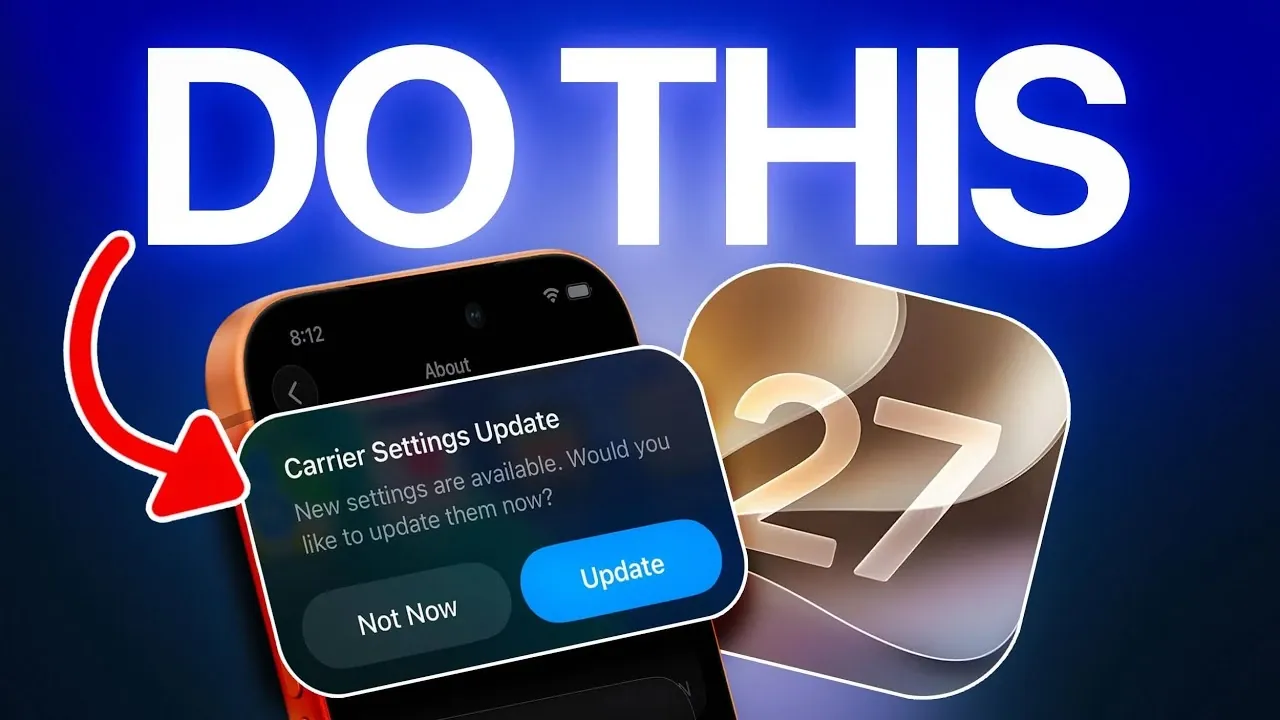
Check for Carrier Settings Updates
Carrier settings updates are often overlooked but play a crucial role in improving your network performance. These updates can enhance call quality, data speeds and overall connectivity. To check for carrier settings updates:
- Go to Settings > General > About.
- If an update is available, a prompt will appear to install it.
This simple step ensures your device is optimized for the best possible network performance.
Allow Time for Indexing
After updating to iOS 27, your iPhone will begin indexing its data to optimize features like Spotlight Search and Siri Suggestions. This process is essential for making sure your device runs efficiently. To assist indexing:
- Keep your device plugged into power and connected to Wi-Fi.
- Allow several hours for the process to complete, depending on the amount of data stored on your device.
Patience during this step ensures that all features function properly and your device operates smoothly.
Optimize Wi-Fi for Post-Update Processes
A stable Wi-Fi connection is critical for completing tasks such as app updates, data indexing, and syncing with other devices. To optimize your Wi-Fi connection:
- Ensure your device is connected to a reliable network.
- Minimize interference by staying close to your router or using a less congested frequency band.
A strong and stable connection prevents errors and speeds up post-update processes, making sure your device is ready for use as quickly as possible.
Why These Steps Matter
Taking these steps after updating to iOS 27 is essential for a smooth transition and to avoid potential issues. From disabling beta updates to allowing Siri AI, updating your apps and devices and optimizing your network, each action contributes to a better user experience. These measures ensure your iPhone operates efficiently, maintains compatibility within the Apple ecosystem and fully uses the benefits of iOS 27. By following these recommendations, you can enjoy a seamless and enhanced experience with your updated device.
Find more information on iOS 27 Update by browsing our extensive range of articles, guides, and tutorials.
- iOS 27 is Coming Today: Read This Before You Update Your iPhone
- 10 Cool Things Your iPhone Can Do After Updating to iOS 27
- iOS 27 is Almost Here: Why Apple’s Biggest Upgrade is Worth It
- iOS 27 RC Released: the Final Update Brings One Big Surprise
- Should You Update to iOS 27 on Day One?
Source & Image Credit: iDeviceHelp
Disclosure: Some of our articles include affiliate links. If you buy something through one of these links, Geeky Gadgets may earn an affiliate commission. Learn about our Disclosure Policy.
