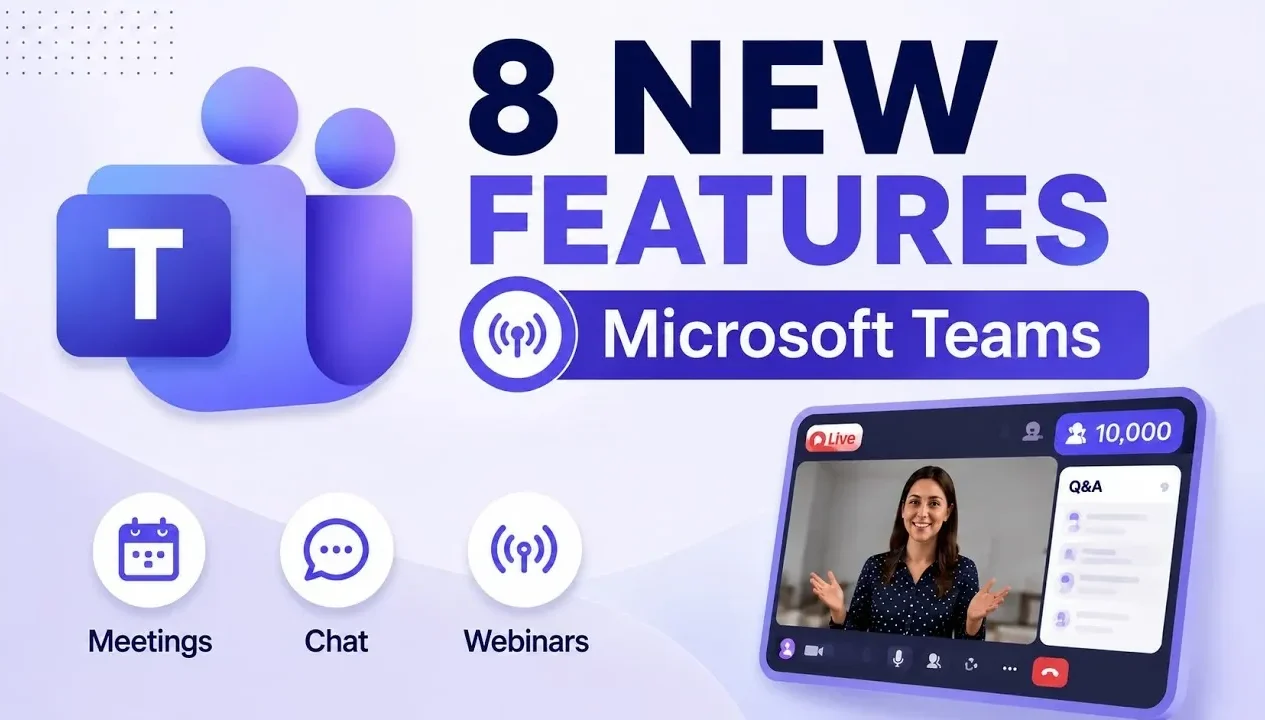
Microsoft Teams continues to adapt to the needs of modern workplaces with eight new features released this summer, each designed to enhance productivity and collaboration. One standout addition is the real-time PowerPoint updates feature, which allows presenters to make live changes to their slides during meetings. By selecting the “Present the latest version” option, any edits are instantly visible to attendees, making it easier to respond to feedback or update content without disrupting the flow of discussion. As highlighted by Mike Tholfsen, this functionality is particularly useful for dynamic presentations where flexibility and responsiveness are key.
In this overview, you’ll gain insight into how these updates can streamline your daily workflows. Explore the benefits of shared notes in group chats, which integrate seamlessly with Microsoft Loop to improve team communication and accountability. Learn how the new Efficiency Mode optimizes performance for low-bandwidth environments, making sure smoother operation even under challenging conditions. Whether you’re organizing webinars with up to 10,000 attendees or customizing your meeting layout with resizable panes, these features are designed to help you stay organized and focused in a variety of scenarios.
New Microsoft Teams Features
TL;DR Key Takeaways :
- Real-Time PowerPoint Updates: Presenters can now make live changes to PowerPoint slides during meetings, making sure dynamic and responsive presentations without interruptions.
- Flexible Meeting Pane Sizing: Users can resize meeting panes to customize their layout, optimizing screen space for better focus and efficiency during meetings.
- Shared Notes in Chats: Collaborative tools like checklists and voting tables in shared notes enhance teamwork and accountability in chats and group discussions.
- Efficiency Mode: A new mode reduces resource usage, making sure smoother performance on low-performance devices or in limited bandwidth environments.
- Enhanced Webinar Features: Upgrades include support for up to 10,000 attendees, waitlists, customizable registration forms and event-specific group chats for seamless coordination.
1. Real-Time PowerPoint Updates
Microsoft Teams now supports real-time PowerPoint updates, allowing you to make live changes to your slides during meetings. By selecting the “Present the latest version” button, any edits you make are immediately visible to all attendees. This feature is particularly valuable for dynamic discussions where content must adapt quickly. For instance, if a stakeholder requests additional data or revisions mid-presentation, you can seamlessly update your slides without interrupting the meeting flow. This ensures that your presentations remain relevant and responsive to the needs of your audience.
2. Flexible Meeting Pane Sizing
Customizing your meeting layout is now more intuitive with the ability to resize meeting panes. This feature allows you to adjust the size of different sections, such as shared content, chat, or participant video feeds, to suit your specific needs. Whether you’re taking notes, reviewing shared documents, or monitoring the chat, this flexibility helps you focus on what matters most. By optimizing your screen space, you can reduce distractions and create a more organized and efficient meeting environment.

Below are more guides on Microsoft Teams from our extensive range of articles.
- Microsoft Teams Just Solved Its Most Annoying Messaging Problem
- Everything New in the Latest Microsoft 365 Update
- How to setup teams of people in Microsoft Teams
- 6 Microsoft Teams Assignment Features for Teachers In 2026
- What ChatGPT 6 Means for OpenAI Now That Microsoft and Google Walk Away
- How Copilot Call Delegation is Changing the Way You Manage Teams Calls
- How to Use Microsoft Teams and Microsoft Loop Together in 2025
- See the New AI Features Microsoft Just Added to Teams and Word
- What OpenAI’s Leaked Hermes Agent Studio Means for Your Workflow
- How to use PowerPoint in Teams for amazing presentations
3. Shared Notes in Chats and Group Chats
Collaboration has been made more seamless with the introduction of shared notes in chats and group chats. These notes come equipped with features like checklists, voting tables and integration with Microsoft Loop pages. For example, you can create a checklist to track action items during a project discussion or use voting tables to gather team input on key decisions. These shared notes ensure that important details are documented and accessible to everyone, fostering better communication and accountability within your team.
4. Efficiency Mode
The new Efficiency Mode is designed to optimize performance for users working on low-performance devices or in environments with limited bandwidth. By reducing processor, memory and network usage, this mode ensures smoother operation without compromising essential functionality. Whether you’re working on a resource-intensive task or attending a meeting in a low-bandwidth area, Efficiency Mode provides a reliable solution. You can toggle this feature on or off as needed, making it a versatile tool for maintaining productivity in challenging conditions.
5. Chat Organization
Managing conversations is now easier with the chat categorization feature. This update allows you to organize chats into sections, such as meeting chats, pinned chats, or muted chats, helping you prioritize important discussions. For instance, you can focus on active project-related conversations while setting aside less urgent messages for later review. This feature not only improves organization but also reduces the time spent searching for specific chats, allowing you to stay on top of your communication.
6. Enhanced Webinar Experience
Microsoft Teams has significantly upgraded its webinar capabilities, now supporting up to 10,000 attendees. Additional features include waitlists, customizable registration forms and co-organizer roles, giving you greater flexibility and control over your events. These enhancements ensure a smooth experience for both organizers and participants, whether you’re hosting a corporate conference, a training session, or a public seminar. The ability to manage large-scale events with ease makes Teams a powerful platform for professional engagement.
7. Event-Specific Group Chats
To improve communication during webinars, Teams now offers event-specific group chats for organizers and presenters. These private chats enable real-time coordination without disrupting the main event. For example, presenters can share last-minute updates, troubleshoot technical issues, or discuss audience questions discreetly. This feature ensures that your event runs smoothly, allowing organizers and presenters to deliver a polished and professional experience for attendees.
8. Improved Event Management Interface
The revamped event management interface simplifies the planning and execution of webinars. You can now choose between public and internal events, set attendee limits and enable event discovery through the Events app. These tools streamline the entire event lifecycle, from registration to post-event follow-up. Whether you’re managing a small internal meeting or a large public event, this interface provides the tools you need to stay organized and efficient.
Why These Updates Matter
The latest updates to Microsoft Teams demonstrate a commitment to addressing the challenges of modern collaboration. By introducing features like real-time updates, performance optimization and enhanced event management, Teams enables you to work more effectively. These tools are designed to enhance productivity, improve communication and simplify workflows, whether you’re presenting in a meeting, hosting a webinar, or managing daily team interactions. With these innovations, Microsoft Teams continues to evolve as a comprehensive platform for modern workplace collaboration.
Media Credit: Mike Tholfsen
Disclosure: Some of our articles include affiliate links. If you buy something through one of these links, Geeky Gadgets may earn an affiliate commission. Learn about our Disclosure Policy.
