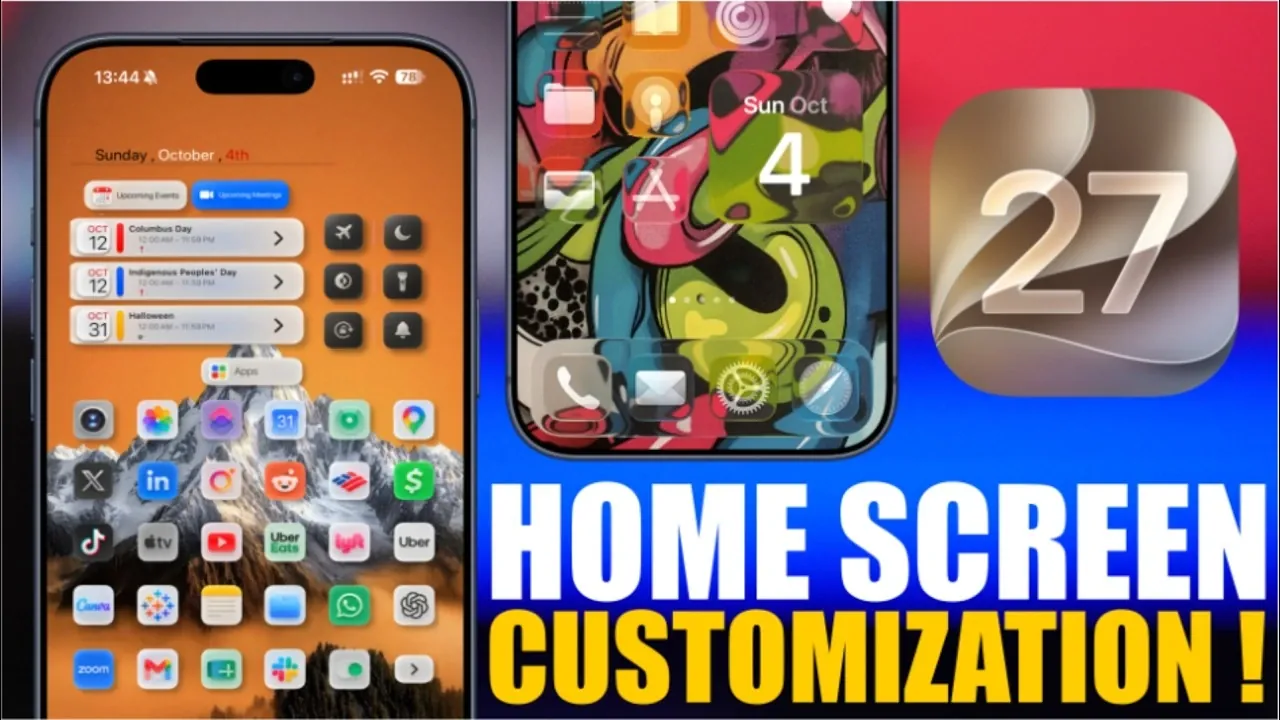
The release of iOS 27 introduces a wealth of customization features, empowering you to transform your home screen into a space that perfectly aligns with your style and needs. Whether you prefer a minimalist design or a vibrant, personalized layout, iOS 27 offers tools to help you achieve your vision. With enhancements like extra-large widgets, dynamic wallpapers, and refined appearance settings, you can craft a home screen that balances functionality with aesthetic appeal. This guide explores the key features and provides actionable tips to help you make the most of iOS 27. The video below from iReviews gives us more details.

Minimalist Setup: Prioritize Simplicity and Focus
For those who value simplicity and wish to minimize distractions, a minimalist home screen setup is an excellent choice. This approach emphasizes essential apps and information, creating a clean and focused interface.
Steps to create a minimalist home screen:
- Use iOS 27’s extra-large widgets to consolidate critical information, such as calendar events, reminders, or weather updates, into a single, prominent display.
- Choose a neutral or monochromatic wallpaper to maintain a distraction-free aesthetic and enhance focus.
By reducing visual clutter and highlighting only the most important elements, this setup helps you stay organized and productive.
Extra-Large Widgets: Enhance Functionality and Design
One of the standout features of iOS 27 is the introduction of extra-large widgets, which combine practicality with visual appeal. These widgets provide ample space to display detailed information, making them ideal for users who want quick access to essential data.
How to maximize the potential of extra-large widgets:
- Explore third-party apps or online communities for custom widget templates that align with your preferences.
- Position widgets strategically to ensure they enhance usability while maintaining a cohesive design.
By incorporating these widgets into your layout, you can streamline your workflow and elevate the overall aesthetic of your home screen.
Wallpaper Selection: Set the Tone for Your Layout
Your wallpaper serves as the foundation of your home screen’s design, playing a crucial role in its overall look and feel. iOS 27 offers advanced wallpaper customization options, allowing you to create a backdrop that complements your icons and widgets.
Tips for selecting the perfect wallpaper:
- Opt for dark wallpapers with designated spaces for icons to achieve a polished and organized appearance.
- Use dual-tone or gradient wallpapers to add vibrancy and improve the visibility of tinted icons.
- Experiment with wallpaper size and tint adjustments to harmonize with your chosen layout.
A thoughtfully chosen wallpaper can tie your entire home screen together, enhancing both its functionality and visual appeal.
Liquid Glass Effect: A Sleek and Modern Design
The liquid glass effect is one of the most visually striking features introduced in iOS 27. This effect seamlessly blends transparent icons with colorful wallpapers, creating a futuristic and polished aesthetic.
Steps to achieve the liquid glass effect:
- Customize icon borders and sizes to create a clean, modern look that complements the effect.
- Pair the effect with gradient or subtly textured wallpapers for a cohesive and dynamic design.
This feature is perfect for users who want a innovative home screen that stands out while remaining functional.
Tinted Icons: Achieve a Unified and Polished Look
For a cohesive and visually harmonious home screen, consider using tinted icons. By matching your icon colors to your wallpaper’s tones, you can create a unified and aesthetically pleasing layout.
How to make tinted icons work for your design:
- Choose larger icons to enhance readability and improve the overall balance of your home screen.
- Combine tinted icons with dual-tone wallpapers to create a visually appealing and balanced backdrop.
This feature is ideal for users who prioritize a clean, organized, and professional appearance.
Customization Tools: Tailor Your Home Screen to Your Needs
iOS 27 provides a comprehensive suite of customization tools that allow you to fine-tune every aspect of your home screen. From rearranging apps to adjusting text size and icon styles, these tools enable you to create a layout that reflects your personality and supports your daily workflow.
Key customization options include:
- Reorganizing apps and widgets to suit your workflow and preferences.
- Using the appearance settings menu to adjust text size, spacing, and icon styles for a personalized touch.
- Experimenting with different combinations of widgets, wallpapers, and icon designs to create a layout that is both functional and visually appealing.
These tools give you the flexibility to design a home screen that not only looks great but also enhances your productivity and efficiency.
Unlock the Full Potential of iOS 27
iOS 27 takes home screen customization to a new level, offering a blend of simplicity, functionality, and aesthetic appeal. Whether you prefer a minimalist setup to reduce distractions or want to explore advanced features like the liquid glass effect and tinted icons, iOS 27 provides the tools you need to create a home screen that suits your style and needs. By using widgets, wallpapers and appearance settings, you can design a home screen that not only looks stunning but also enhances your daily experience.
Here are more guides from our previous articles and guides related to iOS 27 that you may find helpful.
- Apple Delaying iOS 27 Beta 5? Here’s When to Expect the Next Update
- New iOS 27 Beta 5 Release Arrives with a Big Shift Coming
- iOS 27 Beta 5 Is Late: What’s Holding Up Apple’s Next Release?
- The iOS 27 Beta 5 Release Imminent with More New Features
- Apple iOS 27 Beta 5 Preview: a Look at the Next Release
- iOS 27 is Finally Coming: Apple to Confirm Release Date Today
Source & Image Credit: iReviews
Disclosure: Some of our articles include affiliate links. If you buy something through one of these links, Geeky Gadgets may earn an affiliate commission. Learn about our Disclosure Policy.
