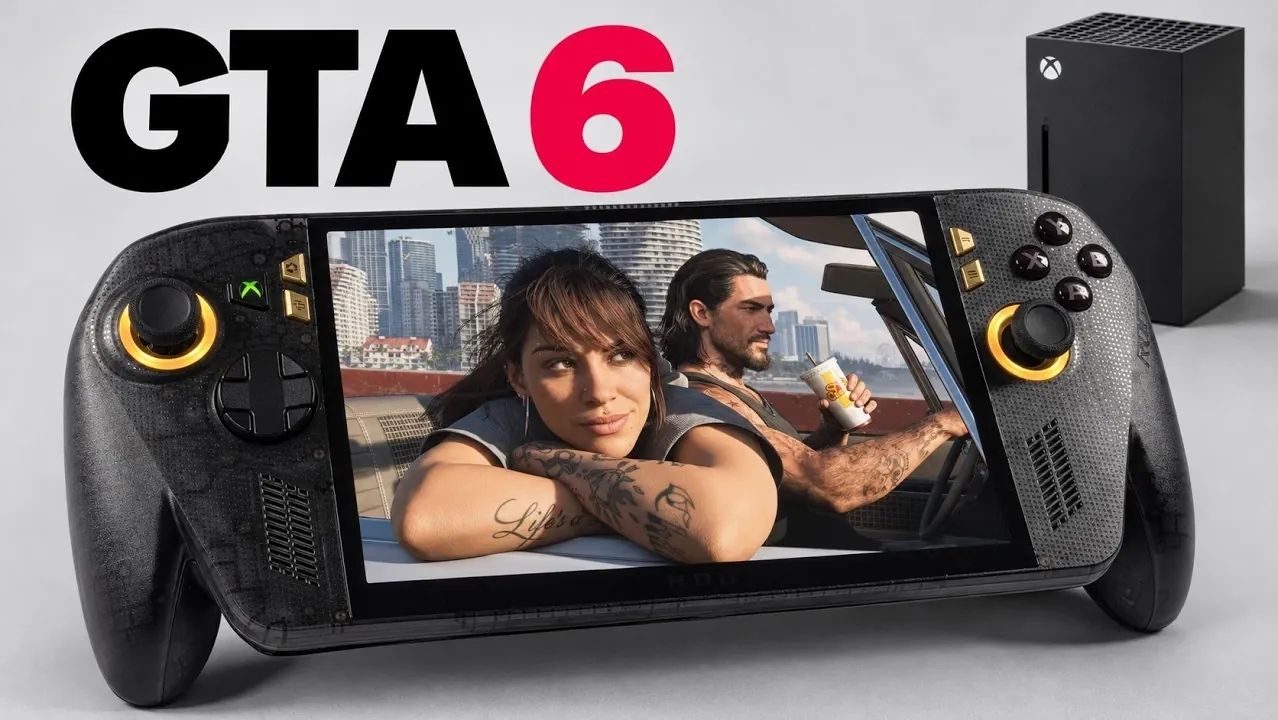
If you are interested in learning how you can play GTA 6 on your ROG Xbox Ally X20 games console. You will be pleased to know, you can stream the Xbox version from an Xbox Series X using Remote Play, as shown in a closer look from ETA Prime. The game runs on the console, not in the cloud or on the handheld, so you can play in another room while someone else uses the TV. The handheld’s OLED screen showed a good image in testing, although streaming adds some input delay. Discover how to connect the devices and use Remote Play in your browser.
ROG Xbox Ally X20: GTA 6 Through Remote Play
TL;DR Key Takeaways :
- GTA 6 can stream from an Xbox Series X to the ROG Xbox Ally X20 via Remote Play, rather than running natively or in the cloud.
- In testing, GTA 6 looked good on the handheld’s OLED screen and streamed at the console’s 30 FPS.
- Testing over Wi-Fi 6 showed minimal input latency, though results depend on the router and streaming still adds delay.
- ETA Prime recommends connecting at least the Xbox by Ethernet to reduce latency, although Ethernet was not required in the tested setup.
- Remote Play needs remote features switched on, both devices on one network and the same Xbox account on console and website.
Streaming is the way in because GTA 6 had no PC version at launch, so there is nothing for the handheld to run itself. Xbox Remote Play fills the gap by sending the picture from an Xbox Series X to the ROG Xbox Ally X20.
You need the Xbox version of the game on the console, a compatible browser on the handheld and both devices on the same network. Setup takes a few minutes and is covered further down.
GTA 6 Looks Good on the OLED Screen
Image quality was not a concern in testing. GTA 6 looked good on the Ally X20’s OLED display, and because the Xbox Series X runs the game at 30 FPS, the handheld receives the stream at the same rate.
That works in streaming’s favor, since a 30 FPS stream has lower latency and holds up better than trying to stream at 60 FPS.

Expand your understanding of ROG Xbox Ally X20 with additional resources from our extensive library of articles.
- New ROG Xbox Ally X20 Hands-on: Upgrades to OLED, Retains APU
- $1,300 ROG Xbox Ally X20 Adds an OLED but Keeps the Z2 Extreme
- ROG Xbox Ally X20 Ditches the Original IPS for a 120Hz OLED
- Preorder the $1,299 ROG Xbox Ally X20 Before October 15th 2026
Input Delay is Low but Still Present
The Ally X20 showed minimal input latency in testing, with the handheld upstairs and the Xbox Series X downstairs. Some delay always remains, however good the equipment, and that is the difference from playing on the console with a controller connected directly to it.
Whether it matters depends on you. For playing in another room, or while someone else has the television, the delay is easy to live with; if you are sensitive to it, Remote Play may not suit you.
Ethernet Can Reduce Streaming Latency
Both devices were on Wi-Fi 6 for this test, not a high-end Wi-Fi 7 router, so top-end networking gear was not needed. Results will still vary with your own router.
Connecting at least the Xbox by Ethernet should cut the delay further. Although the console stayed on Wi-Fi throughout the testing because no cable was nearby, and any mix of Wi-Fi and Ethernet works as long as both devices are on the same network.
Set Up Remote Play in a Browser
Xbox Remote Play gives the handheld access to the console as if the Xbox were running on its own display. One thing has changed: Remote Play is no longer in the Xbox app, so you reach it through the Xbox Remote Play website instead.
- Press the Xbox home button and open your profile and system settings.
- Under Devices and Connections, select Remote Features and turn on remote features.
- Connect the Xbox and the handheld to the same network.
- Open the Xbox Remote Play website on the handheld and sign in with the same Xbox account as the console.
Your Xbox then appears on the website, and you can open a game already running on the console. In testing, GTA 6 opened from its running state and the controller synced.
You can also set the website up as a desktop app and pin it to the taskbar, which gives you a cleaner interface and a quicker way in. The same method should work on other Windows handhelds with a compatible browser, and it works on the Steam Deck.
The setup comes down to three things: remote features switched on, both devices on one network and the same account on each. With those in place, Wi-Fi is enough to play GTA 6 away from the television, and a cable to the Xbox is the first thing to try if the delay bothers you.
Media Credit: ETA PRIME
Disclosure: Some of our articles include affiliate links. If you buy something through one of these links, Geeky Gadgets may earn an affiliate commission. Learn about our Disclosure Policy.
