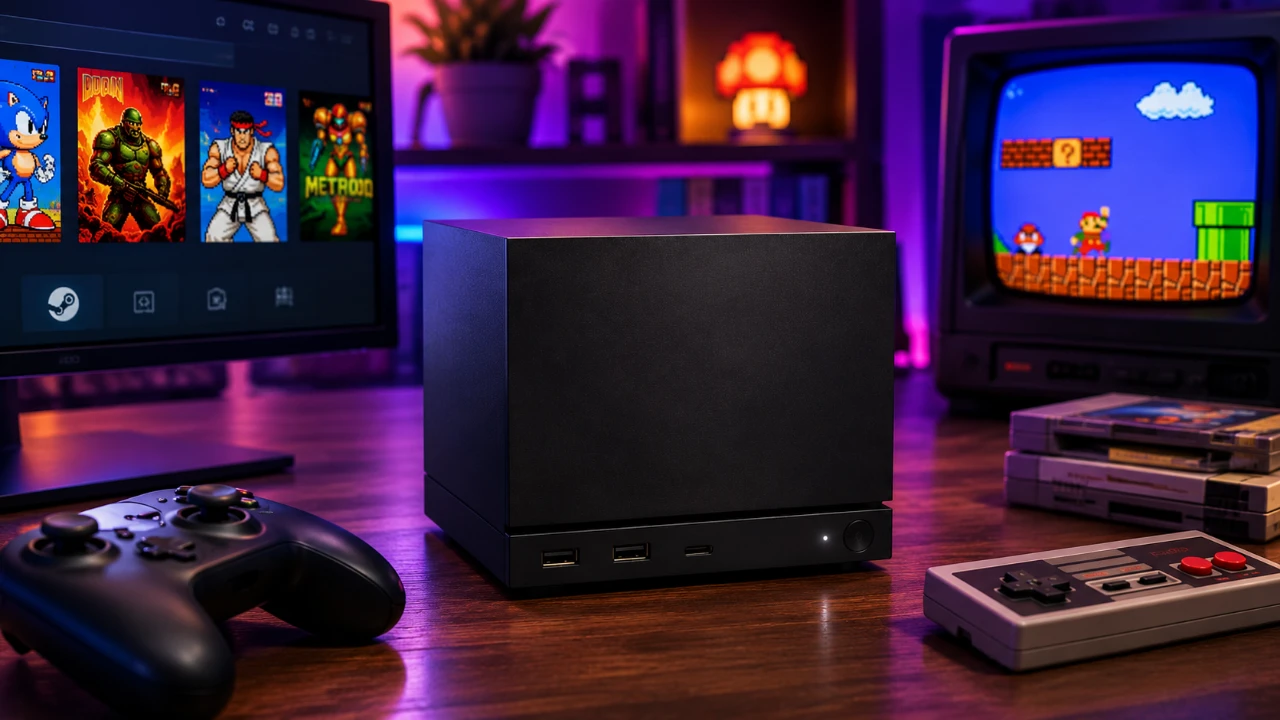
Transforming your Steam Machine into a retro gaming powerhouse is a straightforward process that opens the door to countless classic gaming experiences. With the right tools and a few adjustments, you can enjoy games from multiple generations on a single, compact device. The video below from HotshotTek provides a detailed walkthrough, from setting up emulators to optimizing your system for peak performance, making sure you have a seamless and enjoyable retro gaming experience.

Why the Steam Machine is Perfect for Retro Gaming
The Steam Machine stands out as an excellent platform for retro gaming due to its unique combination of hardware stability, compact design and user-friendly interface. Its stable hardware minimizes risks such as performance drops or data corruption, making sure a consistent gaming experience. Additionally, its small form factor and compatibility with a wide range of peripherals make it a versatile choice for emulation setups. Whether you’re a seasoned gamer or exploring retro gaming for the first time, the Steam Machine provides a reliable and accessible foundation for your gaming needs.
Preparing Your Steam Machine for Emulation
Before diving into the world of emulation, some initial preparation is essential. Begin by switching your Steam Machine to desktop mode, which grants access to the tools required for downloading and installing emulators. A wireless mouse and an optional keyboard can simplify navigation, but a controller is indispensable for gameplay.
When sourcing ROMs, it’s crucial to ensure they are extracted legally from games you own to comply with copyright laws. Taking the time to prepare your system properly at this stage will save you significant effort and potential issues later on.
Installing Emulators with EmuDeck
EmuDeck is a powerful and intuitive tool designed to simplify the installation and configuration of emulators on your Steam Machine. Follow these steps to get started:
- Switch your Steam Machine to desktop mode to access the necessary tools.
- Download EmuDeck from its official website and follow the on-screen instructions to install it.
- Customize the setup according to your preferences, such as selecting internal or external storage for your ROMs.
Once installed, EmuDeck integrates your emulators directly into your Steam library, allowing you to launch games effortlessly from the Steam interface. This streamlined approach eliminates the need to manage multiple applications, making it easier to focus on gaming.
Organizing ROMs and BIOS Files for Optimal Performance
Proper organization of your ROMs and BIOS files is critical for a smooth and efficient gaming experience. Here are some tips to keep your files in order:
- Create dedicated folders for each gaming system to avoid confusion and simplify navigation.
- Manually transfer your ROMs to the Steam Machine to reduce the risk of errors during the process.
- Ensure BIOS files are placed in the correct directories, as some emulators require them to function properly.
A well-organized file structure not only enhances emulator performance but also makes troubleshooting any issues significantly easier.
Customizing and Optimizing Your Retro Gaming Setup
Customization plays a key role in enhancing your retro gaming experience. Here are some ways to optimize your setup for maximum enjoyment:
- Adjust screen aspect ratios to match the original display settings of your games for an authentic experience.
- Configure controller layouts to ensure comfort and usability during extended gaming sessions.
- Enable features such as auto-save to preserve your progress and avoid losing valuable gameplay time.
For advanced customization, consider installing tools like EmuDecky, which offers additional features and quality-of-life improvements. These tweaks can significantly enhance your overall gaming experience, making it more immersive and enjoyable.
Using an iPad as a Portable Monitor
If you’re seeking a portable display solution, an iPad can serve as a high-quality monitor for your Steam Machine. Here’s how to set it up:
- Connect your Steam Machine to the iPad using a USB-C capture card.
- Install a third-party app on the iPad to enable it to display the Steam Machine’s output.
This setup is particularly useful for gamers who want a portable and versatile display option without investing in a dedicated monitor. It’s a practical solution for gaming on the go or in spaces where a traditional monitor isn’t feasible.
Additional Tips for a Seamless Gaming Experience
To ensure your retro gaming setup runs smoothly, keep the following tips in mind:
- Use external storage for your ROMs if your Steam Machine has limited internal capacity, making sure you have ample space for your game library.
- Familiarize yourself with emulator settings to troubleshoot issues with specific games and optimize performance.
- For advanced users, explore emulation for more demanding systems like the GameCube or Xbox 360 to expand your gaming options in the future.
By following these strategies, you can avoid common pitfalls and maintain a seamless and enjoyable gaming experience.
Unlock the Full Potential of Your Steam Machine
By following these steps, you can transform your Steam Machine into a versatile and powerful retro gaming console. Its stable hardware, ease of setup and extensive customization options make it an ideal choice for emulation enthusiasts. Whether you’re revisiting cherished childhood favorites or discovering timeless classics for the first time, this setup ensures a smooth and immersive gaming experience that will keep you entertained for hours.
Here is a selection of other guides from our extensive library of content you may find of interest on the Steam Machine.
- Why Valve is Releasing 4 Different Steam Machine Variants
- Inside Valve’s Unusual Rollout Plan for the Steam Machine
- Why Valve’s New Steam Machine Could Outperform the PS5 in Your Living Room
- Why the Upcoming Valve Steam Machine Might Be Sold at a Loss
- Valve Confirms Summer 2026 Release Window for Steam Machine and Steam Frame
- How Valve Finally Solved the Steam Machine’s Biggest Performance Bottleneck
Source & Image Credit: HotshotTek
Disclosure: Some of our articles include affiliate links. If you buy something through one of these links, Geeky Gadgets may earn an affiliate commission. Learn about our Disclosure Policy.
