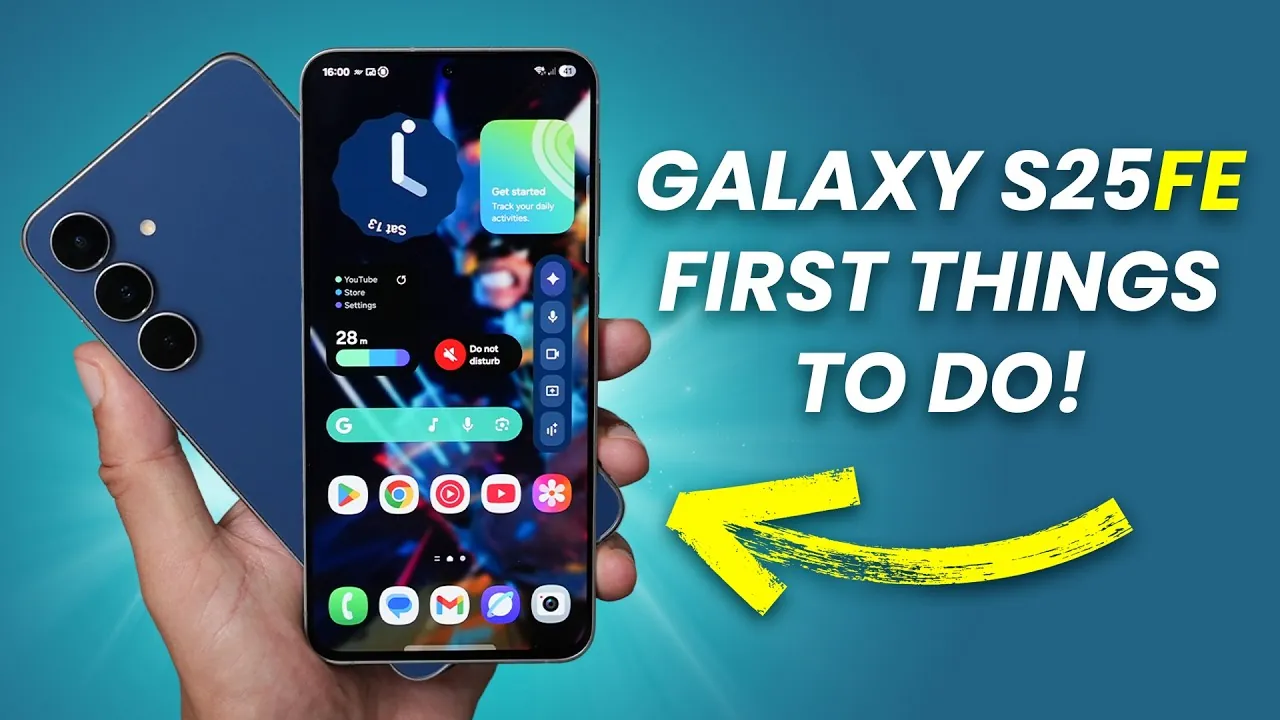
The Samsung Galaxy S25 FE is a feature-rich smartphone designed to cater to both first-time users and long-time Samsung enthusiasts. With its advanced capabilities and customizable options, this device offers a seamless and efficient user experience. To help you make the most of your Galaxy S25 FE, this guide outlines essential steps to optimize, personalize, and secure your device. By following these steps in the video below from WhatGear, you can unlock its full potential and tailor it to your unique preferences.

1. Initial Setup and Software Updates
The first step to getting started with your Galaxy S25 FE is making sure it is fully updated. Keeping your device current enhances both performance and security.
- Install the latest system updates to ensure your device runs smoothly and is protected against vulnerabilities.
- Update pre-installed apps through the Galaxy Store and Google Play Store to access the latest features and improvements.
Once updates are complete, explore the settings menu to enable gesture-based navigation. This feature provides a more intuitive and immersive experience by maximizing screen space and simplifying navigation.
2. Personalize Your Device
Customizing your Galaxy S25 FE allows you to create a device that reflects your personality and preferences. Here are some key ways to personalize your phone:
- Select a wallpaper that suits your style. You can use generative AI tools for unique designs or opt for dynamic effects that change with the weather.
- Customize your lock screen by adding widgets, shortcuts (such as the torch or camera), and dynamic clock styles for quick access to essential features.
- Organize your home screen by adjusting the grid layout to fit your apps and widgets efficiently.
- Modify the appearance of the Google search bar and its shortcuts to better align with your preferences.
These adjustments not only enhance the visual appeal of your device but also improve usability and convenience.
3. Strengthen Security and Privacy
Protecting your personal data is a critical aspect of using any smartphone. The Galaxy S25 FE offers robust security features to safeguard your information:
- Activate app protection to prevent unauthorized access to sensitive data and applications.
- Set up multiple fingerprints for secure and convenient unlocking, making sure quick access while maintaining security.
- Manage notifications by prioritizing important alerts and silencing less critical ones. This not only enhances privacy but also minimizes distractions during your day.
By taking these steps, you can ensure your device remains secure while maintaining a streamlined and distraction-free experience.
4. Use AI and Productivity Tools
The Galaxy S25 FE is equipped with advanced AI tools designed to boost productivity and creativity. Here are some features to explore:
- AI-powered writing assistance can help you draft emails, documents, or messages more efficiently.
- Experiment with AI-driven image editing tools to create professional-quality photos and graphics.
- Add widgets like Google Gemini or stacked widgets to your home screen for quick access to essential information and updates.
- Use the AI select tool to extract or pin details from images, simplifying the management of visual content.
These tools are designed to make your daily tasks easier and more efficient, allowing you to focus on what matters most.
5. Automate with Modes and Routines
The Modes and Routines app is a powerful feature that enables you to automate tasks and optimize your workflow. Here’s how to make the most of it:
- Create custom routines to automate actions, such as allowing Do Not Disturb during work hours or activating specific settings when you arrive home.
- Add routines as widgets to your home screen for quick and easy activation.
By using these automations, your Galaxy S25 FE can adapt to your daily schedule and preferences, streamlining your interactions with the device.
6. Explore Advanced Features
The Galaxy S25 FE is packed with advanced features that enhance its functionality and user experience. Here are some highlights:
- Secure Wi-Fi (VPN) can be accessed through the quick settings panel, making sure safe and private browsing.
- Enable Dolby Atmos for an immersive audio experience, whether you’re listening to music or watching videos.
- Use Extra Dim mode for comfortable screen brightness during nighttime use.
- Take advantage of the edge panel for quick access to apps, tools (like a compass or ruler), and AI features.
- Explore hidden tools such as Connectivity Labs to optimize Wi-Fi performance in areas with weak signals.
These features allow you to maximize the capabilities of your device, making sure a versatile and enjoyable experience.
7. Bonus Tips for a Personalized Experience
For additional functionality and a touch of flair, consider these bonus tips:
- Enable notification lighting effects and assign custom colors to specific contacts. This makes it easy to identify important messages at a glance.
- Experiment with both Samsung and Google keyboards to find the one that best suits your typing style and preferences.
- Add the Google Clock widget to your home screen for a visually appealing and practical addition to your setup.
These tips can help you further customize your Galaxy S25 FE, making it a device that truly feels like your own.
Here are more detailed guides and articles that you may find helpful on Samsung Galaxy S25 FE.
- Samsung Galaxy S25 FE: Features, Specs, and Pricing
- Samsung Galaxy S25 FE & S11 Ultra: What You Need to Know
- Samsung Galaxy S25 FE vs S25 Plus: Key Differences Explained
- The Samsung Galaxy S25 FE is Finally Here
- Samsung Galaxy Battery Test: Best and Worst Models Compared
Source & Image Credit: WhatGear
Disclosure: Some of our articles include affiliate links. If you buy something through one of these links, Geeky Gadgets may earn an affiliate commission. Learn about our Disclosure Policy.
