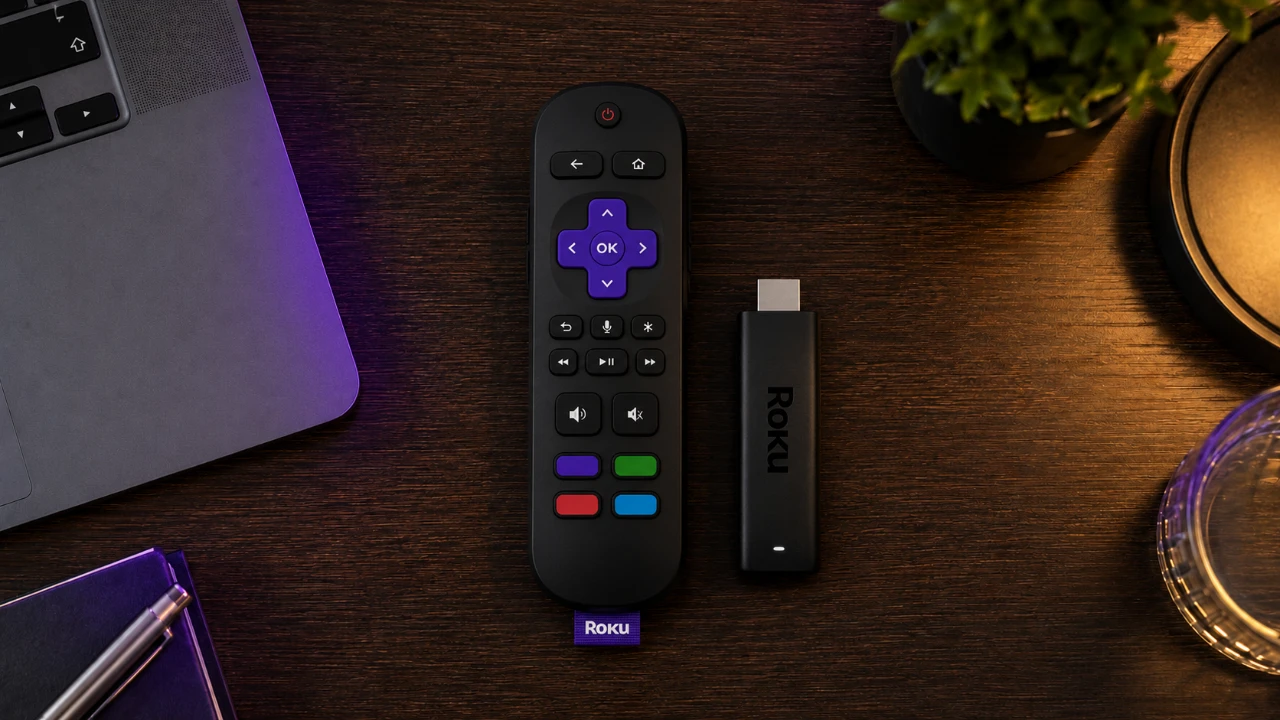
If you own a Roku device, you may not be fully aware of the extensive features it offers to enhance your streaming experience. Roku is more than just a platform for accessing your favorite shows and movies; it’s equipped with a range of tools and settings that can improve performance, provide advanced customization and make your viewing experience more seamless and personalized. By exploring these hidden capabilities, you can take full control of your device and elevate your entertainment setup. The video below from HotshotTek gives us a look at these hidden features.

Accessing Secret Menus and Shortcuts
Roku devices include hidden menus that grant access to advanced settings and diagnostic tools. These menus are invaluable for troubleshooting, optimizing performance, and maintaining your device. Here are some key features you can unlock:
- Monitor system performance by viewing CPU usage and system stats.
- Test remote control functionality to ensure it’s working as expected.
- Perform soft reboots or factory resets to resolve persistent issues.
- Access the software update menu to keep your device running the latest firmware.
These shortcuts are particularly useful for resolving common problems and making sure your Roku operates efficiently. To access these menus, you’ll need to use specific remote control button sequences, which can be found in Roku’s support documentation or online guides.
Optimizing Wi-Fi and Network Settings
A reliable internet connection is essential for uninterrupted streaming, and Roku provides tools to help you optimize your network settings. These features allow you to:
- Check Wi-Fi signal strength to identify and address connectivity issues.
- Run speed tests to confirm your internet is fast enough for high-quality streaming.
- Adjust bandwidth saver settings to reduce data usage during extended viewing sessions.
- Enable or disable IPv6 for improved compatibility with modern networks.
By using these tools, you can minimize buffering and interruptions, making sure a smooth and enjoyable streaming experience. If you encounter persistent network issues, consider repositioning your router or upgrading to a higher-speed internet plan.
Enhancing Audio and Accessibility
Roku offers several audio and accessibility features designed to make your viewing experience more comfortable and inclusive. These options allow you to tailor sound and accessibility settings to your preferences:
- Enable captions on replay to catch missed dialogue during movies or shows.
- Activate volume leveling to balance sound levels during loud action scenes or quiet moments.
- Use private listening by connecting headphones through the Roku mobile app, perfect for late-night viewing without disturbing others.
These features are particularly helpful for households with diverse viewing needs, making sure everyone can enjoy content in their preferred way. Additionally, Roku’s accessibility settings include options for screen readers and high-contrast themes, making the platform more user-friendly for individuals with visual or hearing impairments.
Managing Apps and Channels
Keeping your Roku organized is essential for a streamlined experience, and the platform includes built-in tools to help you manage apps and channels effectively. With these features, you can:
- View detailed app information to troubleshoot compatibility or performance issues.
- Quickly remove unused apps or channels to free up space and improve navigation.
- Customize themes and screensavers to personalize your interface and enhance responsiveness.
Regularly reviewing and organizing your apps ensures that your Roku remains clutter-free and easy to use. This not only improves performance but also makes it easier to find the content you love.
Fine-Tuning HDMI and Display Settings
Roku’s HDMI secret menu is a powerful tool for optimizing your display settings, making sure you get the best picture quality possible. With this menu, you can:
- Verify resolution and frame rate compatibility to match your TV’s capabilities.
- Adjust HDMI fast suspend settings to improve device performance and reduce lag.
- Fine-tune input options for a more tailored viewing experience.
These adjustments are particularly beneficial for users with high-definition or 4K TVs, as they ensure sharp visuals and smooth playback. If you’re experiencing display issues, such as flickering or incorrect aspect ratios, these settings can help resolve them.
Exploring Developer Tools
For advanced users, Roku’s developer mode offers a deeper dive into the device’s capabilities. This mode is ideal for those who want to experiment with customizations or analyze performance. In developer mode, you can:
- Test and install custom apps to create a more personalized streaming experience.
- Monitor logs to troubleshoot technical issues or analyze system performance.
- Use advanced tools like image server cycling to explore additional features.
Activating developer mode requires enabling it on your Roku device and accessing the developer dashboard via a web browser. While this feature is primarily intended for developers, curious users can also explore its potential.
Using the Roku Mobile App
The Roku mobile app extends the functionality of your device, offering additional features that enhance convenience and control. With the app, you can:
- Use your smartphone or Apple Watch as a remote control for easy navigation.
- Browse and manage channels directly from your mobile device.
- Enable private listening for an immersive audio experience without disturbing others.
- Access diagnostic tools to monitor your device’s health and warranty status.
The app is available for both iOS and Android devices, making it a versatile tool for managing your Roku. It’s particularly useful for households with multiple users, as it allows everyone to customize their experience.
Maximizing Your Roku Experience
By exploring these hidden features and tools, you can unlock the full potential of your Roku device. From secret menus and network optimization to audio customization and developer tools, these capabilities empower you to create a more efficient, user-friendly, and personalized streaming setup. Take the time to familiarize yourself with these options, and you’ll discover how to make your Roku an indispensable part of your entertainment system.
Source: HotshotTek
Disclosure: Some of our articles include affiliate links. If you buy something through one of these links, Geeky Gadgets may earn an affiliate commission. Learn about our Disclosure Policy.
