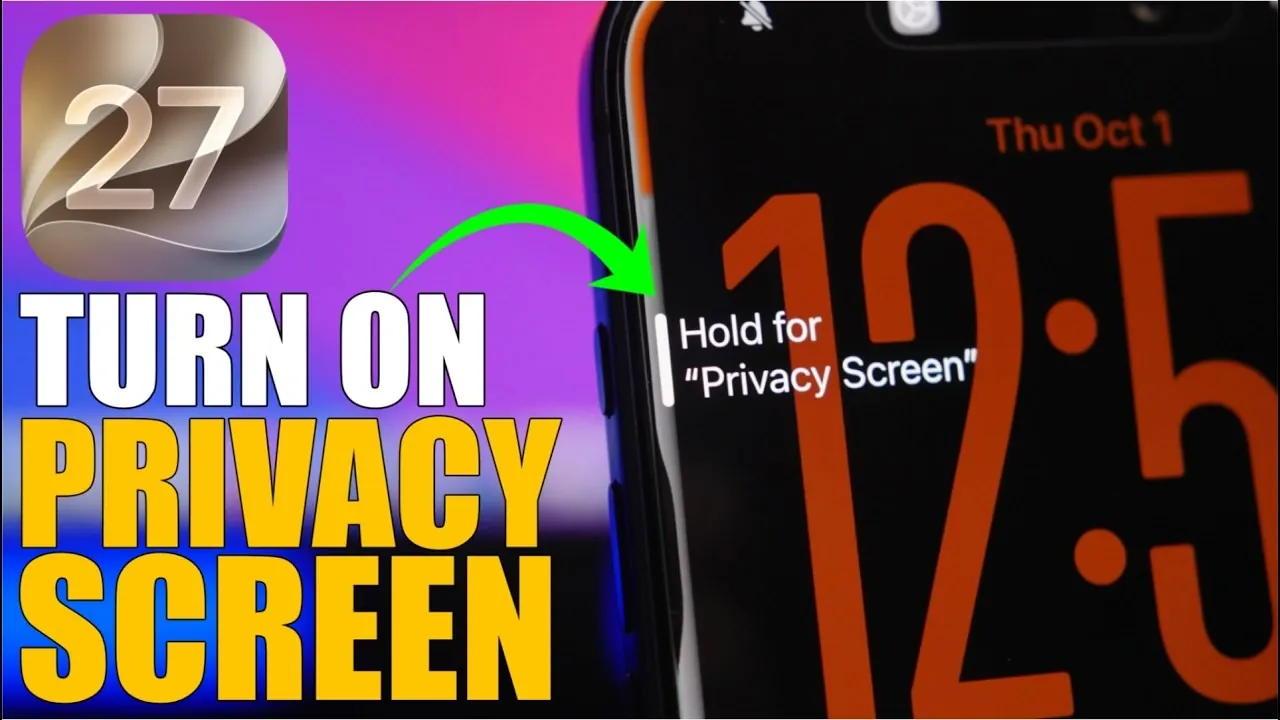
Apple’s iOS 27 introduces a range of innovative features, but a built-in privacy screen is not among them. However, you can create an effective privacy screen using tools already available on your iPhone, such as Accessibility settings, the Shortcuts app, and display adjustments. The video below from iReviews provides a step-by-step approach to setting up a privacy screen, helping you protect sensitive information from prying eyes in public spaces.

1: Adjust Accessibility Settings
The Accessibility settings on your iPhone offer powerful tools to dim and filter your screen, forming the foundation of your privacy screen. Follow these steps to configure the necessary settings:
- Enable Zoom: Go to Settings > Accessibility > Zoom and toggle it on. Set the zoom level to 1.2 for minimal magnification, making sure the screen remains functional while reducing visibility for others.
- Apply the Low Light Filter: Within the Zoom settings, select Zoom Filter and choose Low Light. This filter reduces screen brightness, making it harder for others to view your display.
- Reduce White Point: Navigate to Settings > Accessibility > Display & Text Size, enable Reduce White Point, and adjust the slider to 60-70%. This setting softens bright colors, further obscuring your screen content.
While these adjustments effectively create a privacy screen, manually allowing them each time can be inconvenient. To streamline the process, you can automate these settings using the Shortcuts app.
2: Create a Custom Shortcut
The Shortcuts app allows you to automate the activation of your privacy screen, making it accessible with a single tap. Here’s how to set up a custom shortcut:
- Open the Shortcuts app and create a new shortcut.
- Add actions to toggle Zoom, enable Reduce White Point, set Brightness to 35-45%, and activate Dark Mode.
- Assign a name to your shortcut, such as “Privacy Screen,” and save it.
Once your shortcut is created, you can activate your privacy screen instantly. To enhance accessibility, consider integrating the shortcut into your iPhone’s interface for quick and easy access.
3: Add the Shortcut for Easy Access
To ensure your privacy screen is always within reach, you can integrate the shortcut into various parts of your iPhone. Here are some options to make activation seamless:
- Control Center: Go to Settings > Control Center and add your shortcut to the list of included controls. This allows you to access it with a simple swipe down from the top-right corner of your screen.
- Home Screen: Use the Shortcuts app to add the shortcut as an icon on your Home Screen. This provides one-tap activation directly from your main interface.
- Action Button: If your iPhone model includes an Action Button, assign the shortcut to it for instant use. This is particularly useful for quick activation in situations where privacy is immediately needed.
These integration options ensure that your privacy screen is always ready to use, whether you’re in a crowded café, on public transport, or working in a shared office space.
4: Customize Your Privacy Screen
One of the key benefits of this workaround is its flexibility. You can tailor the settings to suit your specific preferences and usage habits, making sure an optimal balance between privacy and usability. Consider the following customization options:
- Adjust Brightness and White Point: Fine-tune the Brightness and Reduce White Point levels to achieve the desired level of screen obscurity while maintaining visibility for your own use.
- Modify Shortcut Features: Customize the shortcut to include or exclude specific actions, such as toggling Dark Mode, adjusting the Zoom level, or adding other Accessibility features that enhance privacy.
This level of customization ensures that your privacy screen not only protects your information but also adapts to your unique needs and preferences.
Practical and Customizable Privacy Solution
Although iOS 27 does not offer a native privacy screen, you can create an effective and customizable alternative using Accessibility settings, the Shortcuts app and display adjustments. By following the steps outlined in this guide, you can safeguard your screen content from prying eyes in public spaces. With quick access options like the Control Center, Home Screen, or Action Button, your privacy screen will always be just a tap or press away, providing both convenience and peace of mind.
Expand your understanding of iOS 27 with additional resources from our extensive library of articles.
- Apple Delaying iOS 27 Beta 5? Here’s When to Expect the Next Update
- New iOS 27 Beta 5 Release Arrives with a Big Shift Coming
- iOS 27 Beta 5 Is Late: What’s Holding Up Apple’s Next Release?
- The iOS 27 Beta 5 Release Imminent with More New Features
- Apple iOS 27 Beta 5 Preview: a Look at the Next Release
Source & Image Credit: iReviews
Disclosure: Some of our articles include affiliate links. If you buy something through one of these links, Geeky Gadgets may earn an affiliate commission. Learn about our Disclosure Policy.
