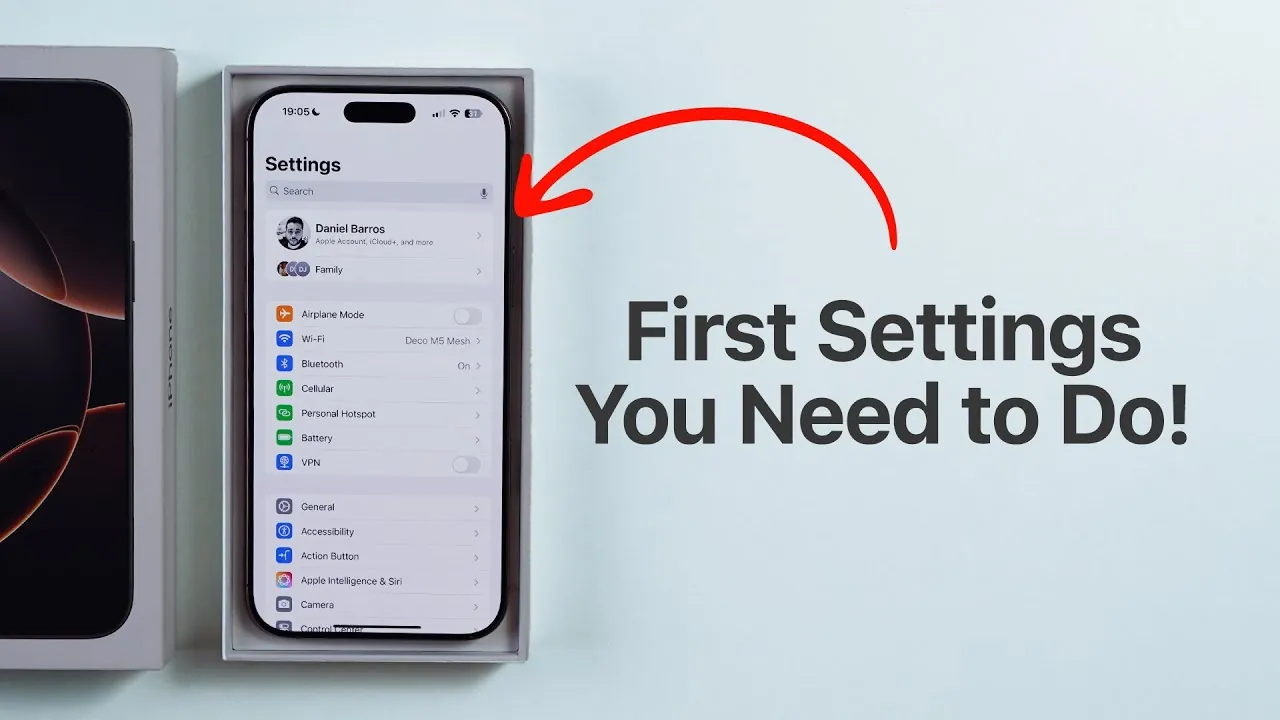
When you first set up your iPhone, its default settings may not fully align with your preferences or maximize the device’s potential. By making a few strategic adjustments, you can significantly enhance its functionality, security, battery performance, and overall usability. Below is a detailed video from Daniel About Tech, which shows us the most important settings you should configure to get the best out of your iPhone.

Customize Your Control Center
The Control Center serves as a quick-access hub for your most-used tools and features. Customizing it ensures that the functions you rely on are always within reach. Consider adding or rearranging these essential tools:
- Low Power Mode: Quickly activate this to conserve battery life during critical moments.
- Screen Recording: Record your screen effortlessly for tutorials, troubleshooting, or saving important content.
- Dark Mode: Reduce eye strain in dim environments and save battery on OLED screens.
- Voice Memos: Capture ideas, reminders, or notes on the go with just a tap.
- Ping My Watch: Locate your Apple Watch instantly if it’s misplaced.
Customizing the Control Center not only saves time but also enhances convenience, making sure your most-used tools are just a swipe away.
Adjust Display and Brightness Settings
Your iPhone’s display settings play a crucial role in usability and battery efficiency. One key adjustment is the Auto-Lock feature, which controls how quickly your screen dims and locks. This setting can be tailored to your specific needs:
- Set Auto-Lock to 5 minutes for a balanced approach that minimizes interruptions while conserving battery life.
- Choose Never if you frequently use your phone for extended tasks, such as reading, referencing, or presentations.
Additionally, allowing True Tone and Night Shift can improve visual comfort by adjusting the screen’s color temperature based on ambient lighting. These changes enhance usability while reducing eye strain.
Optimize Battery Health
Maintaining your iPhone’s battery health is essential for long-term performance. Apple provides several features to help you preserve battery longevity:
- Charge Limit (iPhone 15 and newer): Enable this feature to cap charging at 80%, which prevents overcharging and reduces battery wear over time.
- Optimized Battery Charging: Activate this setting to slow the charging process above 80% when plugged in overnight, minimizing stress on the battery.
These settings are designed to extend your battery’s lifespan, making sure reliable performance for years to come.
Enhance Keyboard Functionality
Your iPhone’s keyboard is a vital tool for communication, and customizing it can make typing faster and more efficient. Here are some key adjustments to consider:
- Add multiple languages, including the emoji keyboard, to accommodate diverse communication needs.
- Enable Predictive Text to receive word suggestions as you type, saving time and reducing errors.
- Turn on Spell Check to automatically identify and correct typos in your messages and documents.
These changes create a smoother, more personalized typing experience, making it easier to communicate effectively.
Secure Your Data with Backup Options
Backing up your data is a critical step in protecting your information against loss or accidental deletion. Apple offers two primary backup methods:
- iCloud Backup: Automatically save your data to the cloud. This option requires an iCloud+ subscription but provides real-time backups for added peace of mind.
- Local Backup: Use a Mac or PC to create a free, local copy of your data. This method is ideal if you prefer not to rely on cloud storage.
Regular backups ensure that your data remains safe and accessible, even in the event of device loss, theft, or failure.
Activate Stolen Device Protection
Protecting your iPhone from theft or unauthorized access is crucial. Apple provides several features to enhance security:
- Face ID for Sensitive Settings: Use biometric authentication to secure critical settings and prevent unauthorized changes.
- 1-Hour Delay for Changes: Enable this feature to delay modifications to key settings, giving you time to act if your device is stolen.
- Location-Based Security: Lock your device automatically when it’s away from familiar locations, adding an extra layer of protection.
These measures help safeguard your personal information and ensure your device remains secure.
Fine-Tune Camera Settings
Your iPhone’s camera is a powerful tool, but its default settings may not always deliver the best results. Adjusting these options can significantly improve your photography and videography experience:
- Enable HDR: Capture vibrant, high-quality photos with enhanced contrast and detail.
- Adjust Video Resolution: Choose the resolution that best suits your needs, such as 4K for high-quality videos or 1080p to save storage space.
These tweaks ensure that you can fully use your iPhone’s advanced camera capabilities.
Set Up Wallet and Apple Pay
Transform your iPhone into a digital wallet for added convenience and security. Here’s how you can make the most of this feature:
- Add credit cards, car keys, hotel keys, and other digital keys to the Wallet app for easy access.
- Set up Apple Pay to enable secure, contactless payments, reducing the need to carry physical cards.
This setup streamlines your daily activities, making transactions faster and more secure.
Maximize Your iPhone Experience
By customizing these essential settings, you can unlock the full potential of your iPhone. From improving battery health and security to enhancing usability and convenience, these adjustments create a more personalized and efficient experience. Take the time to configure your device today and enjoy a smoother, more secure, and optimized iPhone experience.
Uncover more insights about iPhone settings optimization in the previous articles we have written.
- How to Fix iOS 18.3.2 Battery Drain on Your iPhone
- Essential iPhone Settings You Should Never Turn
- iOS 18.4 Tips: Adjust These Settings for Maximum Efficiency
- 12 iOS Settings You Need Change Right Now
- iOS 18.4 Battery Drain Fix: Best Settings to Save Power
Source & Image Credit: Daniel About Tech
Disclosure: Some of our articles include affiliate links. If you buy something through one of these links, Geeky Gadgets may earn an affiliate commission. Learn about our Disclosure Policy.
