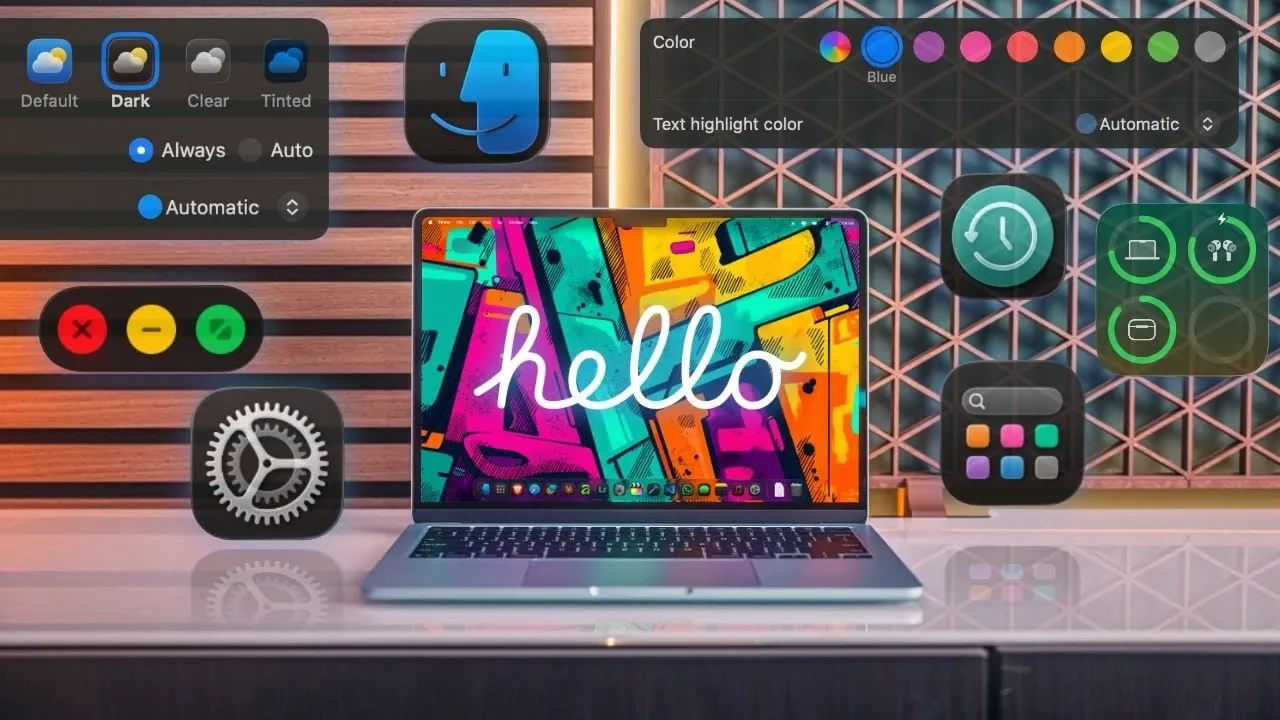
Are you feeling overwhelmed by the thought of setting up your new Mac? Whether you’re switching from Windows or upgrading to the latest macOS, the process can feel like a maze of settings, features, and decisions. Kyle Erickson explains how to simplify this transition in his latest video, offering practical tips to help you configure your Mac without the stress. From organizing your Dock to mastering multitasking features, his approach ensures you’ll avoid common pitfalls and create a workspace that feels intuitive and efficient. With so many options to customize, it’s easy to get lost, but this guide will help you focus on what truly matters.
In this macOS quick-start guide, you’ll discover how to transform your Mac into a productivity powerhouse while keeping it secure and clutter-free. Learn how to declutter your desktop, optimize system performance, and personalize settings like Hot Corners and the Control Center to match your workflow. Along the way, you’ll pick up lesser-known tips that can save you time and frustration, like using keyboard shortcuts to speed up navigation or allowing FileVault to protect sensitive data. By the end, you’ll not only feel confident using macOS but also enjoy a setup that’s as unique as your needs. Sometimes, the smallest tweaks can make the biggest difference.
macOS Setup Guide 2026
TL;DR Key Takeaways :
- Initial Setup: Configure essential settings like language, Apple ID, privacy, Touch ID, and appearance during the initial macOS setup for a seamless start.
- Customization: Personalize the Dock, Finder, menu bar, and Control Center to streamline navigation and improve workflow efficiency.
- Navigation and Multitasking: Use features like keyboard shortcuts, Mission Control, multiple desktops, and window snapping to enhance productivity.
- System Maintenance and Security: Optimize startup items, enable FileVault encryption, and set up Time Machine backups to maintain performance and protect data.
- Recommended Apps and Tips: Boost productivity with apps like Dropover and CleanMyMac, and use features like Hot Corners and clipboard history tools for added efficiency.
1: Initial Setup – Building the Basics
When you power on your Mac for the first time, you’ll be guided through a series of setup screens. Paying attention to these foundational settings is crucial:
- Language and Region: Select your preferred language and region to ensure accurate time, date, and format settings.
- Apple ID: Sign in with your Apple ID to sync data across devices, access the App Store, and enable iCloud features like file storage and device tracking.
- Privacy and Security: Review app permissions, enable location services if necessary, and activate automatic updates to keep your system secure and up-to-date.
- Touch ID and Appearance: Set up Touch ID for quick authentication and choose between light or dark mode to suit your visual preferences.
Taking the time to configure these settings ensures your Mac is ready for seamless use from the start.
2: Customizing the Dock and Finder
The Dock and Finder are central to navigating macOS. Customizing these tools can significantly improve your workflow:
- Dock: Remove pre-installed apps you don’t use and add your most frequently accessed ones. Adjust the Dock’s size and enable magnification for easier navigation.
- Finder: Personalize Finder views to display files in a way that suits your workflow. Enable the path bar for easier navigation and the status bar for file details. Organize your files with a clear folder structure and use color-coded tags or custom icons for better visual organization.
These adjustments help you access what you need quickly while keeping your workspace organized and clutter-free.
How To Set Up macOS To Keep Your Sanity
Below are more guides on macOS from our extensive range of articles.
- Apple releases macOS 13 Ventura public beta 7
- macOS Monterey 12 Beta 8 in action (Video)
- The Definitive Guide to macOS 26.2 (Tahoe Update)
- Why You Should Update to macOS 15.6.1 Right Now
- macOS 26.2 Release Candidate is Here: Update Now or Wait?
- The Ultimate macOS Tahoe Guide – Apple
- Is macOS Tahoe Really the Best Mac Update in Years?
- macOS 26 Beta 6: The Big Changes You Need to See
- How to Install Nix Package Manager for macOS with Flake Configs
- macOS 26.1 Tahoe Features and Updates Explained
3: Optimizing the Menu Bar and Control Center
The menu bar and Control Center provide quick access to essential tools and settings. Streamlining these elements can enhance your productivity:
- Menu Bar: Remove unnecessary icons and add useful ones, such as battery percentage, Wi-Fi status, or Bluetooth. Use Spotlight Search, accessible from the menu bar, to quickly locate apps, files, or settings.
- Control Center: Customize the Control Center to include shortcuts and widgets that align with your daily tasks, such as adjusting brightness, allowing Do Not Disturb mode, or controlling media playback.
A well-organized menu bar and Control Center ensure that your most-used tools are always within reach, saving you time and effort.
4: Mastering Navigation and Multitasking
macOS offers a range of features designed to help you navigate and multitask efficiently. Familiarizing yourself with these tools can significantly improve your workflow:
- Keyboard Shortcuts: Learn essential shortcuts for managing windows, such as minimizing, hiding, or entering full-screen mode.
- Mission Control: Use Mission Control to view all open windows and organize your workspace effectively.
- Multiple Desktops: Create separate desktops for different projects or tasks to maintain focus and organization.
- Window Snapping: Arrange windows side-by-side for better multitasking and improved productivity.
These features make it easier to manage multiple tasks and maintain focus throughout your workday.
5: Personalizing Your macOS Experience
Customizing your Mac can make it feel more personal and improve your overall comfort and productivity. Consider these options:
- Desktop Customization: Change your wallpaper, adjust icon styles, and experiment with theme colors to create a visually appealing workspace.
- Hot Corners: Configure Hot Corners to trigger specific actions, such as opening Mission Control, starting a screensaver, or locking your screen, by moving your cursor to a designated corner.
- Declutter: Hide desktop items and redirect screenshots to a specific folder to maintain a clean and organized workspace.
These small adjustments can make a significant difference in how you interact with your Mac daily.
6: Maintaining System Performance and Security
To ensure your Mac remains reliable and secure, regular maintenance and proactive security measures are essential:
- Startup Optimization: Manage login items to prevent unnecessary apps from launching at startup, which can slow down your system.
- Encryption: Enable FileVault to encrypt your drive and protect sensitive data from unauthorized access.
- Backups: Set up Time Machine with an external SSD to create regular backups of your files, safeguarding them against hardware failures or accidental deletions.
A well-maintained system ensures long-term performance and reliability, giving you peace of mind.
7: Recommended Apps for Productivity
Enhance your macOS experience with these recommended apps, designed to boost productivity and streamline your workflow:
- Dropover: Simplifies file transfers by creating temporary bins for organizing and sharing files.
- CleanMyMac: Helps manage storage, remove unnecessary files, and optimize system performance.
- Affinity: A versatile design software ideal for creative projects, offering advanced tools for photo editing and graphic design.
- Blip: Enables seamless file sharing between macOS and Android devices, providing functionality similar to AirDrop.
These tools can help you work smarter and more efficiently, regardless of your professional or personal needs.
8: Additional Tips for Efficiency
To further streamline your workflow and make the most of macOS, consider these additional tips:
- Keep macOS updated through the Software Updates feature to access the latest features and security patches.
- Use clipboard history tools to access previously copied content, saving time on repetitive tasks.
- Use Hot Corners for quick actions like launching Mission Control, starting a screensaver, or putting your display to sleep.
These strategies can help you maximize your productivity and ensure a smooth macOS experience.
Media Credit: Kyle Erickson
Disclosure: Some of our articles include affiliate links. If you buy something through one of these links, Geeky Gadgets may earn an affiliate commission. Learn about our Disclosure Policy.
