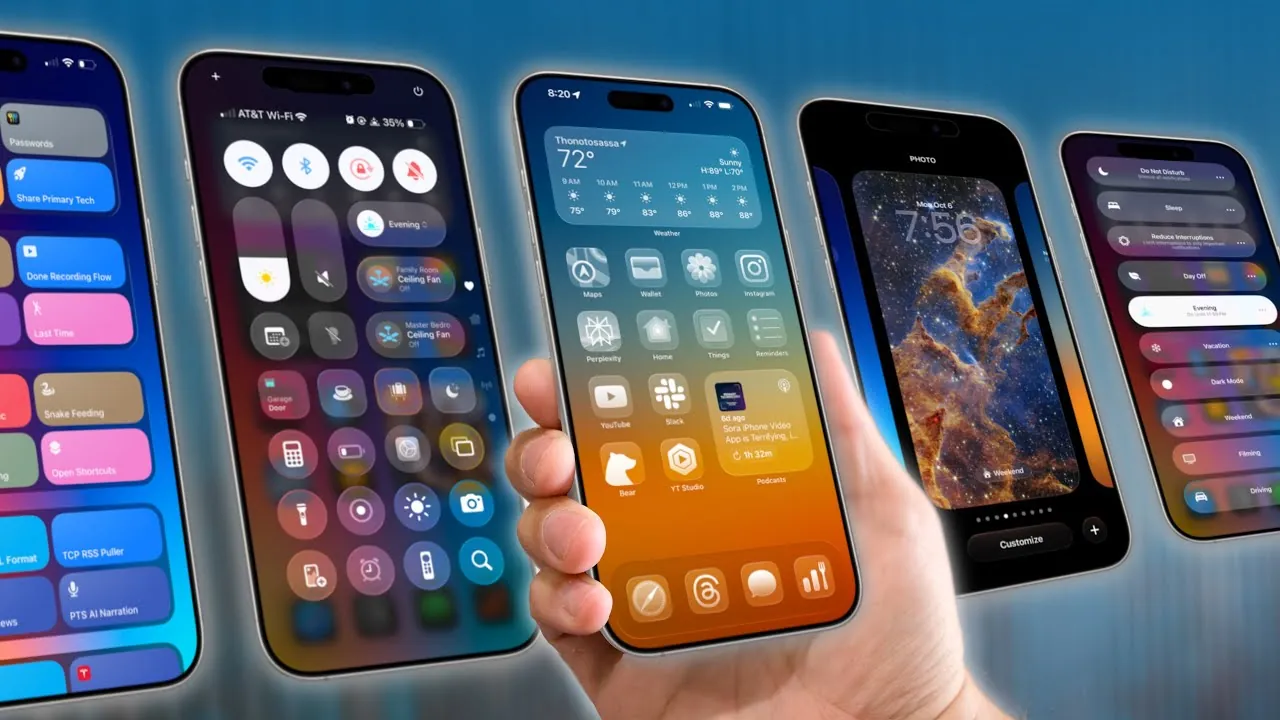
The iPhone 17 introduces a robust suite of customization features, allowing you to tailor your device to align with your unique lifestyle. Whether you’re managing a busy work schedule, pursuing personal projects, or simply enjoying leisure time, the iPhone 17 offers tools to enhance your productivity and personalization. By using features such as Focus Modes, widgets, shortcuts, and third-party apps, you can create a seamless and dynamic experience that adapts to your needs throughout the day. The video below from Stephen Robles shows us how to create the ultimate iPhone 17 Home Screen setup. Let’s find out how it is done.

Lock Screen: Your Gateway to Productivity
The lock screen is the first interaction you have with your iPhone, making it a critical space for personalization. The iPhone 17 allows you to pair multiple lock screens with specific Focus Modes, making sure that your device is always optimized for the task at hand.
- Widgets: Add widgets like Fantastical to display calendar events, time zones, and weather updates for quick access to essential information.
- Personalization: Use your favorite photos as a backdrop while maintaining a clean design to ensure notifications remain visible.
- Dynamic Lock Screens: Switch between lock screens tailored for work, personal tasks, or relaxation, depending on your schedule.
Home Screen: Streamline Your Daily Workflow
A thoughtfully organized home screen can significantly improve your daily efficiency. The iPhone 17 enables you to design a home screen layout that evolves with your routine, combining essential apps and widgets for easy access.
- Widget Stacks: Stack widgets for weather, calendar, and productivity apps like Things and Reminders to save space and reduce clutter.
- App Placement: Position frequently used apps, such as Safari, Messages, and Food Noms, for quick and intuitive access.
- Smart Home Integration: Add smart home controls to your home screen, allowing you to manage devices like lights and thermostats directly from your iPhone.
Focus Modes: Stay in the Zone
Focus Modes are a powerful feature designed to help you filter distractions and stay on task. The iPhone 17 enhances this functionality with deeper integration across apps and devices, making it easier to maintain focus throughout your day.
- Custom Focus Modes: Create tailored Focus Modes for work, evenings, weekends, or vacations to match your lifestyle and priorities.
- Notification Filtering: Limit notifications to only those that are relevant to your current activity, such as work emails or personal messages.
- App Integration: Sync Focus Modes with third-party apps like Fantastical and AnyList for a cohesive and streamlined experience.
Control Center: Quick Access, Your Way
The Control Center serves as your hub for quick settings and tools. With the iPhone 17, you can customize this interface to prioritize the features and shortcuts that matter most to you.
- Streamlined Connectivity: Focus on essential controls like Wi-Fi, Bluetooth, and Airplane Mode for easy access.
- Custom Shortcuts: Add shortcuts for smart home scenes, app-specific actions, and third-party tools like Call Sheet and Share Shot.
- Reorganized Layout: Rearrange the Control Center to ensure your most-used tools are always within reach.
Widgets and Shortcuts: Boost Efficiency
Widgets and shortcuts are essential for creating a dynamic and efficient iPhone setup. The iPhone 17 allows you to stack widgets and automate tasks, helping you save time and effort.
- Widget Stacks: Combine widgets for weather, podcasts, and smart home controls to maximize screen space and functionality.
- Custom Shortcuts: Automate tasks like video recording, sharing podcast episodes, or managing smart home devices with personalized shortcuts.
- Today View: Use the Today View to access frequently used widgets and shortcuts quickly and efficiently.
Third-Party Apps: Expand Your iPhone’s Capabilities
Third-party apps can significantly enhance your iPhone’s functionality, offering specialized tools for productivity, organization, and entertainment. The iPhone 17’s advanced capabilities make it an excellent platform for these apps.
- Fantastical: Manage your calendar and schedule with advanced features like event categorization and time zone tracking.
- Showcase: Keep track of movie releases and entertainment plans with this intuitive app.
- Bear: Take notes and link them to reminders for better organization and task management.
- AI Tools: Use apps like Perplexity and ChatGPT for internet searches, automation, and enhanced productivity.
Evening and Weekend Modes: Relax and Recharge
Customizing your iPhone for downtime is just as important as optimizing it for productivity. The iPhone 17’s evening and weekend modes allow you to unwind with tailored settings that promote relaxation.
- Dark Mode: Enable Dark Mode for a low-light interface that reduces eye strain and creates a calming atmosphere.
- Leisure Widgets: Set widgets for meal planning, family entertainment, or personal hobbies to enhance your downtime.
- Notification Filters: Minimize distractions by filtering notifications to focus on leisure activities and personal time.
Focus Mode Filters: Fine-Tune Your Experience
Focus Mode filters provide an additional layer of customization, allowing you to adjust your iPhone’s behavior based on your current needs. This feature ensures that your device adapts seamlessly to your lifestyle.
- Message and Email Filters: Prioritize messages, emails, and app content that are most relevant to your current activity.
- Automatic Adjustments: Enable settings like low power mode or silent mode automatically based on your active Focus Mode.
- Advanced Automation: Combine filters with shortcuts to create a highly efficient and personalized iPhone experience.
Check out more relevant guides from our extensive collection on iPhone 17 customization that you might find useful.
- How to customize your iPhone with iOS 17
- Top iPhone 17 & iPhone 17 Pro Customization Tips
- iPhone 17 Pro Features: Customization, Camera, and Smart Tech
- iPhone 17 Pro Customization and Usability Features
- How to Maximize Your iPhone 17 Pro Max: Top Features Explained
Source & Image Credit: Stephen Robles
Disclosure: Some of our articles include affiliate links. If you buy something through one of these links, Geeky Gadgets may earn an affiliate commission. Learn about our Disclosure Policy.
