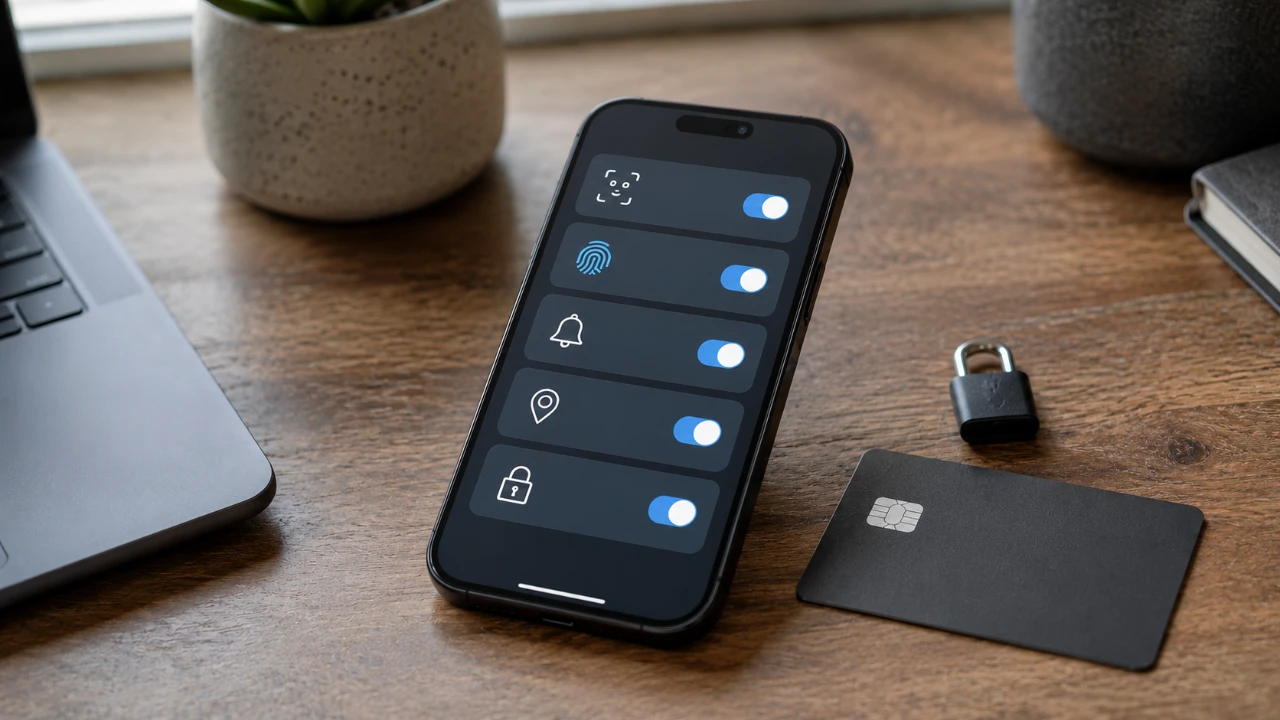
Securing your financial information on your iPhone is crucial in today’s digital age. Adjusting a few key settings before using your banking apps can significantly enhance your device’s security and protect your sensitive data from unauthorized access. By focusing on areas such as verification codes, notification privacy, and device lock features, you can create a safer environment for managing your finances. The video below from Trevor Nace shows us five essential settings you should update immediately to safeguard your banking experience.

1. Manage Verification Codes Effectively
Verification codes are a cornerstone of two-factor authentication, but improper handling can expose you to security risks. To ensure these codes remain secure:
- Enable automatic deletion: Configure your iPhone to automatically delete verification codes after they’ve been used. This prevents sensitive information from lingering in your messages, where it could be accessed by malicious actors.
- Disable text message forwarding: Turn off message forwarding to other devices linked to your Apple ID. This ensures that verification codes stay confined to your primary device, reducing the risk of interception.
These adjustments not only enhance your security but also streamline the management of sensitive information.
2. Protect Notification Privacy
Notifications can inadvertently expose private information, especially when your phone is locked. To prevent sensitive details from being visible to others:
- Hide notification content: Adjust your settings so that banking app notifications display only generic alerts, such as “You have a new message,” instead of revealing specific details like account balances or transaction summaries.
- Disable lock screen previews: Go a step further by disabling notification previews entirely on the lock screen. This ensures that no sensitive information is visible without unlocking your device.
By implementing these changes, you can keep your financial data private, even in public or shared spaces.
3. Strengthen Face ID and Passcode Security
Your iPhone’s Face ID and passcode features are powerful tools for securing your banking apps. To maximize their effectiveness:
- Enable Face ID for banking apps: Many banking apps support Face ID integration, allowing only you to access the app, even if someone else has physical access to your phone.
- Use a strong passcode: Replace simple passcodes like “123456” or “000000” with a six-digit or alphanumeric passcode. Stronger passcodes are significantly harder to guess, providing an additional layer of protection.
- Enable auto-lock: Set your device to lock automatically after a short period of inactivity. This minimizes the window of opportunity for unauthorized access.
These measures collectively make it much more difficult for anyone to access your financial data without your consent.
4. Disable Wallet and Lock Screen Features
Your iPhone’s wallet and lock screen features, such as Apple Pay, can be convenient but may also pose security risks if left accessible. To mitigate these risks:
- Turn off wallet access: Disable wallet and Apple Pay access from the lock screen. This prevents unauthorized transactions or viewing of sensitive information if your phone is lost or stolen.
- Restrict lock screen widgets: Remove any widgets or shortcuts on the lock screen that could provide access to personal or financial data.
By restricting these features, you ensure that your financial information remains secure, even if your device falls into the wrong hands.
5. Lock Down All Features When Your Device is Locked
For maximum security, it’s essential to disable access to all features while your phone is locked. This ensures that no apps, notifications, or functions can be used without unlocking the device. Key steps include:
- Restrict Siri access: Prevent Siri from performing actions or accessing sensitive data without unlocking your phone first. Siri can sometimes reveal private information, so limiting its functionality on the lock screen is a prudent choice.
- Disable USB accessories: In your settings, turn off USB accessory access when the device is locked. This prevents unauthorized devices from connecting to your iPhone and potentially extracting data.
Taking these precautions ensures that your iPhone remains secure, even in scenarios where it is physically compromised.
Enhance Your Banking Security Today
By configuring these five critical settings, you can significantly improve the security of your banking apps on your iPhone. Managing verification codes, protecting notification privacy, strengthening Face ID and passcodes, disabling wallet access and locking down features when your device is locked all contribute to a robust defense against potential threats. These proactive measures not only safeguard your financial information but also provide peace of mind as you navigate the digital banking landscape. Take the time to implement these changes today and enjoy a more secure banking experience.
Source & Image Credit: Trevor Nace
Disclosure: Some of our articles include affiliate links. If you buy something through one of these links, Geeky Gadgets may earn an affiliate commission. Learn about our Disclosure Policy.
