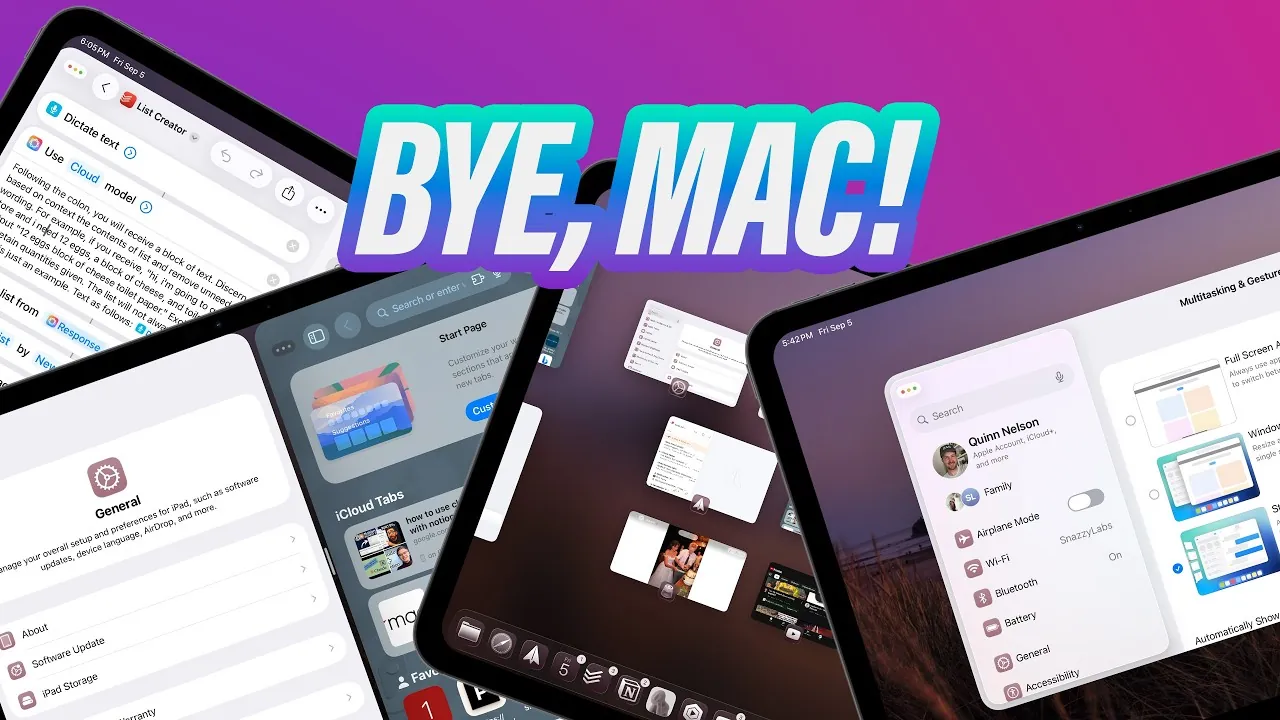
iPadOS 26 represents a pivotal step forward in transforming the iPad into a more versatile and capable productivity device. With its focus on enhanced multitasking and window management, this update introduces a range of features designed to streamline workflows and improve user efficiency. However, the depth of these changes can initially feel overwhelming. The awesome video below from Snazzy Labs breaks down the core features, explains how to use them effectively, and addresses potential challenges, equipping you with the knowledge to navigate iPadOS 26 confidently and maximize its potential.

Understanding the Three Multitasking Modes
At the core of iPadOS 26 are three distinct multitasking modes, each tailored to different types of workflows. Mastering these modes is essential for optimizing your productivity and adapting to the new system.
- Full-Screen Mode: This mode maintains the traditional iPad experience by focusing on one app at a time. While Split View and Slide Over are no longer available, you can now open multiple instances of the same app, making it ideal for single-tasking workflows that require deep focus.
- Windowed Apps Mode: Designed for users who need flexibility, this mode allows nearly unlimited resizable windows within a single workspace. Windows retain their size and position across sessions, creating a consistent and organized multitasking environment.
- Stage Manager: Enhanced significantly in iPadOS 26, Stage Manager now supports up to 12 windows. This mode is particularly useful for task-based workflows, as it enables you to pre-map stages for specific projects or activities, making sure quick access to the tools you need.
Each mode offers unique advantages, and understanding when to use them can help you tailor your iPad experience to suit your specific needs.
Key Features and Enhancements
iPadOS 26 introduces a variety of new features aimed at improving multitasking, enhancing usability, and streamlining workflows. These updates bring the iPad closer to a desktop-like experience while maintaining its portability and ease of use.
- Background Tasks API: Apps can now perform uninterrupted tasks in the background, allowing true multitasking. For instance, you can download large files, process data, or render media while actively working in another app.
- Advanced Window Management: The update introduces desktop-inspired functionality, including traffic light buttons for resizing and minimizing windows, vertical and horizontal splits for better multitasking, and persistent window positioning. Additionally, iPhone-only apps now run in smaller, floating windows for improved compatibility.
- Expanded Shortcuts and Automation: The Shortcuts app now supports more advanced workflows, allowing you to pre-map stages, automate app layouts, and integrate AI-driven actions for smarter task management.
- Files App Upgrades: Offline file access, default app assignments for specific file types, and customizable folder views are now available. You can also add frequently used folders to the dock for quicker access, further enhancing productivity.
These enhancements collectively make the iPad a more powerful tool for both personal and professional use, bridging the gap between mobile and desktop computing.
Mastering Gestures and Shortcuts
To fully harness the capabilities of iPadOS 26, it is essential to become proficient with its gestures and keyboard shortcuts. These tools are designed to streamline navigation and multitasking, allowing you to work more efficiently.
- Gestures: For example, a three-finger swipe allows you to undo or redo actions, while dragging with multiple fingers lets you move windows between stages. These intuitive gestures make it easier to manage your workspace on the go.
- Keyboard Shortcuts: Commands like Globe + Control + Arrow enable precise window snapping, while Command + Tab allows you to quickly switch between apps. Learning these shortcuts can significantly speed up your workflow.
While these features may take some time to master, investing effort into learning them will pay off by making your iPad experience more seamless and efficient.
Challenges and Limitations
Despite its many advancements, iPadOS 26 is not without its challenges. Understanding these limitations can help you set realistic expectations and adapt your workflow accordingly.
- Window Management Complexity: Managing multiple windows or moving them between stages can feel unintuitive at times. Resizing and snapping windows lack the precision and fluidity found in macOS, which may frustrate users accustomed to desktop systems.
- Learning Curve: The new gestures and shortcuts, while powerful, require time and practice to master. Users unfamiliar with these tools may initially find the system cumbersome.
- Workflow Constraints: Certain tasks, such as software development, advanced video editing, or other resource-intensive activities, remain better suited for a traditional desktop or laptop environment.
While iPadOS 26 significantly enhances the iPad’s capabilities, it is important to recognize that it may not fully replace a Mac for specialized workflows.
Tips for Maximizing Productivity
To make the most of iPadOS 26, consider implementing these practical strategies into your daily workflow:
- Use the dock as your primary launcher to reduce reliance on the home screen and streamline app switching.
- Pre-map workspaces using the Shortcuts app to create consistent app layouts tailored to specific tasks or projects.
- Switch between multitasking modes based on your activity. For example, use Full-Screen Mode for focused work, Windowed Apps Mode for flexibility, and Stage Manager for project-based tasks.
- Recognize the iPad’s limitations and switch to a Mac or remote desktop setup when necessary for more complex or resource-intensive workflows.
By adopting these strategies, you can enhance your productivity and take full advantage of the new features in iPadOS 26.
Explore further guides and articles from our vast library that you may find relevant to your interests in iPadOS 26.
- iPadOS 26 Features: Multitasking, AI, and Design Upgrades
- iPadOS & iOS 26: Top Shortcuts to Boost Productivity
- iPadOS 26: Improvements, Limitations, and What’s Next
- iPadOS 26 Features: Compatibility and Limitations Explained
- iPadOS 26: Is Beta 8 the Final Stop Before the RC?
Source & Image Credit: Snazzy Labs
Disclosure: Some of our articles include affiliate links. If you buy something through one of these links, Geeky Gadgets may earn an affiliate commission. Learn about our Disclosure Policy.
