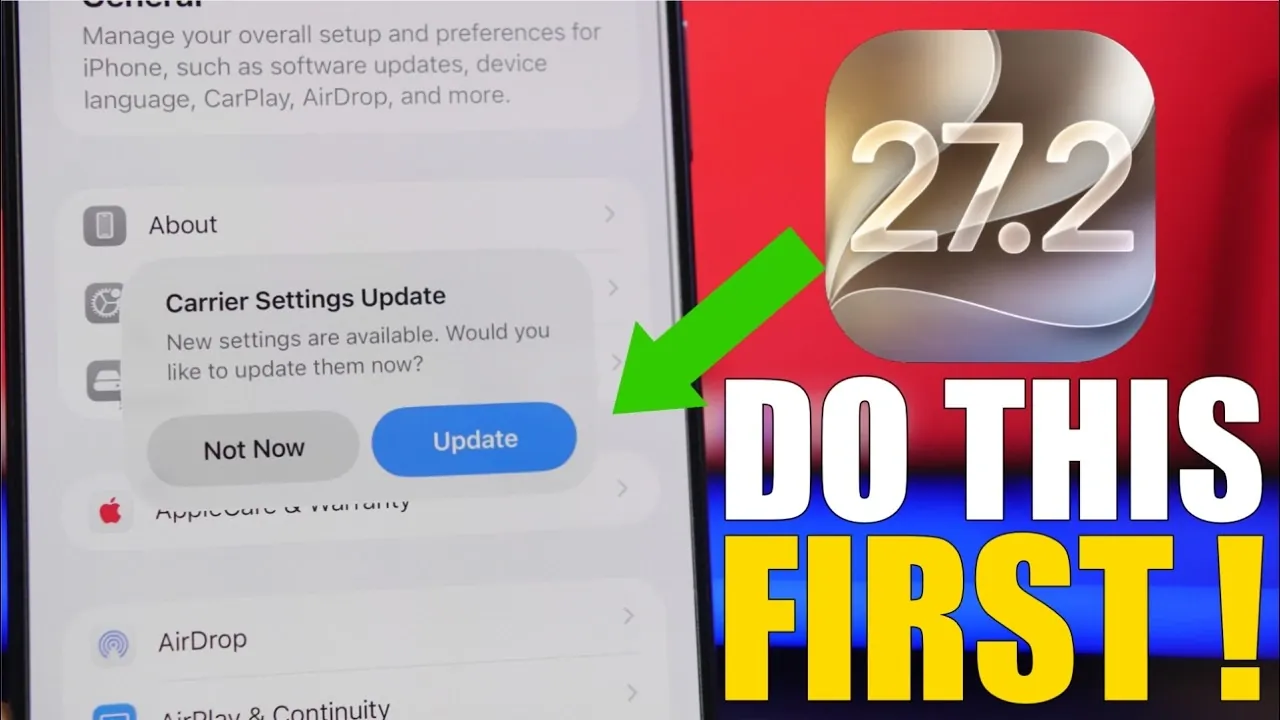
The iOS 27.2 update brings a host of new features, performance upgrades, and critical security enhancements. To ensure your iPhone or iPad operates efficiently and securely, it’s essential to take several proactive steps after installing the update. From updating your apps to fine-tuning privacy settings, these measures will help you fully use the benefits of iOS 27.2 while maintaining peak performance and security. The video below from iReviews gives us more details.

Update Your Apps for Compatibility
After installing iOS 27.2, one of the first tasks is making sure all your apps are compatible with the updated operating system. Developers frequently release updates to address compatibility issues, improve performance and introduce new features. To update your apps:
- Open the App Store and navigate to the “Updates” section.
- Install any pending updates to ensure smooth functionality.
To streamline this process in the future, enable automatic app updates by going to Settings > App Store > Automatic Downloads. This feature ensures your apps remain up to date, minimizing the risk of crashes or performance issues caused by outdated software.
Check for Carrier Updates
Carrier updates are essential for maintaining optimal network performance, including improved call quality, faster data speeds and better connectivity. These updates often coincide with major iOS releases. To check for carrier updates:
- Go to Settings > General > About.
- If an update is available, a prompt will appear to install it.
Keeping your carrier settings updated ensures your device communicates effectively with your network provider, delivering a seamless experience for calls, texts and data usage.
Enable Automatic iOS Updates
To simplify future updates and ensure your device remains protected with the latest security patches and features, enable automatic iOS updates. This setting allows your device to download and install updates as soon as they become available. To activate this feature:
- Go to Settings > General > Software Update > Automatic Updates.
- Toggle on both “Download iOS Updates” and “Install iOS Updates.”
If you’re enrolled in Apple’s beta program, consider whether you want to continue receiving beta versions or switch to stable releases for a more reliable experience.
Review Privacy and Security Settings
iOS 27.2 introduces enhanced privacy and security features, but you’ll need to review and adjust your settings to maximize these benefits. Start by allowing “Background Security Improvements,” which automatically applies critical security updates in the background. Next, review permissions for sensitive features such as location services, Bluetooth, camera and microphone:
- Go to Settings > Privacy & Security.
- Adjust permissions to ensure apps only access these features when necessary or while in use.
By taking these steps, you can safeguard your personal data and minimize unnecessary access by apps, enhancing your overall security.
Check Your Battery Health
After updating to iOS 27.2, it’s a good idea to assess your battery’s health, as updates can sometimes reveal its true capacity. To check your battery health:
- Go to Settings > Battery > Battery Health & Charging.
- Review the “Maximum Capacity” percentage to evaluate your battery’s condition.
If your battery’s capacity has dropped below 80%, consider replacing it to maintain optimal performance. A healthy battery ensures your device operates efficiently and avoids unexpected shutdowns, especially during intensive tasks.
Explore New Features in iOS 27.2
The iOS 27.2 update introduces several new features designed to enhance your user experience. Notable additions include:
- Liquid Glass Appearance: This feature allows you to customize the transparency of your device’s display, offering a more personalized and visually appealing interface. Adjust this setting under Settings > Display & Brightness.
- Siri Excluded Apps: Manage which apps appear in Siri suggestions with greater ease. Access this feature under Settings > Siri & Search to tailor Siri’s functionality to your preferences.
Exploring these features enables you to personalize your device and take full advantage of the update’s enhancements.
Review System Settings and Permissions
System updates can sometimes reset or alter configurations, making it important to review your settings and permissions after installing iOS 27.2. Take the time to:
- Check permissions for newly installed or updated apps to prevent unintended access to sensitive features like your camera or microphone.
- Ensure system settings align with your preferences, such as notification preferences, accessibility options and display configurations.
Regularly reviewing these settings helps you maintain control over your device and ensures a secure, personalized experience tailored to your needs.
Maximize the Benefits of iOS 27.2
The iOS 27.2 update offers a wealth of improvements, but optimizing your device requires a proactive approach. By updating your apps, allowing automatic updates, reviewing privacy and security settings and exploring new features, you can unlock the full potential of this update. These steps not only enhance your device’s performance and security but also ensure a seamless and enjoyable user experience tailored to your preferences.
Advance your skills in iOS 27.2 by reading more of our detailed content.
- What’s Coming Next? Inside the New Tweaks Hitting iOS 27.2 Beta 3
- Apple Just Released iOS 27.2 Beta 3: All the New Changes
- The Best Features Coming to Your iPhone in iOS 27.2
- iOS 27.2 Beta 3 Is Here: What’s New, Changed, and Fixed
- Inside iOS 27.2 Beta 4: Surprising UI Tweaks and Last-Minute Changes
- New Features You Didn’t Know Were Coming in iOS 27.2
Source & Image Credit: iReviews
Disclosure: Some of our articles include affiliate links. If you buy something through one of these links, Geeky Gadgets may earn an affiliate commission. Learn about our Disclosure Policy.
