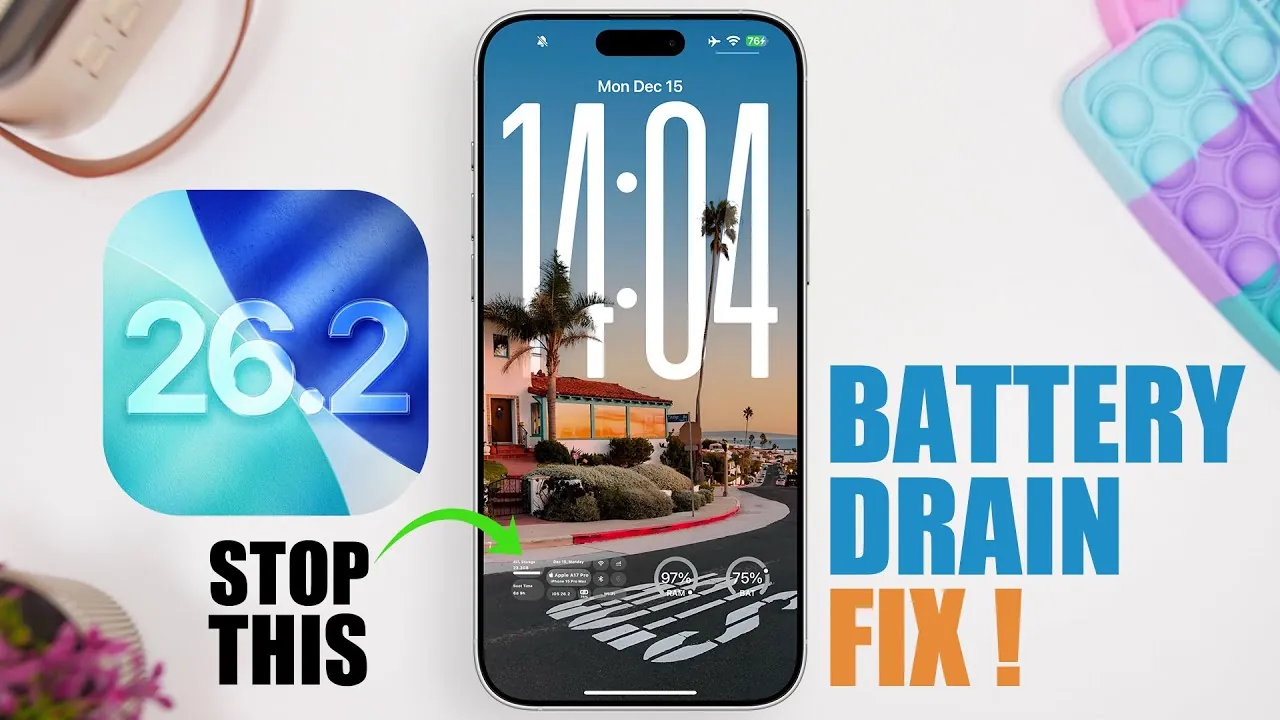
If your iPhone’s battery life has noticeably declined after updating to iOS 26.2, you’re not alone. Many users report increased battery drain following software updates, often due to new features, background processes, or outdated settings. Fortunately, there are several practical steps you can take to optimize your device and extend its battery life. The video below from iReviews provides actionable solutions to help you address battery drain issues effectively and maintain a more reliable user experience
Update to the Latest iOS Version
Making sure your iPhone is running the latest version of iOS 26.2 is a critical first step. Apple frequently releases minor updates to address bugs, enhance performance, and improve battery efficiency. Using an outdated version may leave your device vulnerable to inefficiencies that unnecessarily drain power. To check for updates, navigate to Settings > General > Software Update and install any available updates. Keeping your software current ensures your device benefits from the latest optimizations.
Optimize Device Settings to Conserve Battery
Adjusting specific settings on your iPhone can significantly reduce battery consumption. Below are some key adjustments to consider:
- Haptic Feedback: While haptic feedback enhances the tactile experience, it can consume substantial battery power. To reduce its impact, go to Settings > Sounds & Haptics and either lower the intensity or disable it for non-essential interactions.
- Camera Access on the Lock Screen: The swipe-to-open camera feature on the lock screen is convenient but can lead to accidental activations, draining your battery. Disable this feature by going to Settings > Face ID & Passcode and toggling off camera access from the lock screen.
- Dynamic Wallpapers: 3D spatial wallpapers may look appealing but require extra processing power. Switching to a static wallpaper can help conserve energy. To make this change, visit Settings > Wallpaper and select a still image instead of a dynamic one.
These small adjustments can collectively make a noticeable difference in your device’s battery performance.
Use iOS 26.2 Features for Better Battery Management
iOS 26.2 introduces features designed to help users manage battery consumption more effectively. Using these tools can extend your device’s battery life:
- Adaptive Power Mode: This feature automatically adjusts settings such as screen brightness and background processes based on your activity. To enable it, go to Settings > Battery > Adaptive Power Mode. This hands-free solution is particularly useful for maintaining battery efficiency throughout the day.
- Low Power Mode: When your battery is running low, Low Power Mode reduces performance, disables background activities, and limits visual effects to conserve energy. Activate it via Settings > Battery or the Control Center for immediate results.
These built-in tools are designed to simplify battery management and ensure your device operates efficiently.
Manage Apps and Background Activity
Apps and background processes can be significant contributors to battery drain. Taking control of these elements can help you conserve power:
- Update Apps: Outdated apps may not be optimized for iOS 26.2, leading to higher battery consumption. Regularly updating your apps ensures compatibility with the latest iOS version. Open the App Store, tap your profile icon, and update all pending apps.
- Monitor Battery Usage: iOS provides a detailed breakdown of battery usage by app. To access this data, go to Settings > Battery and review the statistics. Identify apps that consume excessive power and consider uninstalling them or limiting their background activity.
- Disable Apple Intelligence Features: Features like Siri Suggestions and proactive app recommendations run continuously in the background, consuming battery power. If you don’t rely on these features, disable them by navigating to Settings > Siri & Search and toggling off unnecessary suggestions and recommendations.
By managing apps and background activity, you can prevent unnecessary battery drain and improve overall efficiency.
Additional Tips for Extending Battery Life
Beyond the core adjustments, there are additional steps you can take to maximize your iPhone’s battery life:
- Limit Widgets: Widgets that require constant updates, such as news or stock widgets, can drain your battery. To reduce their impact, limit the number of active widgets or choose static ones. Manage widgets by swiping right on your home screen, scrolling to the bottom, and tapping Edit to remove or rearrange them.
- Turn Off Siri’s Always Listening Feature: The “Always Listen” feature for Siri allows voice activation at any time but requires continuous background activity. To disable this feature, go to Settings > Siri & Search and toggle off Listen for “Hey Siri”. You can still activate Siri manually when needed, conserving battery power.
Implementing these additional tips can further enhance your device’s battery performance, making sure it lasts longer throughout the day.
Take Control of Your iPhone’s Battery Life
Addressing battery drain on iOS 26.2 involves a combination of software updates, feature adjustments, and proactive management of apps and settings. By updating your iPhone to the latest software, allowing features like Adaptive Power Mode, and disabling non-essential functions such as haptic feedback and Siri’s background listening, you can significantly improve battery efficiency. Regularly monitoring app usage, switching to static wallpapers, and limiting widgets are simple yet effective ways to conserve energy. These steps empower you to take control of your iPhone’s battery life, making sure a more reliable and long-lasting user experience.
Here are more guides from our previous articles and guides related to iOS 26.2 battery optimization that you may find helpful.
- iOS 26.2 Release Date, Features, and Battery Life
- Preparing for iOS 26.2: Tips to Ensure a Smooth iPhone Update
- How to Prepare Your iPhone for the iOS 26.2 Update
- OS 26.2 Beta 2 Review: Performance, Battery, and Design Updates
- iOS 26.2 vs. iOS 26.1: Key Features Compared
Source & Image Credit: iReviews
Disclosure: Some of our articles include affiliate links. If you buy something through one of these links, Geeky Gadgets may earn an affiliate commission. Learn about our Disclosure Policy.
